Watchlists are the shortlists everything else feeds — scans, heat maps, research. This guide covers building lists, moving around them, shaping their views, and keeping them tidy.
You can read straight through, or use the contents list to jump to what you need. Every section below is also a standalone article — the “Open as article” link under each one takes you to it on its own page, if you want to bookmark or share just that piece.
Building lists
Create Watchlists
The Market & Watch Tab Icon ToolBar allows you to Create/Modify/Manage your Lists.
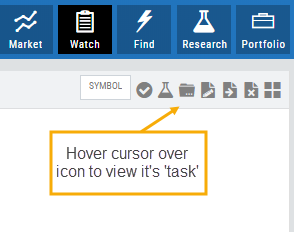
Hover your cursor over the icon to view its ‘task’:
Select Candidates
Send to Research
Create/Delete a List
Modify an existing List
Send candidates from one List to another
Remove candidates from existing List
Change View: List or Tile
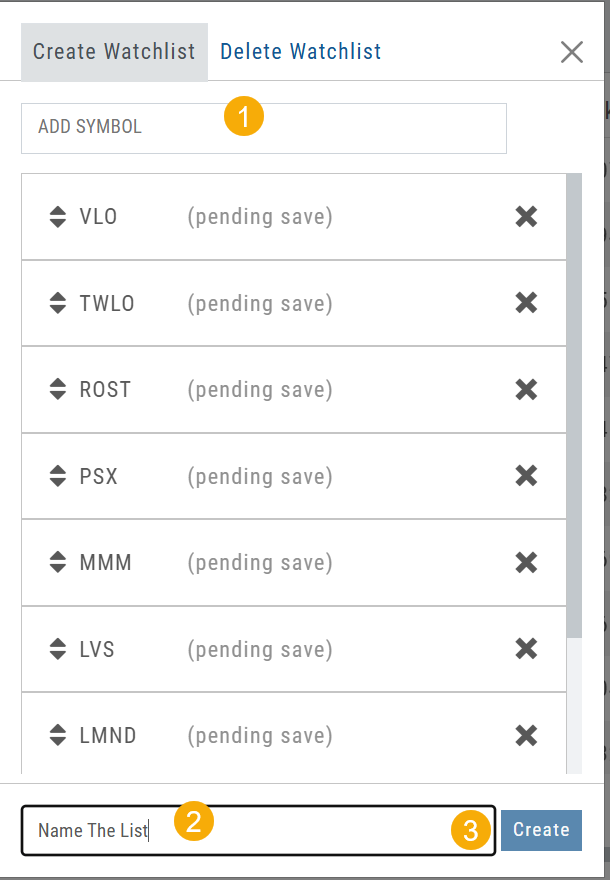
To Create a New Watchlist:
1. Under ‘Create Watchlist’, enter symbols to automatically add
2. Enter the name of New Watchlist
3. Click “Create”
Other ways to Create Lists include:
Research>Chart>”Recents” list.
From the Find Tab>Scans and Find Tab>Calendar.
Find>Streamer, each by using the icons from the icon toolbar located on the top right of the screen.
Selecting candidates from Scans (Ex: Bullish Ascending Triangle ) or Calendar for an Earnings or Dividend date to get the list of stocks that fit your selected criteria, click the “Check” icon to the stock symbols you want to keep, then click the Folder + icon to name your new Watch List then click “OK”.
You can also copy/paste up to 100 symbols from an outside source to a newly created (or existing list) provided the following apply:
The symbols are separated by:
A Space: TSLA ZM GOOG NFLX
Or by a Comma: TSLA,ZM,GOOG,NFLX
Or a Return:
TSLA
ZM
GOOG
NFLX
Create Watchlists from Spectrum View
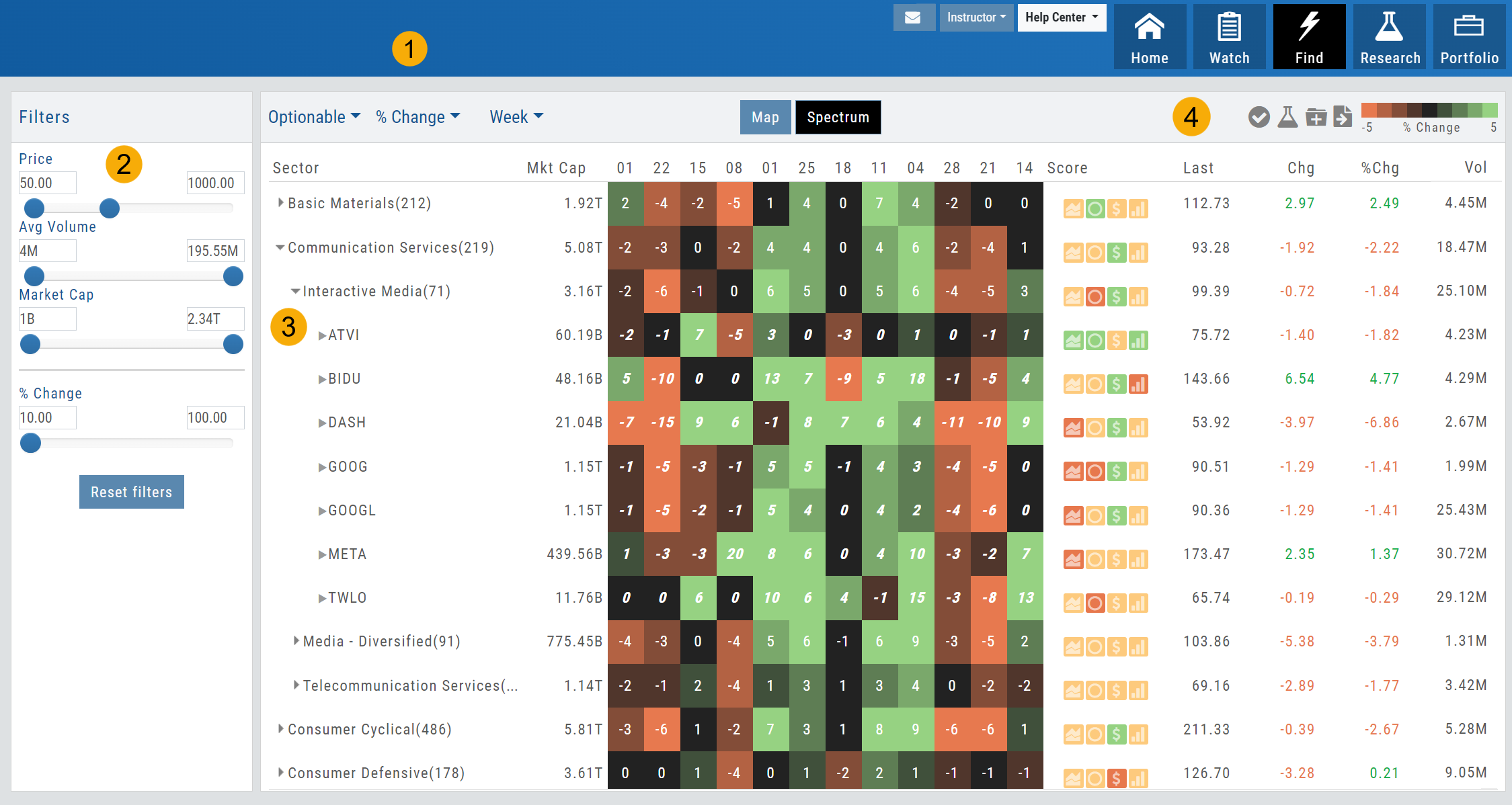
Spectrum View can be used to create or add Watchlists
1. Select the Group, Operator and Time Period
Example: Optionable, % Change, 1 Week
2. Apply Filter for Price, Volume, Market Cap and the Selected Operator
3. Click the Arrow next to the Sector to expand to Industry, repeat to display list of stocks that fits the filtered criteria.
4. Use the Icon Toolbar to multi/select symbols to either send to an existing Watchlist or Create a New List.
Use the same filters on the HeatMap View to customize your search.
The box size denotes the Market Cap size.
Click on the individual box to view:
Market Activity
Earning/Dividend info,
View Chart Periods
Buy/Sell stock
Send to Research
Add to an Existing Watchlist.
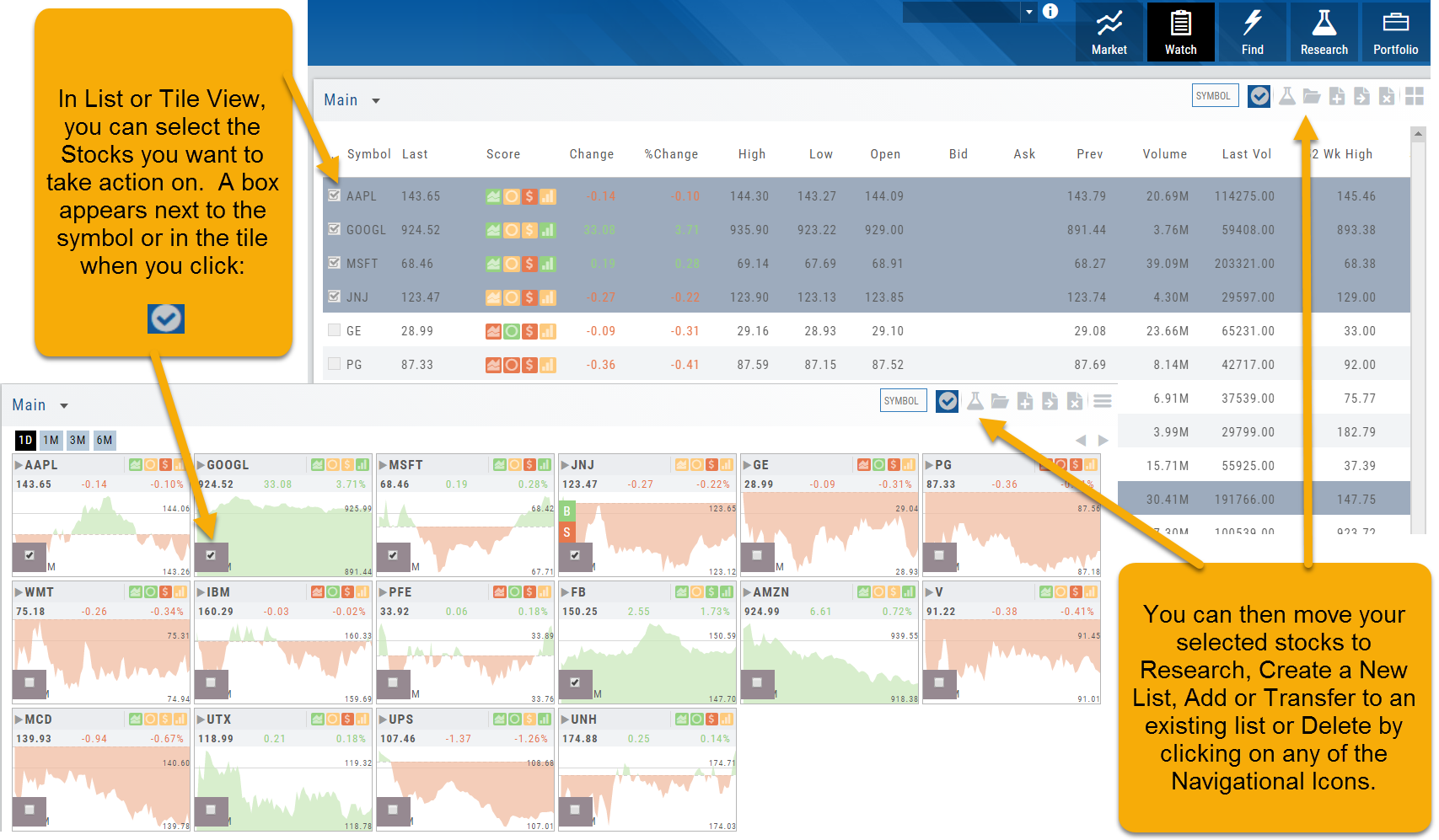
Multi-Select Stocks
Multi-select lets you choose a group of stocks. Once selected you can go to research, send to another list, create a new one, or delete from the list. This feature is also available in “Tile View”
You can also multi select using click/drag or control click in the List View.
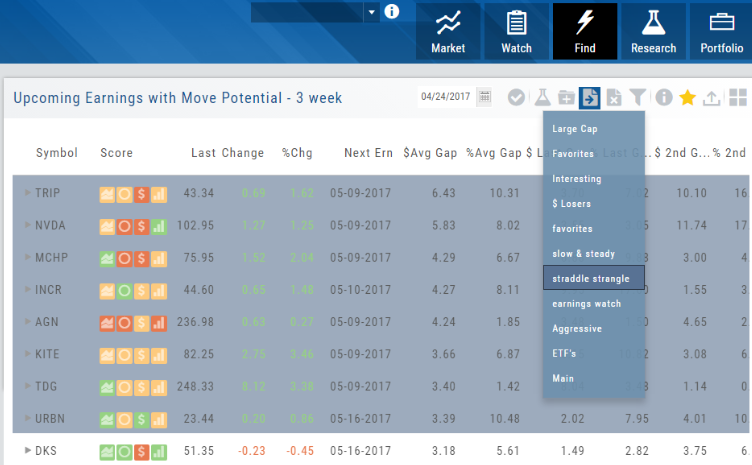
Sending from One “List” to Another
You can send symbols from any list, including Find, Explore, Actives, to your Watch lists — including from one watch list to another.
Simply (1) click the “Check” icon, (2) select the symbol(s), (3) click the “Page/Arrow” icon and select the List you want the selections sent to.
You can also ‘Click & Drag’ – highlighting a group of symbols you want moved to another list, or to the Research Tab.
Note: Research can handle up to 20 stock symbols at a time.
Getting around your lists
Watch – The Next Step
The Outlook.
You’ve checked the overall markets, found some stocks with matching outlook. Now to keep track of them. This platform allows you to create customized Watchlists – always with the ability to manage them by adding to, transferring between, or deleting from any list.
View them by a List or Tile View. Both options give you navigational tools to further research such as action arrows and The Score icons.
Tile View offers 1 Day, 1 Month, 3 Month and 6 Month periodicities.
List View allows you to sort stocks by symbol, most recent price, Change, % Change, etc.
Both Tile and List View a ‘bird’s eye view’ of the stock, can be moved to the Research Tab, added, transferred or deleted from a Watchlist.
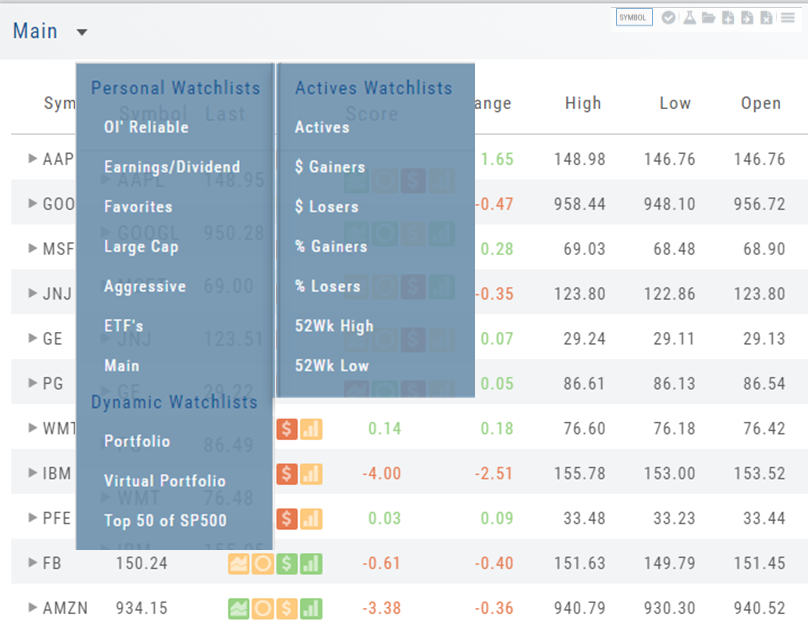
“Personal Watchlists” – create your own lists tailored to your strategies and current market conditions.
Default lists such as “Large Cap”, “Main” and “ETFs” are already included.
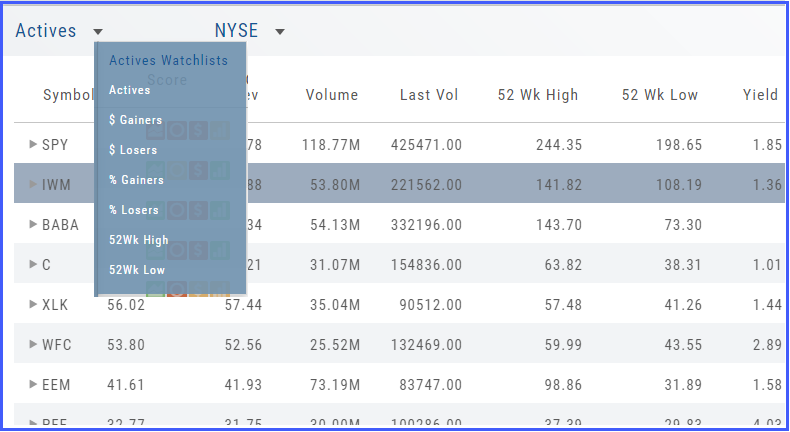
“Active Watchlists“- lists stocks most active, gainers/losers and those at their 52 week high/low.
“Dynamic Watchlists“- are system generated and maintained lists.
“Virtual Watchlists” – automatically populates with the stocks trading in your virtual account.
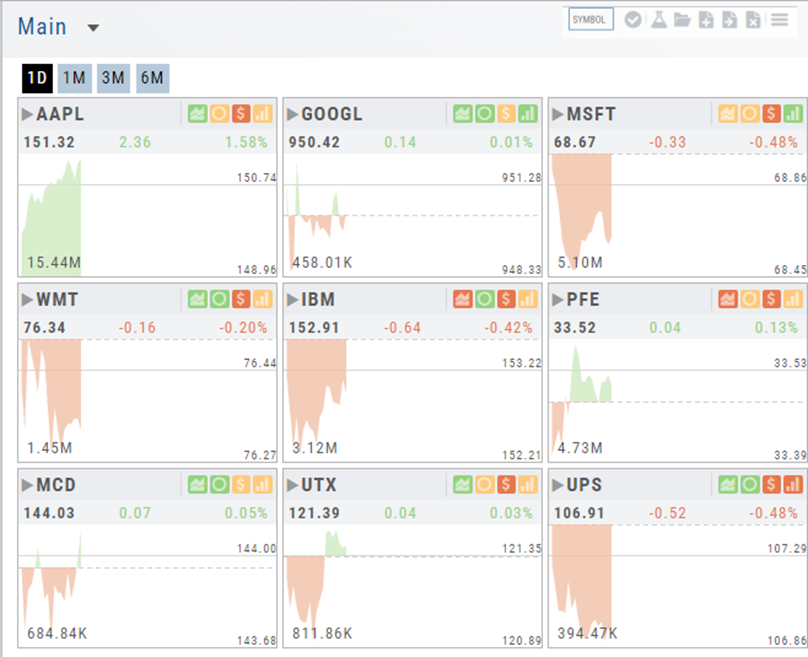
List or Tile View
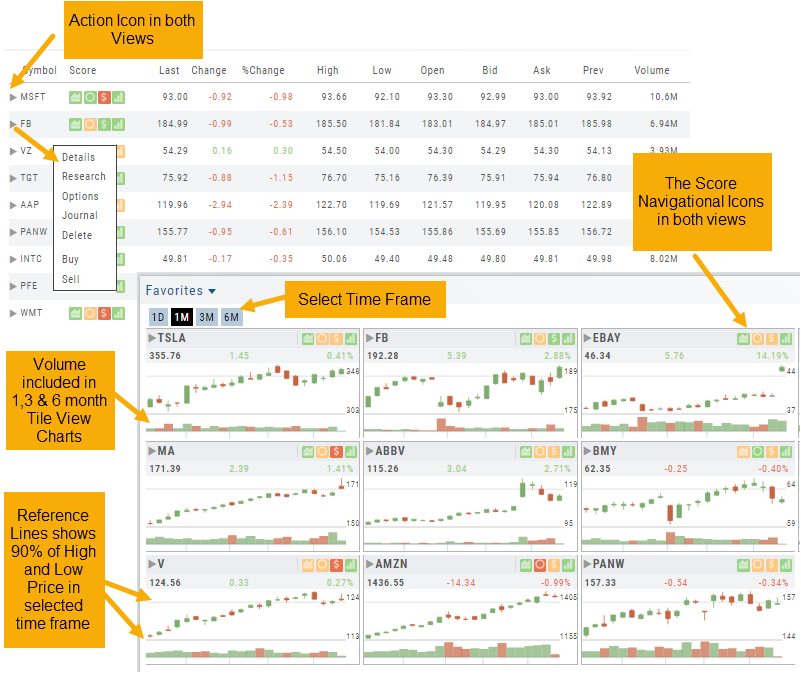
View any list in traditional List View or Tile View —both show The Score.
Tile View shows thumbnail charts of the entire list. These can be viewed in a variety of periodicities. Volume is included in the 1, 3 & 6 month views to assist with quick analysis. Horizontal Reference Lines show where the Low Price and 90% of the High Price points the stock had for the selected time period.
The Score icons are also navigation shortcuts which will take you directly to Charts, Inner Circle, Valuation or Fundamentals.
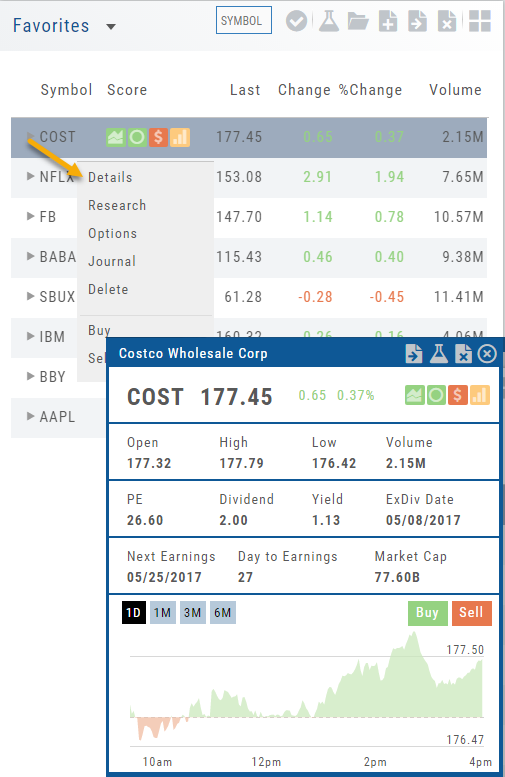
Clicking on the Action Icon  next to the Stock symbol in either the List or Tile View will bring up a menu offering additional choices for that Stock.
Tile View Sizes
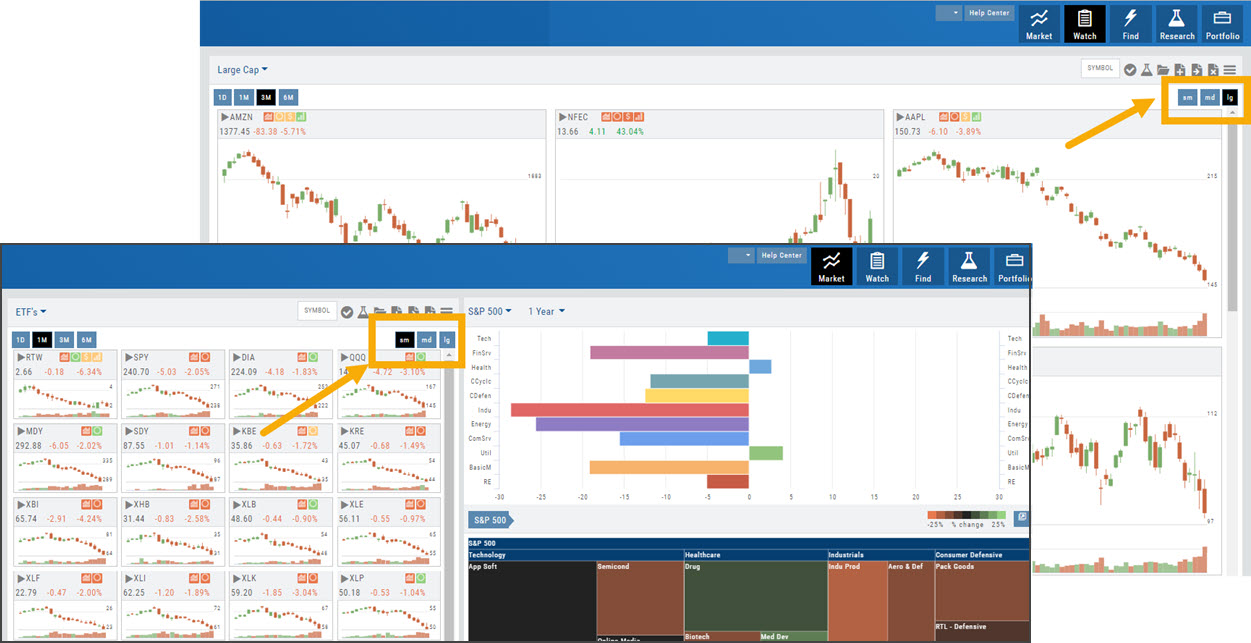
Tile View is available in 3 sizes on the Market or Watch Tabs.
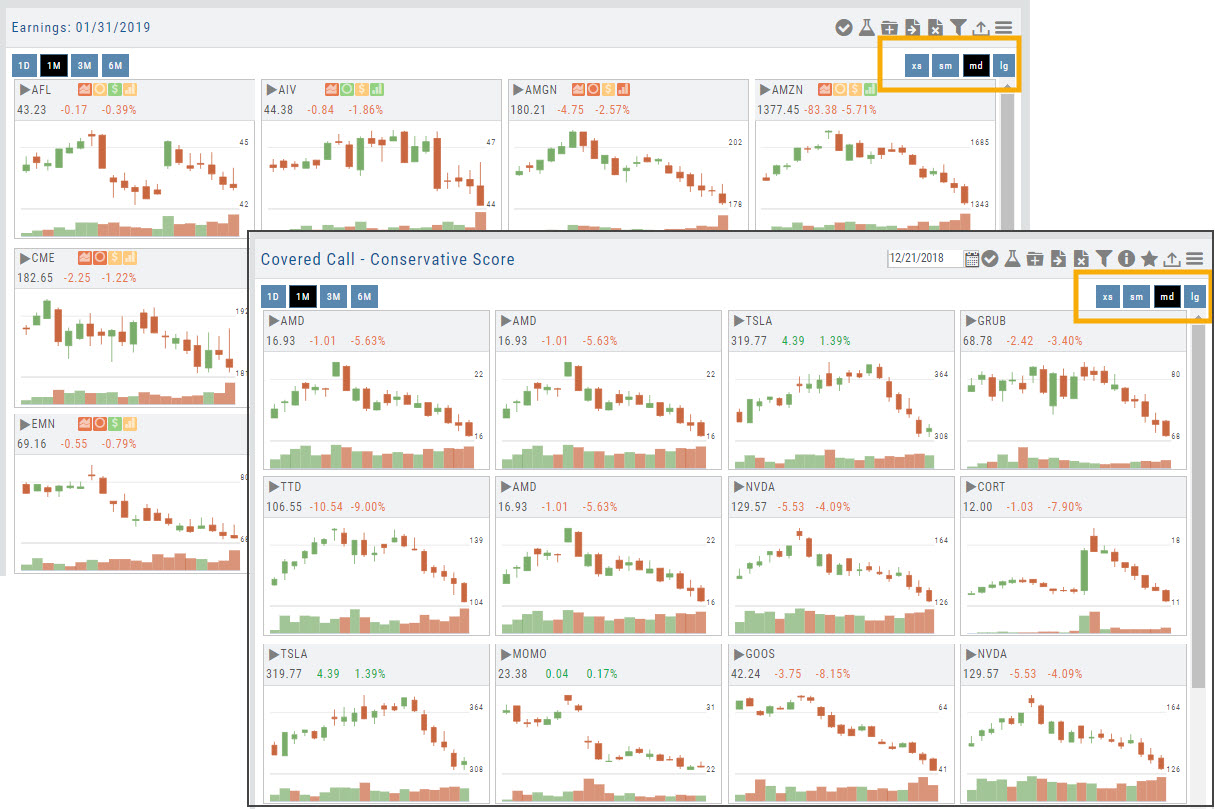
Scans and Earnings/Dividends Calendar under the Find tab offer 4 Tile View sizes: Extra Small to Large.
The platform’s adaptive and responsive technology will automatically adjust the number of tiles shown based upon the available space as well as allow continual scrolling for large lists.
Quote Detail without leaving the List
A quick snapshot of a stock with navigational tools.
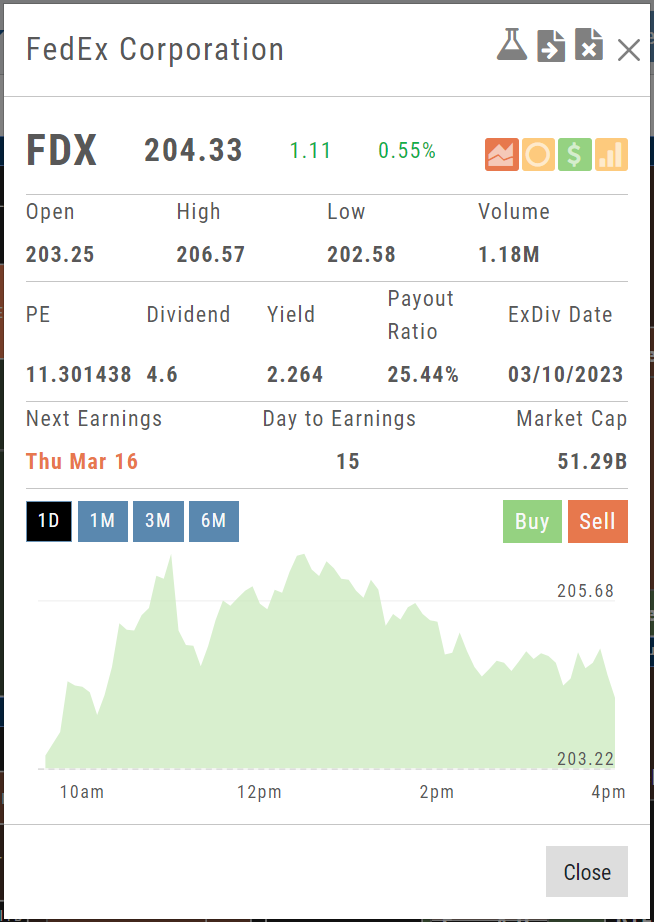
The Action Arrow Icon will provide a pop-up Quote Detail window including the current price, trading volume, Dividend Date -if applicable, Earnings Date and more. A chart, on the bottom part of the Detail Box, allows for different periodicities: 1 Day, 1,3 or 6 Months.
Notice the additional icons in the Quote Detail: You can send this stock to one of your Watch Lists, to Research or delete the stock if you wish. The Score Icons will direct you to the appropriate Research function. Buy/Sell buttons allow for quick order placing.
Shaping the view
Customize Watchlist Views
Choose and customize the data columns a list shows.
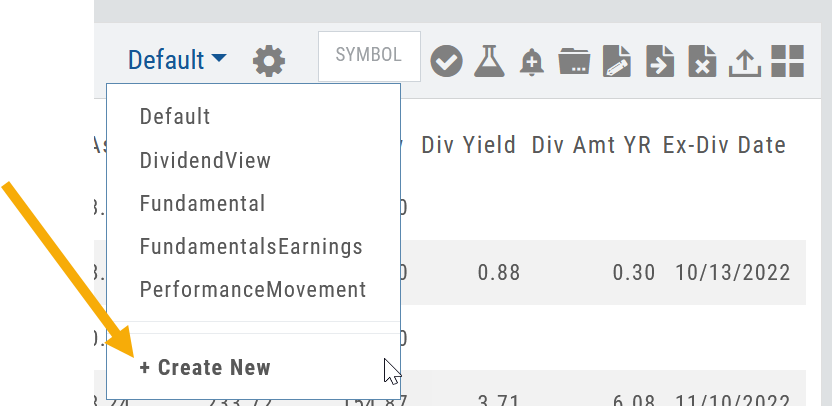
Click on the  next to “Default” or current view you are on to create a different View.
If/When you want to edit any of your personal views, simply click the  icon, remove/add criteria, adjust placement, then click “Save”.
From Assets to Z-Score, there are over 160 data points to select from including data from: Company Information, Technicals, Valuation, Fundamentals & Options.
Simply:
1. Name the View
2. Select Data Points
3. Arrange – clicking on arrows to move up/down
4. Save
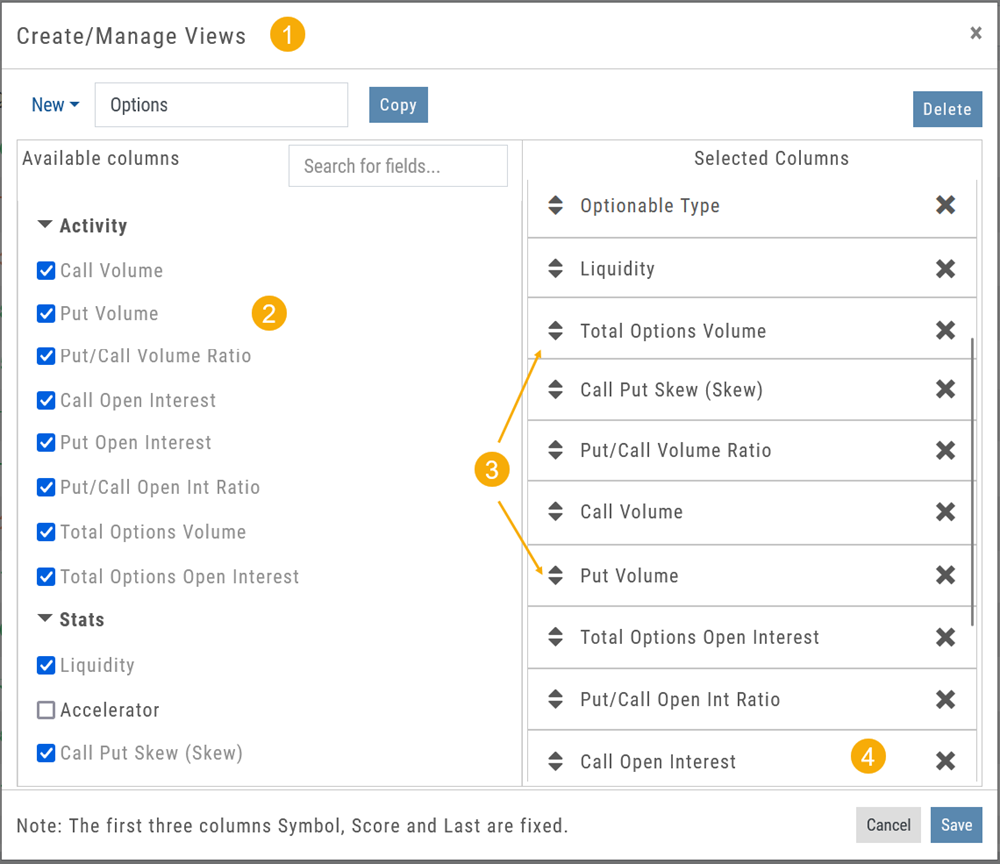
Your Watchlists are now more powerful because they show the data you want to see to help you make your trade decisions.
The Result:

Note: The Symbol, Score Icons and Last Price are fixed
Research Watchlist Functionality
Users are able to access all Watchlists from the Research Tab.
Click the to access the dropdown list as shown in the graphic.
Lists with more than 20 symbols will have a scroll bar allowing for easier research of larger lists.
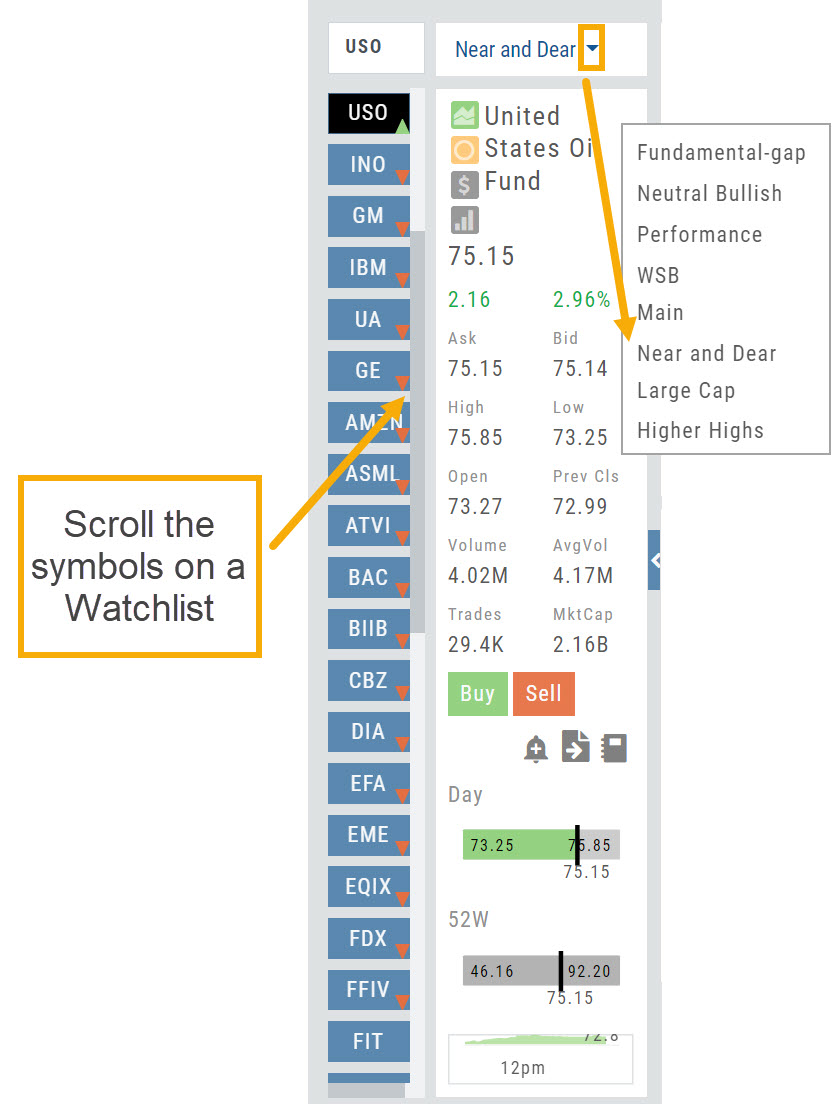
All other functionality remains the same: Symbols can be moved to other lists, have alerts set, deleted, add Journal notes
When a symbol is entered in the Symbol Search Box on the Research Tab, the symbol will automatically be displayed on the default “Recents” list.
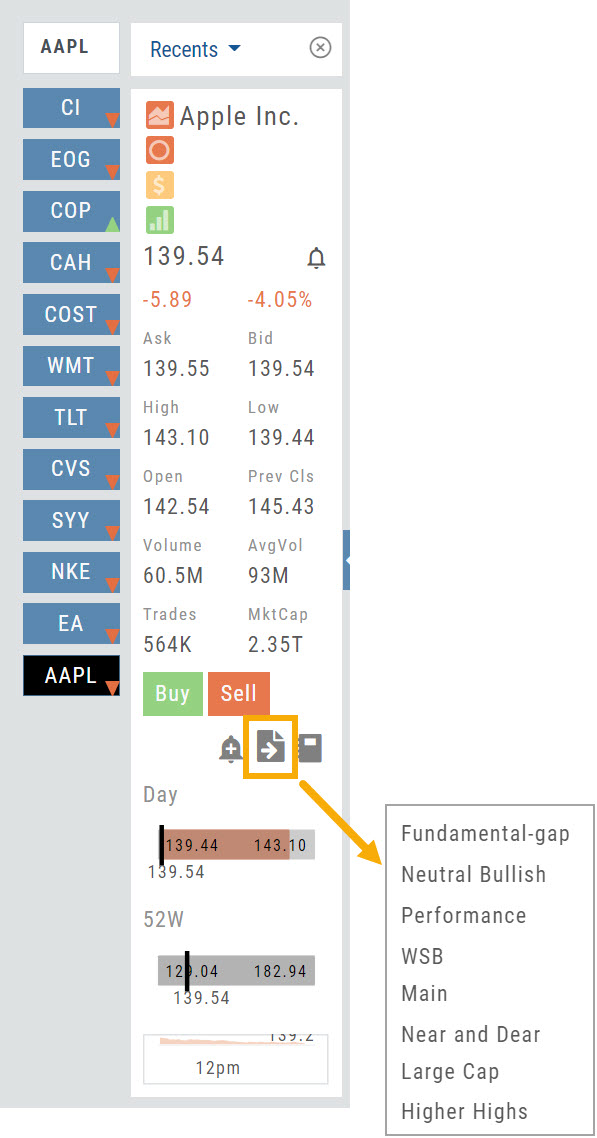
In addition, when a symbol or group of symbols is sent to Research from anywhere else on the platform, it will appear on a list under the default “Recents” list.
Examples of when the “Recents” list will be displayed:
- Sending a symbol/symbols from a list on a Watch Tab.
- Selecting a group of symbols from a Scan or Screener list.
- Clicking on the Technical Icon from any symbol when not in the Research Tab. will be displayed under “Recents”.
The functionality of adding a note, an alert or sending a symbol to a specific list remains the same.
Green and Red Arrows have been added to each symbol tab when in Research.
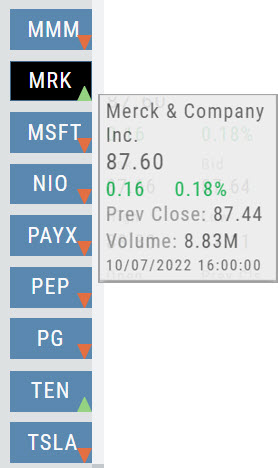
This applies to any selected Watchlist or the default “Recents” list.
Each time one symbol is clicked, the entire list will update the latest price update.
Managing lists
Manage/Modify Watchlists
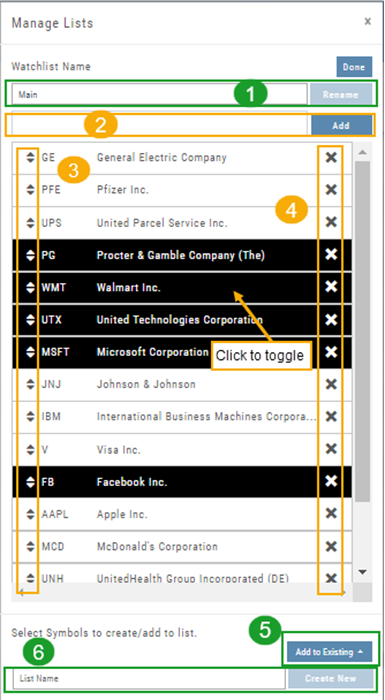
The Modify feature offers the following Symbol and List Management capabilities in one location:
- Rename the current Watchlist
- Add Symbols to the current Watchlist
- Use up/down arrows to drag/rearrange symbols in selected List
- Remove symbol(s) by clicking on ‘X’
- Highlight symbol(s) to add to another Existing Watchlist
- Highlight symbol(s) to Create a New Watchlist
Bonus! You can keep your Watchlist sorted by any heading using this feature: Select your Watchlist
Sort by any Heading (Example: Price – High to Low)
Click on the Manage Icon, then click “Done” at the top of the screen
This setting will be ‘sticky’ until you change it.
The Other Lists
In addition to your Personal and Dynamic Watch lists, the platform also provides “Actives Watch lists” from which you can add results to a new or existing Watch list.
If you want to eliminate low price, low volume stocks, click on the appropriate header to sort, then you can either click/drag to highlight the ones you want to delete – or – click the Check icon from the navigational icons to select the ones to delete – or to send to Research or another Watch List.