
The Journal
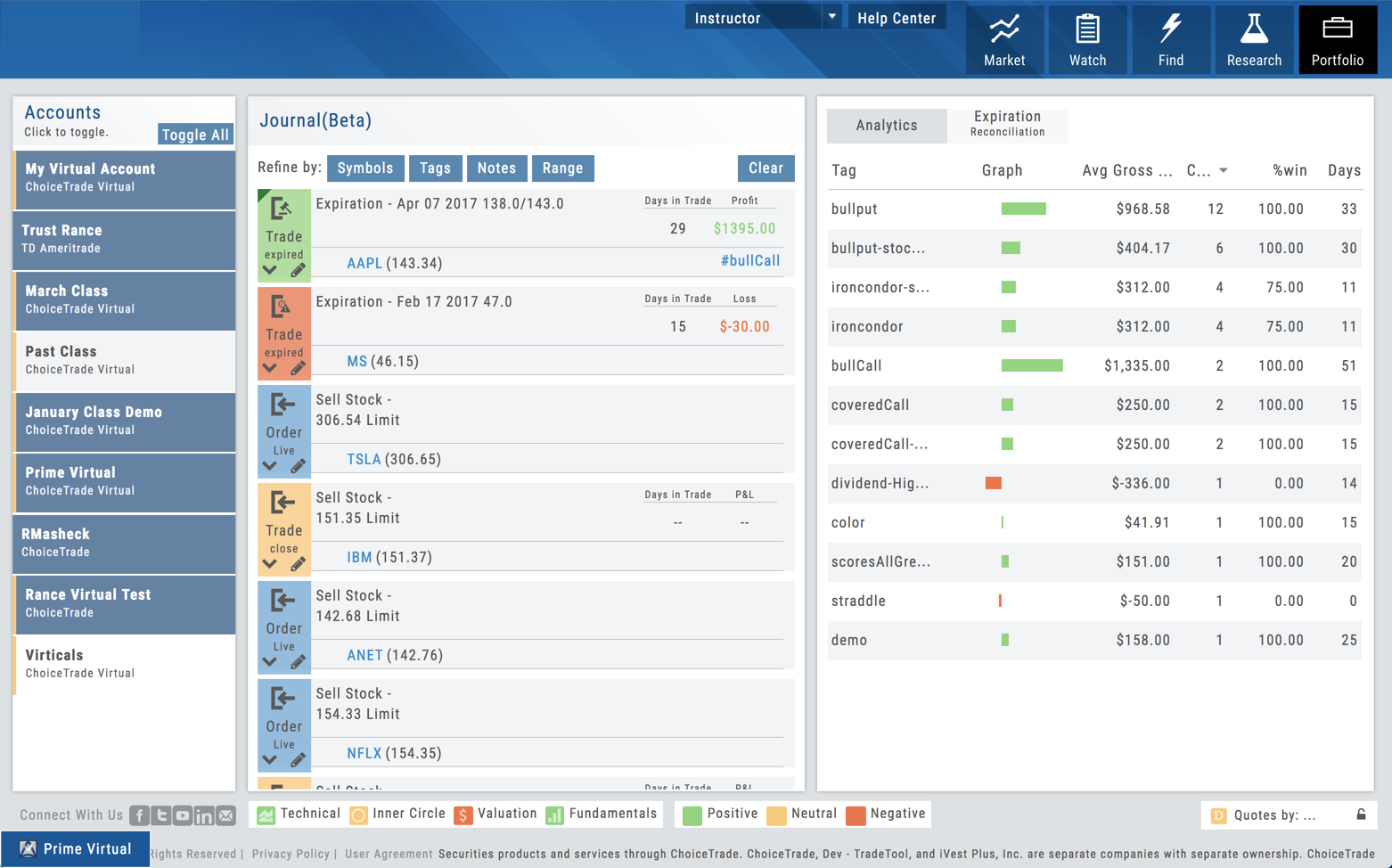
Indicates trade expired without change in asset (Ex: Option not exercised) Yellow Tab - Indicates trade expired with a change in underlying asset (Ex: You were assigned the stock) No Tab - Trade closed without a change.
Note: You can rename, delete and even reset Virtual Accounts
Click to Select or Unselect all.
After Reconciling trades, the data used, including #tags are used to populate the Analytics page.
Click "Reconcile All" to have trades added to the "Analytics" tab
in analyzed group of trades
Bar Graph represents profitable/losing trades. The longer the graph, the greater the number of trades in the analysis.
Blue: Active/open trade Green: Expired with profit - no change in asset Yellow: Order closed - there was a change Red: Expired with loss - no change in asset Gray: Order cancelled prior to being executed (not shown)
Sort trades by Stock Symbols, Tags (Ex: #bullcall), text from notes or date ranges - either using date tabs or the calendar for custom date ranges:
Clear all filters from the Refine tabs
and Profit (Loss) This data will also be included in Journal Analytics. Be sure to include tags on your trades to differentiate them, for instance: #longcall, #bullput, #bearcall etc.
Use #tags to analyze trading progress. Journal analytics will graph closed trades using these tags. You'll see what strategies have been effective as well as those needing more practice.
when order executed or expired
Mobile — Journal
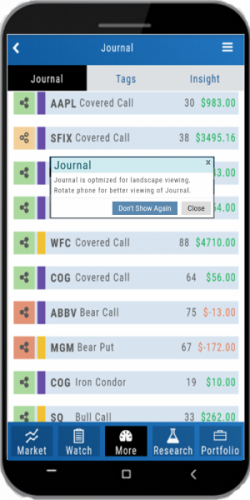
Select Account - by group using checkboxes or by highlighting one or more account boxes
For optimized viewing of Journal, rotate device to Landscape View.
Further analyze trades by #tags Example: #strategies, #outlook, #source, etc
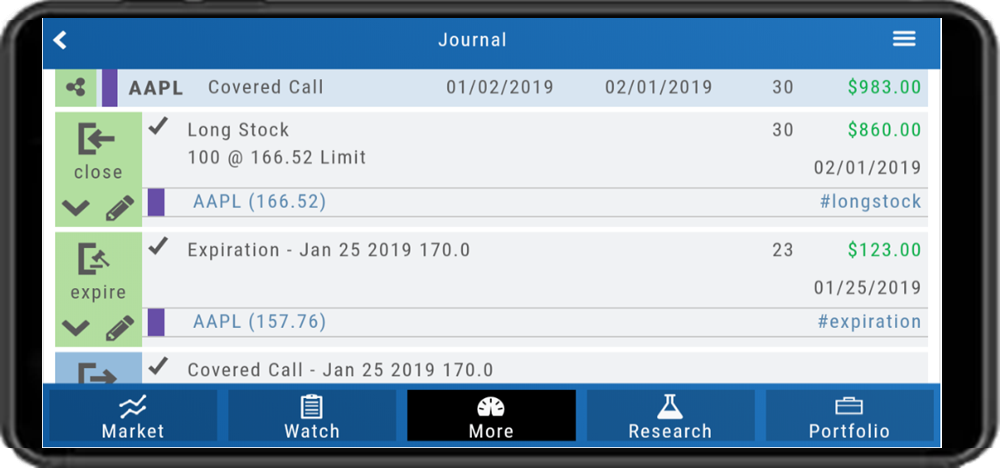
Mobile — Life of Trade
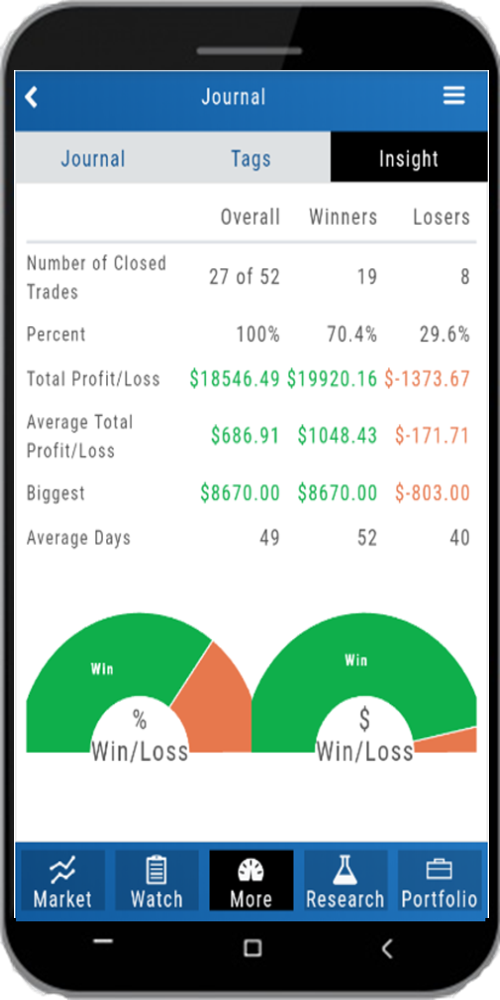
Mobile — Insight
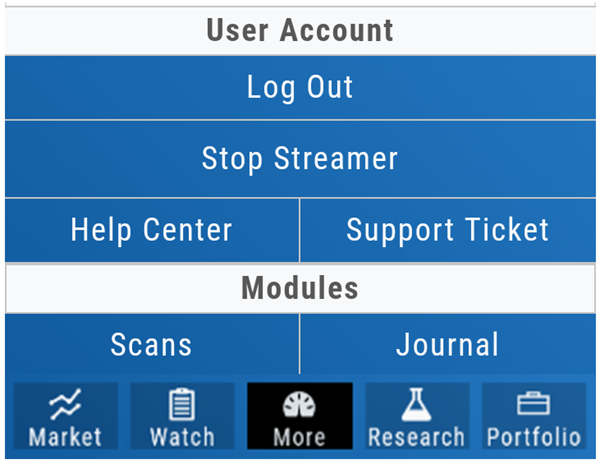
Mobile — More menu
The Scans Module