
Draft for review. The article content in this guide is migrated and unchanged. The introduction and the short lead-in paragraph at the top of each section are newly written and are marked “New text — pending review” — nothing in them has been approved yet.
The platform can hold real brokerage accounts, virtual practice accounts, manual tracking accounts, and the Trading Sandbox side by side. This guide explains the differences and walks through adding, using, and resetting each kind.
You can read straight through, or use the contents list to jump to what you need. Every section below is also a standalone article — the “Open as article” link under each one takes you to it on its own page, if you want to bookmark or share just that piece.
Accounts, from real to practice
New text — pending review
Start with the differences between account types, then add your own — brokerage, virtual, manual, or Sandbox — and see what each one can do, including how quotes stream and how to reset a practice account.
Account Differences Explained
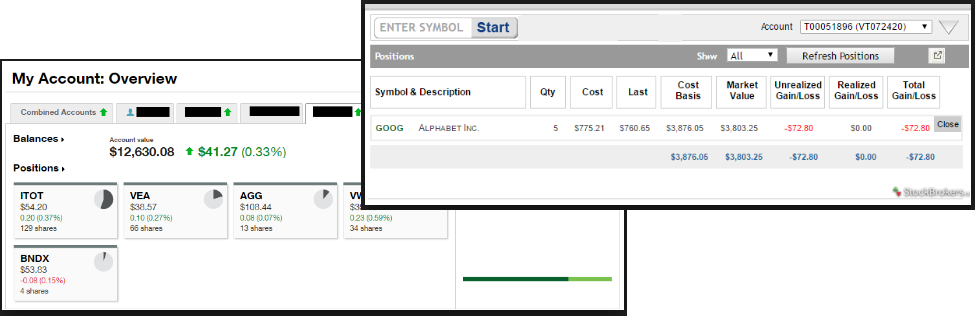
When you set up your Live Account with TD Ameritrade, Choice Trade or other Brokerage you may notice account value differences on the Positions summary tab.
The Trade Tool Positions Account Values are tied to the Bid price (if you own a stock or option) and Ask price (if you are short a stock or option). Were you to close the position, you would receive the corresponding price – or better, since you are able to try to get a better price than Bid/Ask. This method ensures you will get at least the listed value – or better.
Choice Trade Accounts can be set up to have the price shown in the Positions Summary tied to the Bid/Ask or the default, “Last Trade Price“. Last Trade Price differs from Bid/Ask in that it shows the most recent transaction price, but does not always reflect the price you will receive if you were to buy or sell the security.
TD Ameritrade ties trade values to Mark – the point between Bid and Ask. Some trades will be closed at this price, but not all. Mark does not take into account if you own or are short a position, it is simply the halfway point between the two.
Adding an Account
Accessing a live account is easy. Currently Choice Trade, Tradier, Schwab, E*TRADE and TastyTrade are offered through this platform. More brokerages will be added.
To add an existing brokerage account or add a virtual or manual account
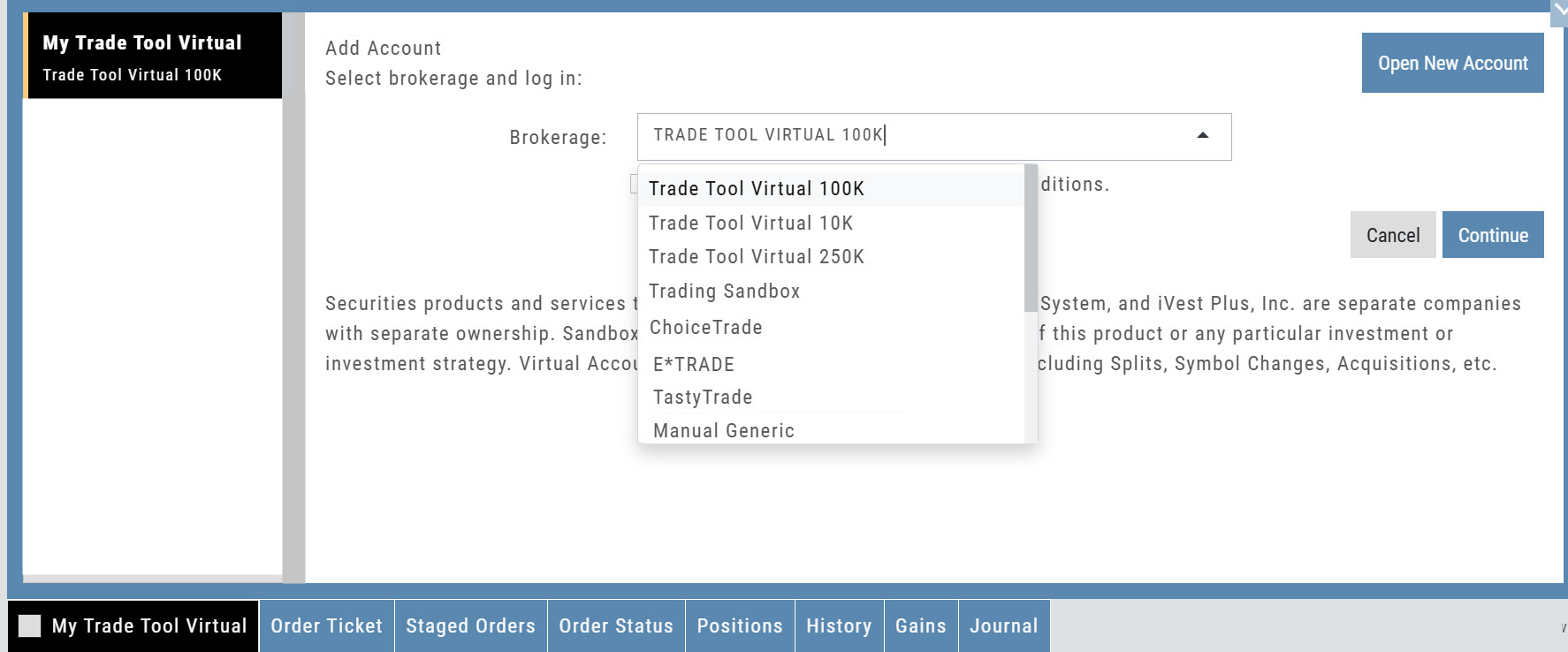
1. Clicking on the “+” icon will display the screen below
2. Select your Brokerage, Virtual or Manual Account from the drop-down
3. Read & Accept Terms and Conditions
4. Click “Continue”
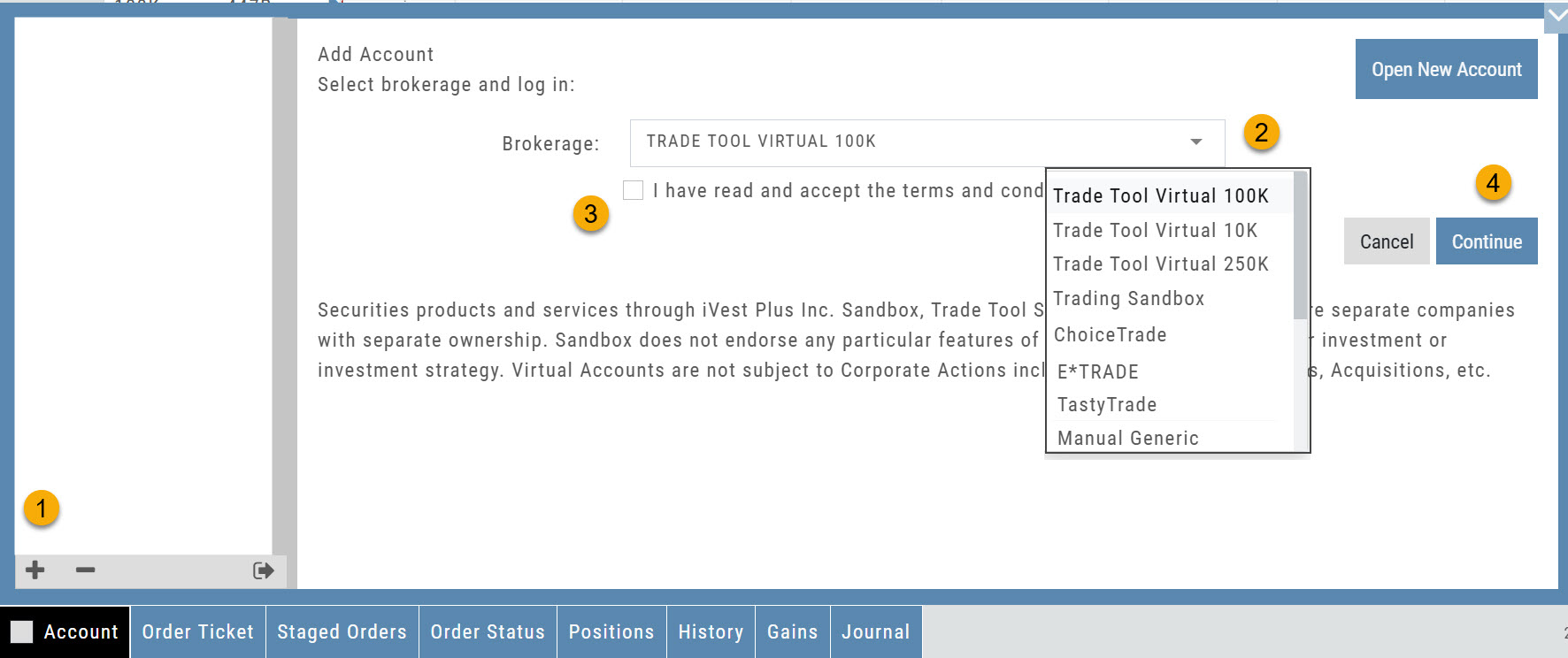
Live Accounts will prompt you to enter your credentials on the next screen.
Virtual** and Manual Accounts will automatically activate.
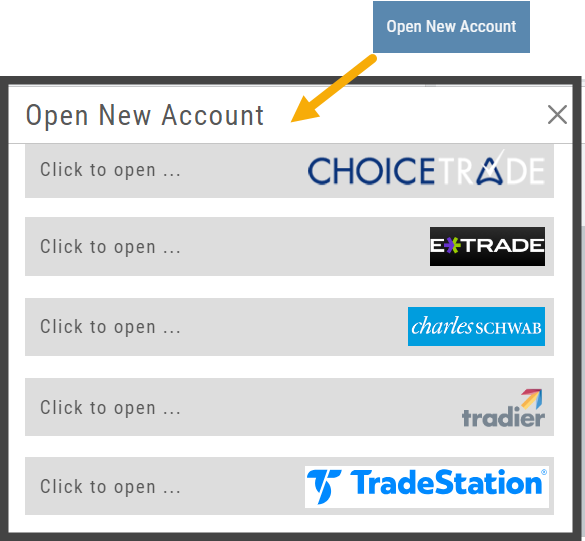
To add a New Live Account, click on the “Open New Account” box on upper right of the above screen.
Select the account you want to add by clicking the selected brokerage.
Click the “Done” button.
You’ll be directed to the brokerage website to guide you through the process of completing an application.
**TradeStation requires a completed account application to create a Virtual Account.
Virtual Account Overview
Virtual Trading gives you the real trading experience without risking any money. It is a valuable “next step” learning tool – designed to mimic the trading experience as closely as possible.
Trades are executed during Market hours – 9:30 a.m. – 4 p.m. Eastern Time, however there is a 15 minute delay after Market open for orders to begin executing.
As with Live Accounts, there are limits on trades if there is not sufficient Buying Power in your Virtual Account. There can be expensive Spread/Margin Requirements to adhere to.
Virtual Accounts do have limitations that Live Accounts do not have:
Virtual Accounts are not subject or responsive to Corporate actions such as buyouts, name or symbol changes, stock/option splits and strike price adjustments to name some examples.

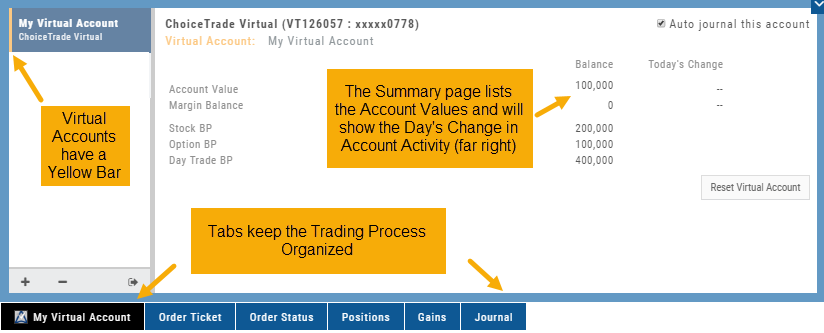
Virtual Accounts are “Auto-Journaled”. This automatically keeps record of all trades for later analysis and reconciling.
These practice accounts are identified by a yellow bar on the left side of the account window.
Virtual Accounts are powered by Choice Trade to provide the real trading experience.
Manual Account Overview
A Manual Account is a versatile resource tool which can enhance your trading effectiveness. You can also use this to track trades from an outside brokerage account.
Use the Manual Account for educational purposes.
- It offers flexibility and control, while providing the Analytics and Journal to help you reinforce the “Learning to Earning” process. This allows you to focus on learning the strategies.
- Place trades any time of day or night – all get immediately executed at the price entered. No need for the market to be open.
- No Buying Power limits – no expensive spread margin requirements to adhere to, no limit on how much you can buy/sell
- Place trades in the past.
- Enter trades from Backtest Mode
Use to track external accounts
- Can be used to track trades placed at brokers not integrated into the platform
- You can enter the date and fill prices of your actual trades
- This enables portfolio management along with your other accounts
- You can use full Journal function for tracking your progress
Manual Accounts are identified by a narrow Red Bar and are, by default, Auto-Journaled.
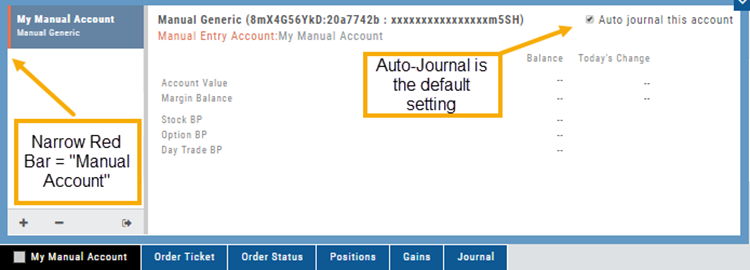
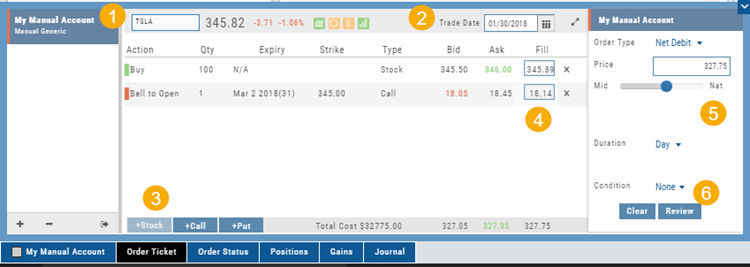
Entering trades in a Manual Account takes only a few steps and is similar to a regular trade.
You can also bring up the ticket from any trade point. Simply start a trade and select the manual account just like you would select any other account.
(Bold indicates unique to Manual ticket):
1. Enter the Stock Symbol, or name of Company (Smart search will display potential matches)
2. If this is a past trade, use the calendar/date picker to select date
3. Click “Stock”, “Call” or “Put” to build trade, change quantity, Expiry and Strike (if applicable)
4. Bid/Ask will automatically populate if a specific price is not entered
5. Complete Order Type, Duration and Condition
6. Click “Review” to confirm information is correct, then ‘Submit” on next screen.
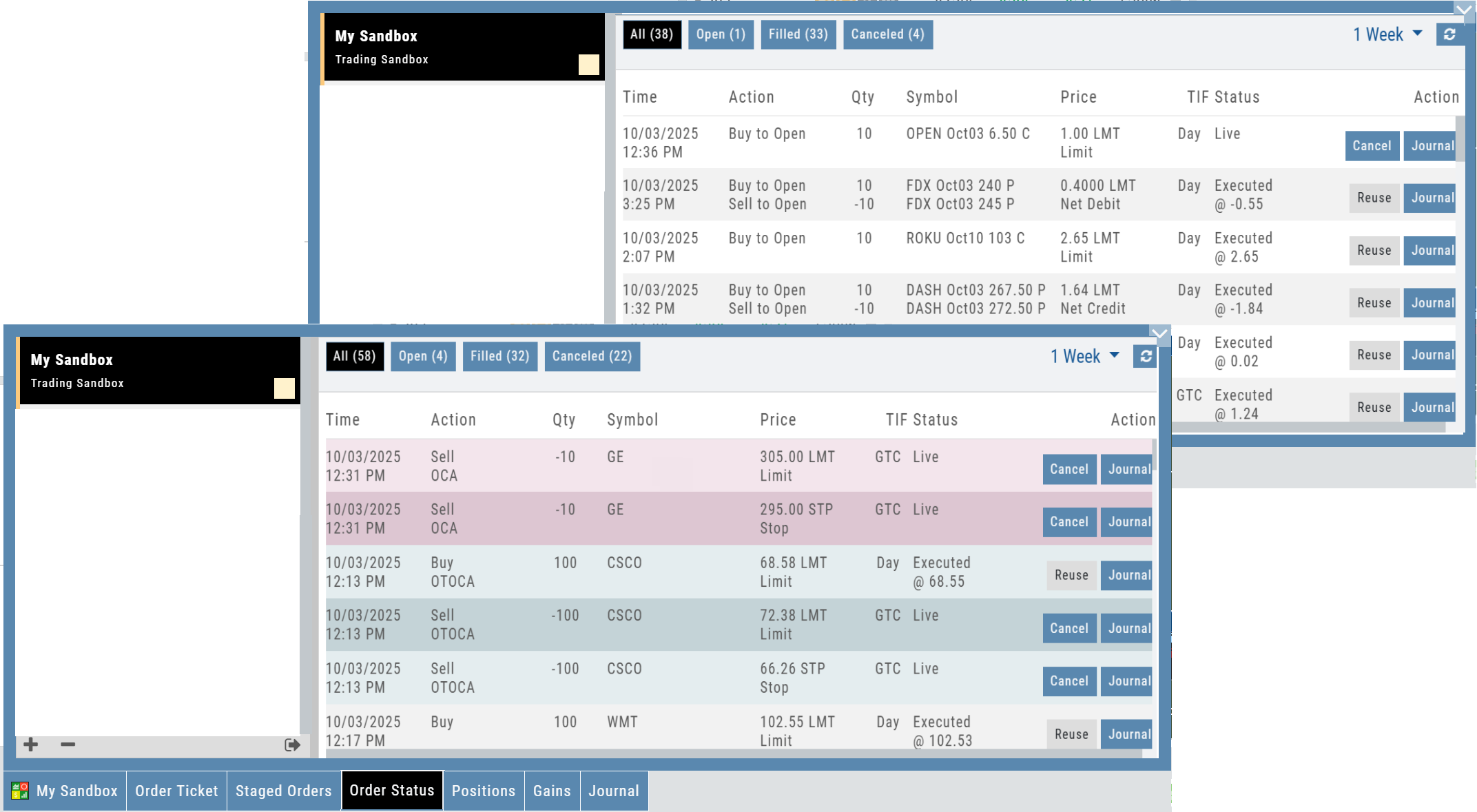
The order will appear in Order Status as “Executed” and operate the same way as other accounts.
Trading Sandbox Account – Overview
Unlike traditional broker-provided virtual accounts, the Sandbox is not bound by brokerage margin rules or limitations, giving you more freedom to practice and test strategies.
Trading Sandbox Account was built specifically to overcome these shortcomings, allowing traders to:
- Test advanced strategies without brokerage-imposed limits.
- Gain confidence in how options positions will behave through expiration and assignment.
- Track true results on completed trades for more effective learning and analysis.
As with other simulated trading systems, the Sandbox uses delayed market data. However, it goes beyond conventional paper trading platforms in several key areas:
Fast & reliable order execution
Orders are processed quickly during market hours, creating a more realistic trading experience compared to laggy paper trading systems.
Supports conditional orders for stocks
Effortlessly include Stop and Limit Orders when buying stock.
Options handling that works
Options are properly assigned and exercised as they would be in a real account, removing the gaps found in most brokerage simulators.
Accurate trade capture
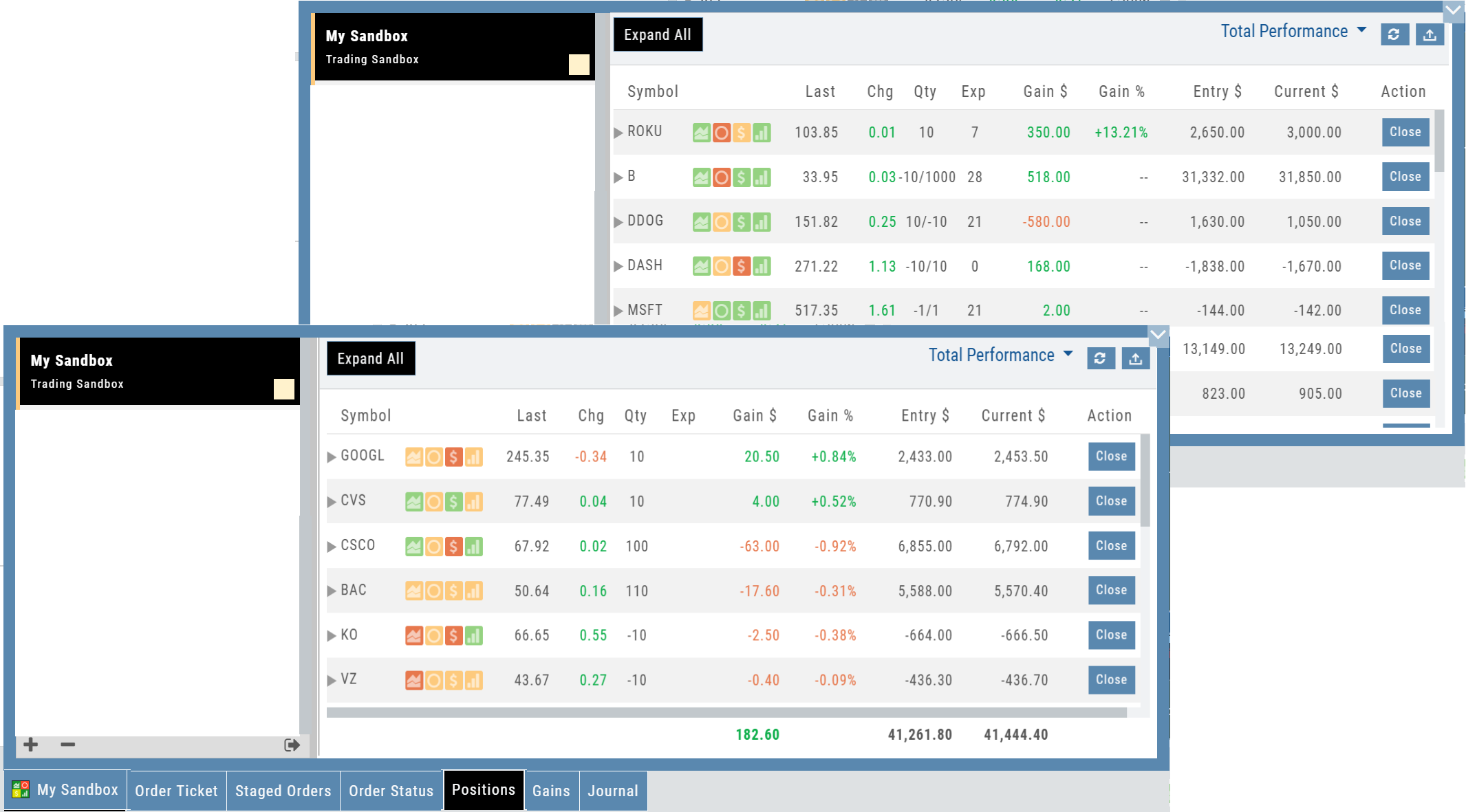
The Sandbox records and captures gains/losses on completed trades, giving you a clear picture of how your strategies perform over time.
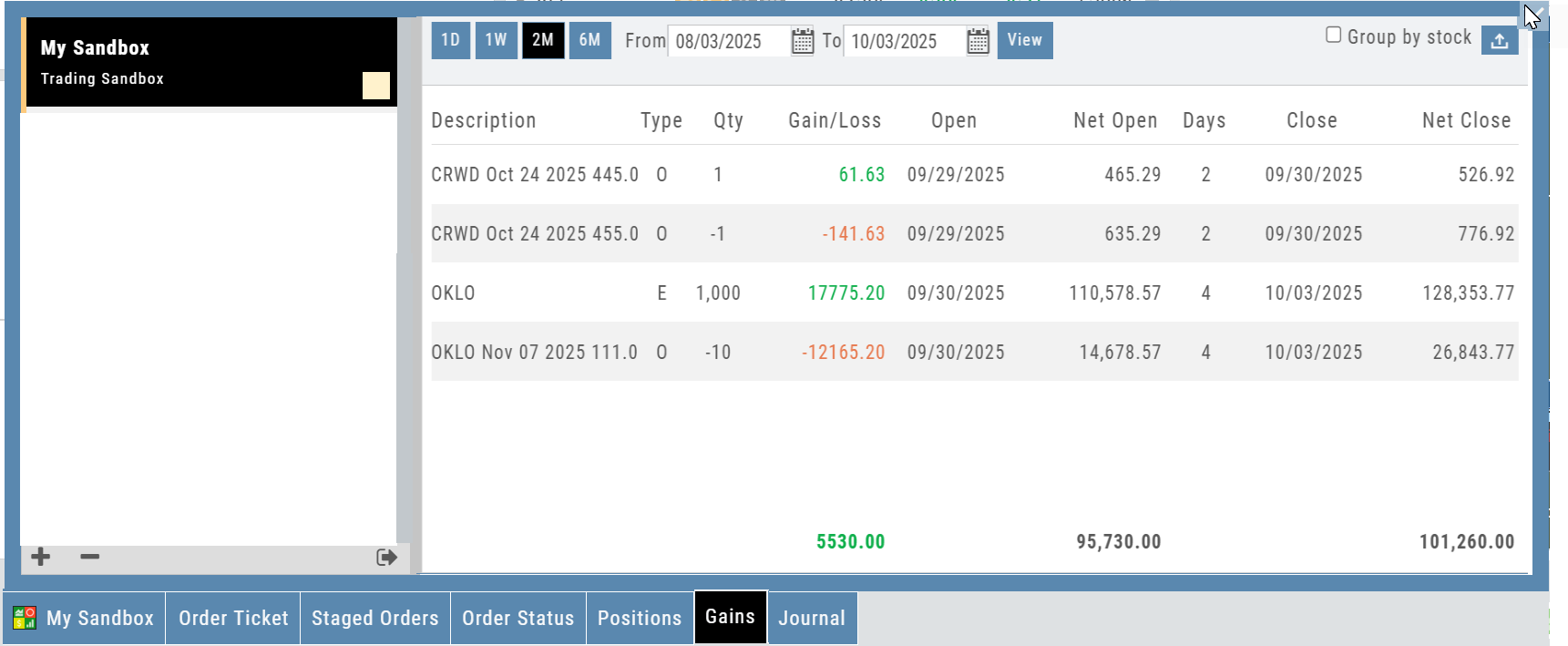
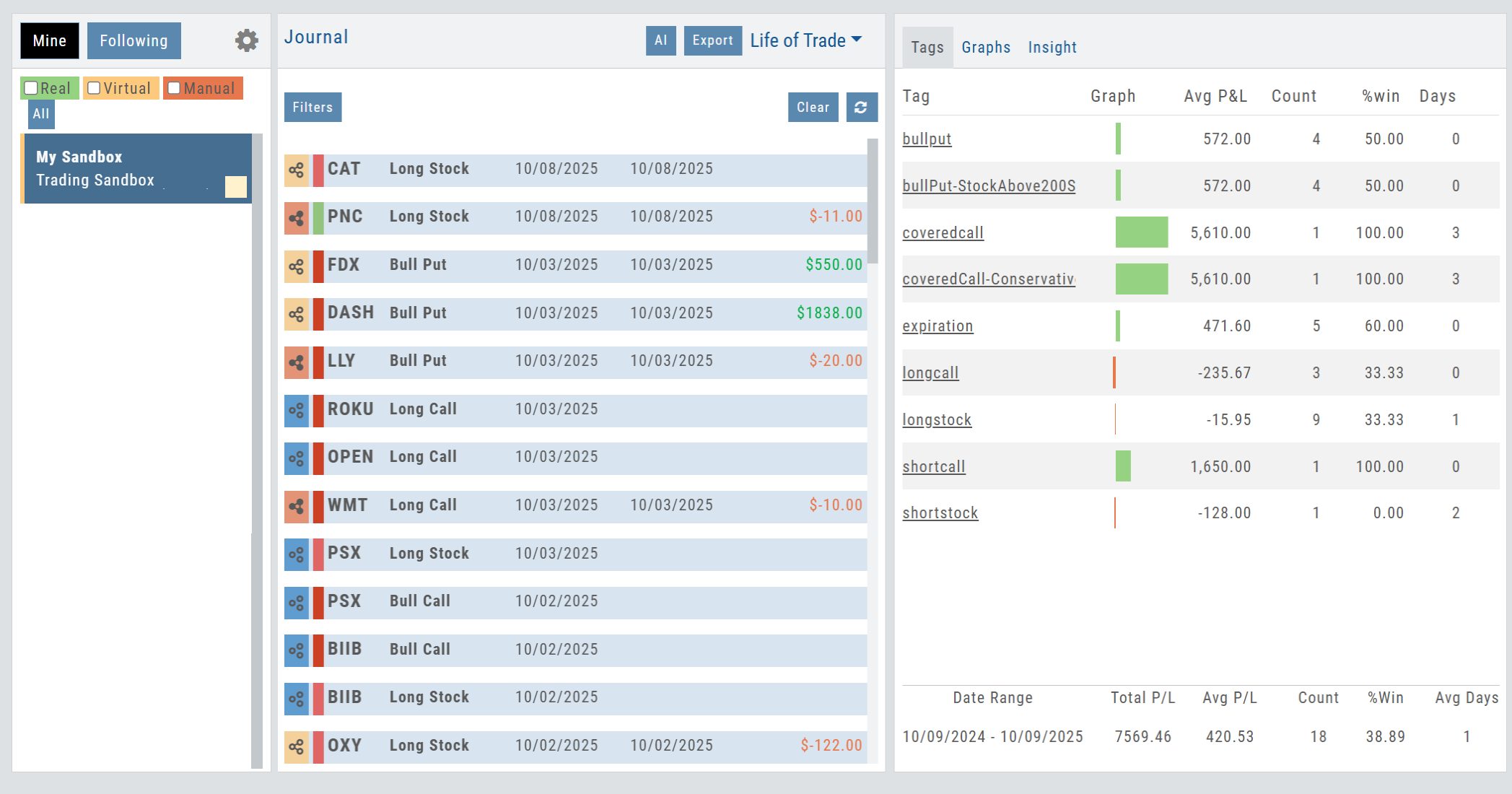
Full journal support
When auto-journaled (default setting) is set, all activity is captured. Track your progress to see what strategies work, what needs more practice, for important feedback.
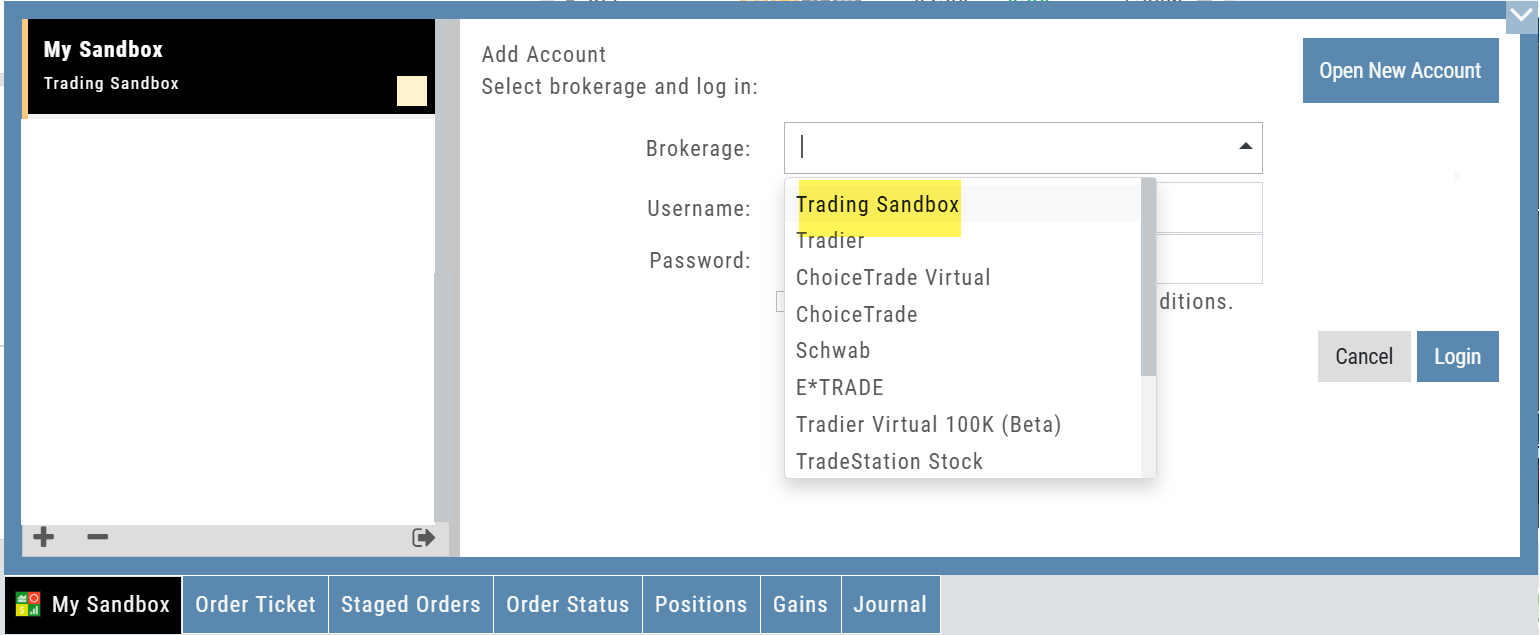
How to add:
Trading Sandbox has been added as a drop-down selection in the Portfolio section of your trading platform
- Click the bottom left corner tab of the platform to display all account tabs
- Click the “+” icon appearing below these tabs
- Select “Trading Sandbox” from the dropdown list. Check the “I agree…” box
- Name your account and select a color identifier, if desired.
- Start trading!
Brokerage Access
Trade directly with select Brokers.
The Broker menu is located in the lower left corner of the screen and is always accessible. From here you can see your balance, positions, and orders.
There is also an integrated Order Ticket. This can be accessed directly or from any of the “Buy”, “Sell” or “Trade” buttons or from clicking on the Action Icon menu.
Delayed Streaming Quotes
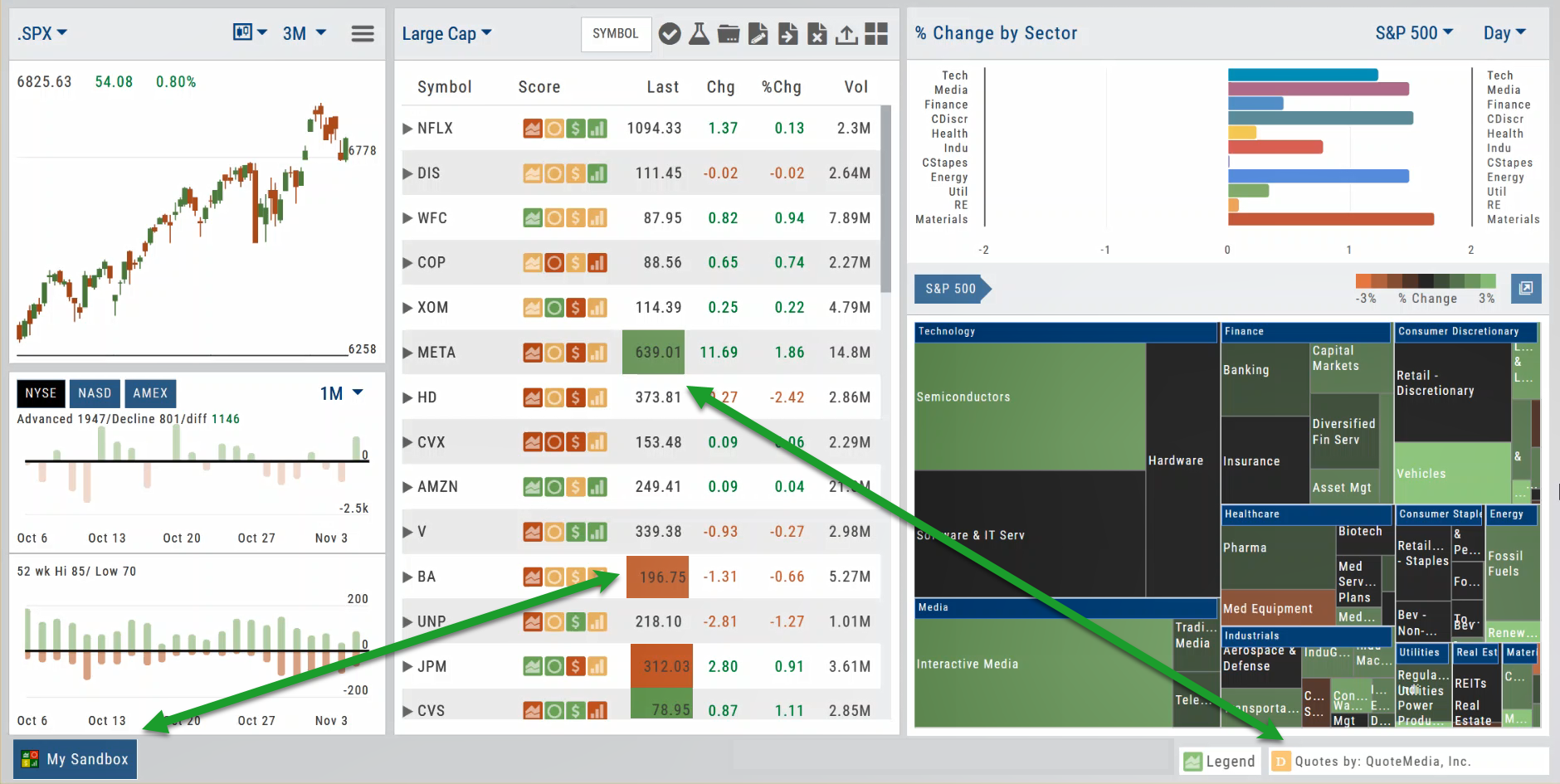
Delayed Streaming Quotes will appear when you have a Virtual or Manual Account activated.
Click on the account tab so that it appears on the bottom left corner of your screen.
Portfolio
 Manage Your Portfolio from the Platform
With Brokerage Integration you can trade directly from the platform with select brokerage firms. Currently TD Ameritrade and Choice Trade are available. With more on the way.
Almost Real Virtual Accounts
Realistic Trading in a Virtual Environment
Built from the ground up to give you the most realistic experience possible
Our new Virtual Accounts are designed to make practice trading more realistic—from the moment an order fills through expiration, assignment, dividends, and margin calculations.
Available starting levels: $10k, $100k and $250k
Whether you’re learning the platform, testing a strategy, or practicing before putting real money at risk, your Virtual Account now gives you a much better picture of how trades can actually affect an account.
Better practice.
More realistic outcomes.
More confidence when real money is on the line.
What’s great about these accounts:
Realistic Fills
Fast, market-based fills with potential price improvement—even on spreads.
Accurate Margin & Buying Power
Reg-T margin and buying power are recalculated as your positions and orders change. Margin Interest is calculated at 10% for impact when used.
Option Expiration & Assignment
Options expire, exercise, and assign as they would in a live account—including cash-settled index options.
Dividends
Eligible positions now reflect dividend activity.
Realistic Account Outcomes
Margin calls, reduced buying power, and negative equity can occur when market conditions warrant them.