Draft for review. The article content in this guide is migrated and unchanged. The introduction and the short lead-in paragraph at the top of each section are newly written and are marked “New text — pending review” — nothing in them has been approved yet.
From the order ticket to filled positions: this guide walks through entering orders of every type, staging trades for later, following order status, and what your account information screens tell you along the way.
You can read straight through, or use the contents list to jump to what you need. Every section below is also a standalone article — the “Open as article” link under each one takes you to it on its own page, if you want to bookmark or share just that piece.
The order ticket
New text — pending review
The ticket is where a trade becomes real. These pages cover the stock/ETF ticket, every order type, conditional and bracket orders, and the Smart Trade Ticket.
The Order Ticket – Stock/ETF
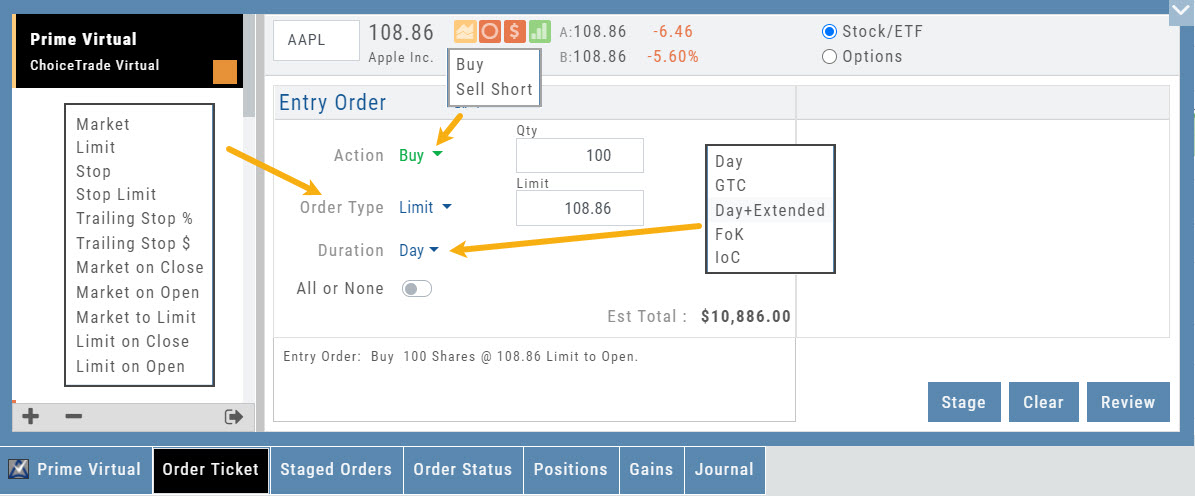
The Order Ticket is designed for ease of use and flexibility. Selecting “Stock/ETF” or “Options” will display the appropriate ticket.
Brokerages determine what Order Types and Duration selections are available.
All or None allows you to dictate whether to accept partial fill of an order or not. Toggle to turn this on/off.
The Order Summary appears below Order details as an additional security step to ensure your order is correct.
Click “Stage” for later review, “Review” to continue the Order process or “Clear” to start over.
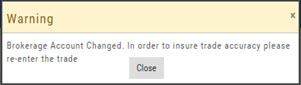
Note: If you start an Order in one account, then switch accounts, you’ll review the following notice:
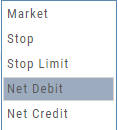
Order Types are in a drop-down box and the types offered often vary from one brokerage to the next.
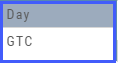
‘Duration’ – How long the order is good for: Day (current trading day) or GTC (Good til Cancelled)
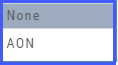
‘Condition’ – Must be met for the order to be filled/executed: “None” (no conditions) or “All or None” (all of the order must be filled, or none at all).
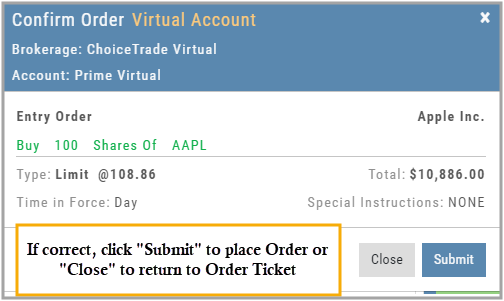
After completing the order ticket, click ‘review’, then ‘submit’.
Order Types – How to Enter
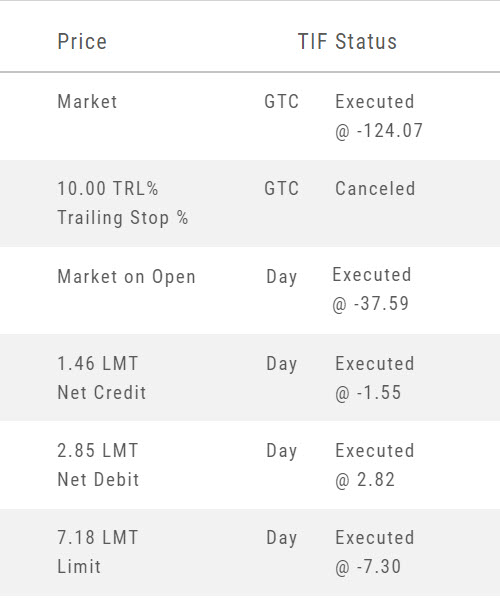
Market Orders are Buy or Sell orders to be executed immediately at the current Market Price. Execution of the trade is more important than price. As long as there is a willing buyer or seller, the trade will be executed.
Limit Orders (including Net Debit and Net Credit) allow you to set the Maximum Price to Buy or Minimum Price to Sell a security. Because these orders have ‘limits’ they may not be executed. When they are, they will be executed at the Limit Price – or better.
Low Volume, a slow or very fast market may mean your Limit Price may not be reached and thus, your order not executed.
Stop & stop limit orders
These are protective orders, to be placed on a current position.
A Stop Order becomes a Market Order when the Stop Price is reached. This does not mean you will get the Stop Price when the Order executes. You are willing to Buy/Sell at any price once your Price is reached to have the Order execute.
A Stop Limit Order generally offers more protection: Once the Stop Price is reached, the order converts to a Limit Order to execute once that price – or better- is reached. Thus, there are two values to enter on the Order Ticket for Stop Limit Orders.
How to enter a Stop Order/Stop Limit Order:
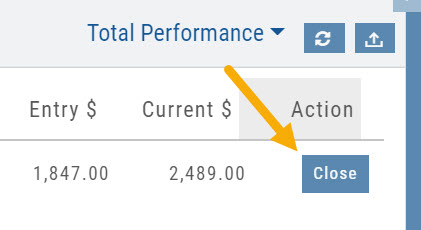
On the Positions tab, click “Close” for the Stock/ETF entry you want to add a Stop/Stop Limit Order to. You’ll be navigated to the Order Ticket tab to continue.
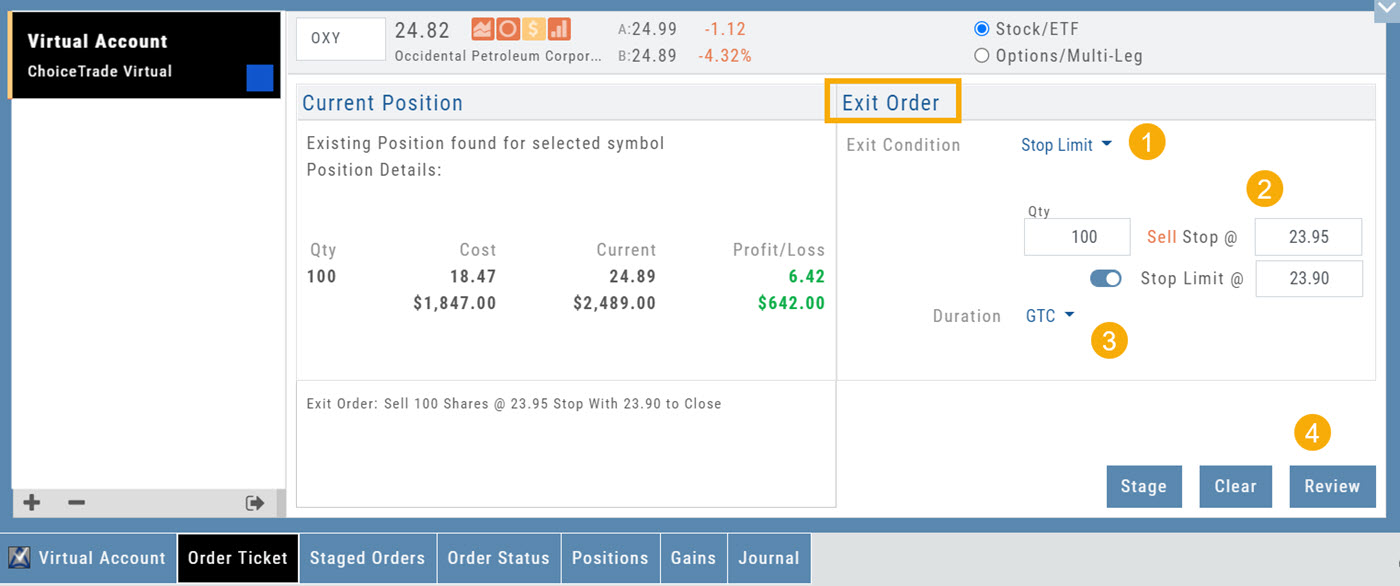
On the right side of the Order Ticket (Exit Order):
1. Change Exit Condition from default “Limit” to “Stop” or “Stop Limit“
2. Enter Stop Price. For Stop Limit Orders, the Stop Price will be the higher of the two values.
Enter Limit Price, if applicable.
3. Change Duration from Day (default) to GTC (which may vary by brokerage)
4. Review & Submit
Notes: As long as it’s not a Day order, the Stop/Stop Limit order will remain Live until you cancel the order or it executes*. (Some brokerages have expiration dates on such orders)
Trailing % and trailing $
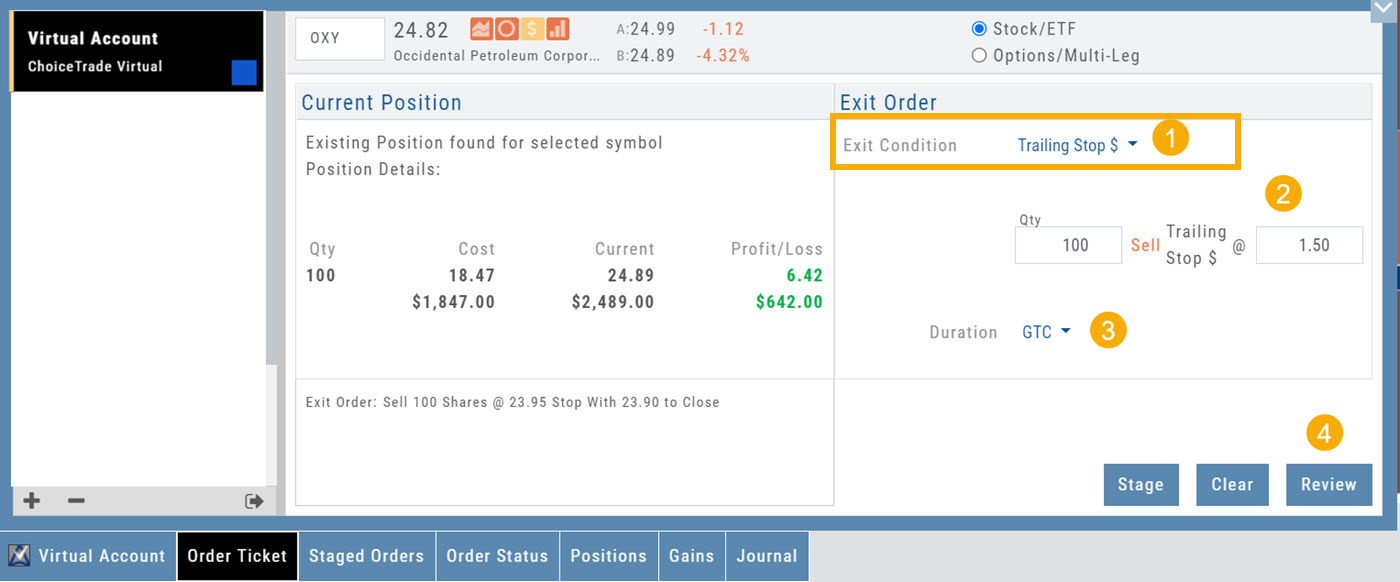
As the names suggest, these orders follow trades upward by a set $ or %. They are placed on a current position. Click “Close” from the Positions Tab, then follow the steps below:
1. Change Exit Condition to “Trailing % (or $)“
2. Enter price or percentage to exit trade
3. Select Duration (Day/GTC)
4. Review, then Submit
This will be a Live Order until it Executes, Expires or is Cancelled.
Bracket order – one cancels the other (OCO)
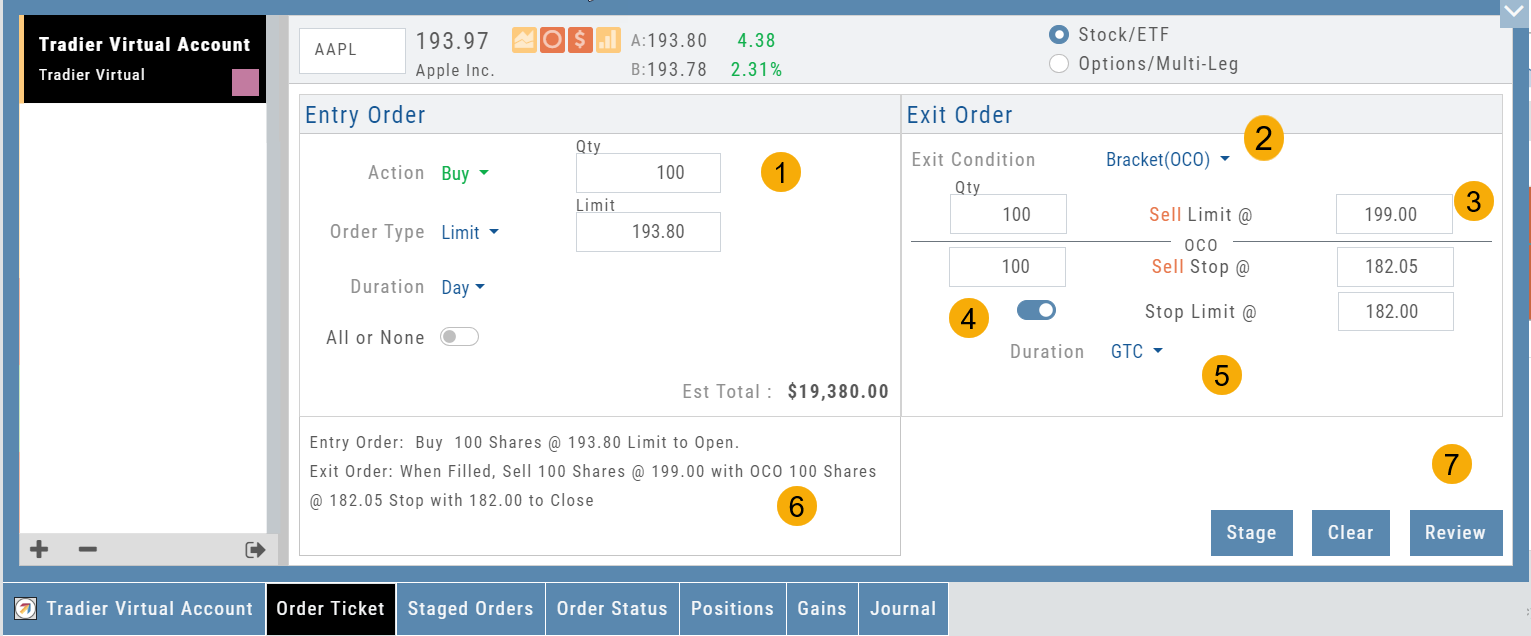
- Opening Order OR the existing Position to Close
- Select “Bracket (OCO)”
- If the trade is favorable, the Limit Price will trigger to close and secure profit.
- If the trade is unfavorable, this Stop (or Stop Limit) Order can limit your loss
- Duration: “Day” or “Good Til Canceled”
- Summary of the Bracket-OCO Order
- Review for accuracy, then Submit on the next screen
Conditional Orders (OCO)
Conditional orders available with Tradier Brokerage
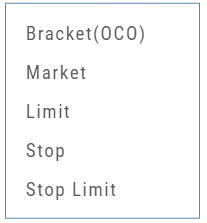
One-Cancels-the-Other (OCO) orders allow two orders to be placed at once, combining a Limit Order and a Stop or Stop/Limit Order. If/when one of the orders gets triggered and is executed, the other order is immediately canceled.
Such orders offer ways to take profits off the table while limiting exposure to losses.
- Opening Order OR the existing Position to Close
- Select “Bracket (OCO)”
- If the trade is favorable, the Limit Price will trigger to close and secure profit.
- If the trade is unfavorable, this Stop (or Stop Limit) Order can limit your loss
- Duration: “Day” or “Good Til Canceled”
- Summary of the Bracket-OCO Order
- Review for accuracy, then Submit on the next screen
Bracket Order Adjustment
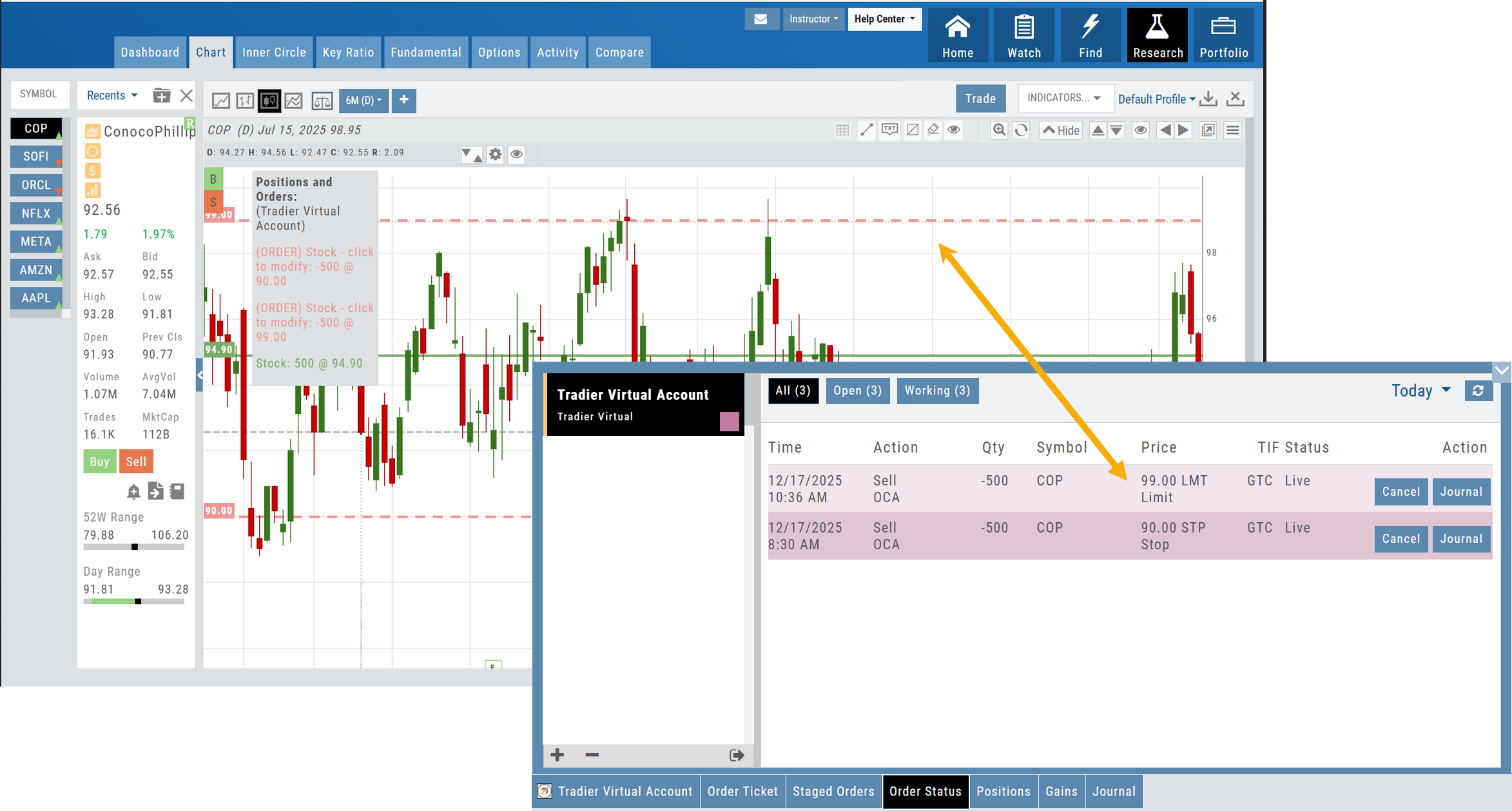
Adjust limit and/or stop orders from the chart
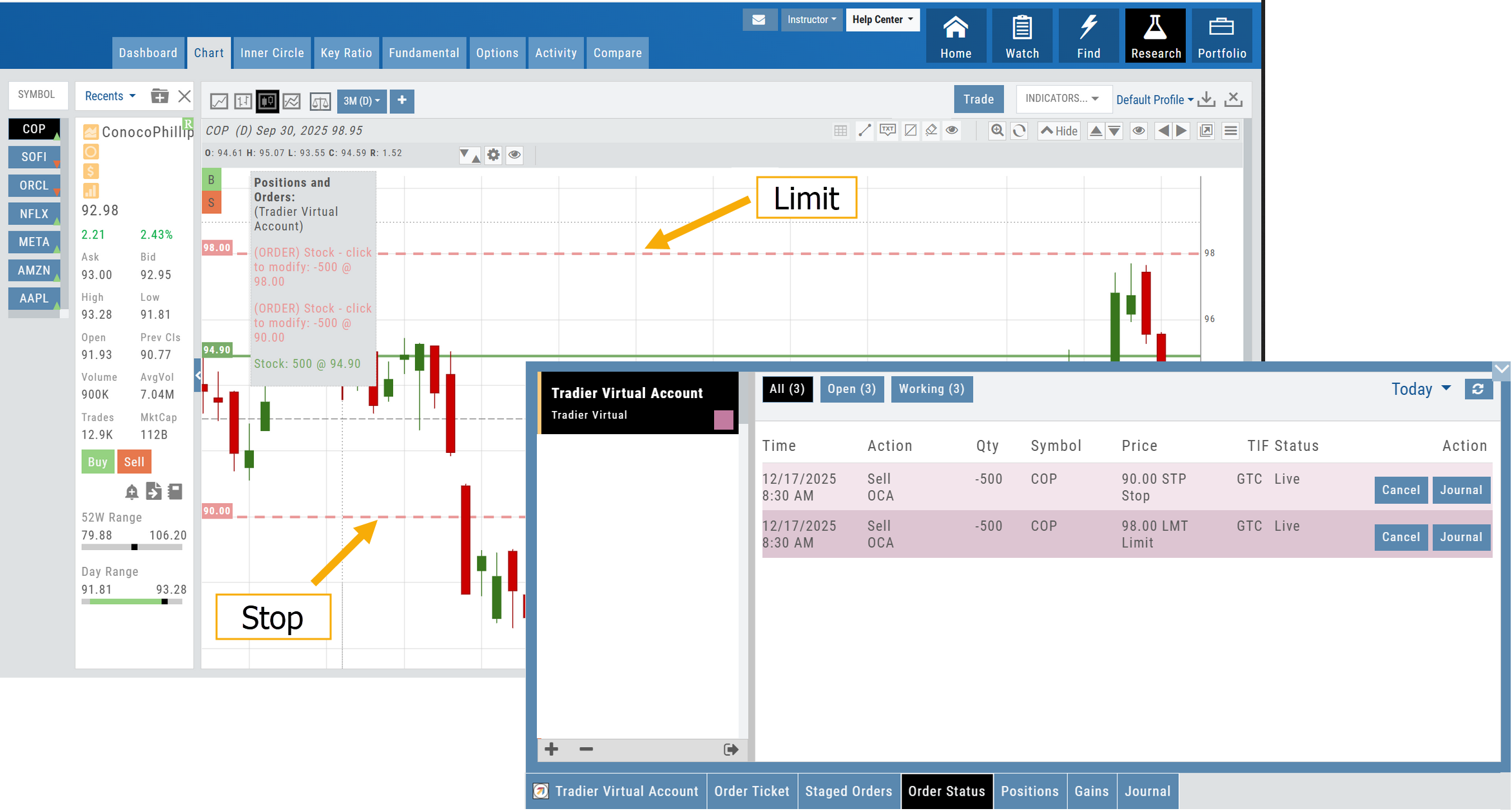
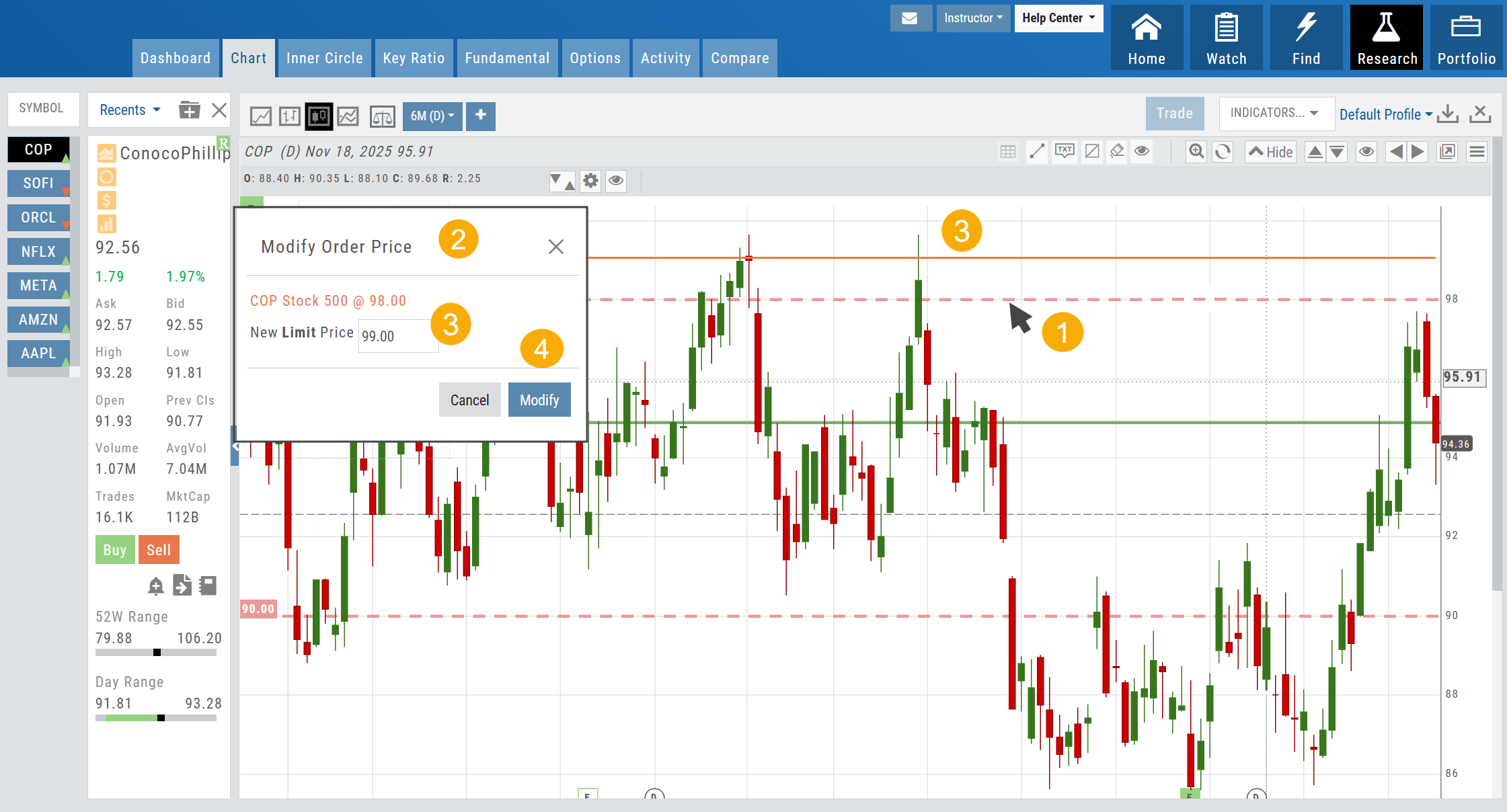
- Click on the Limit (or Stop) Order Dashed Line
- The Modify Order Price dialog box will appear
- Either move the dashed line to the new position, this will temporarily show up as a solid line. OR enter the new price in the dialog box.
- Click Modify
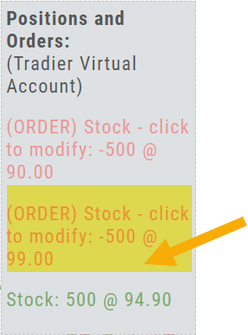
Once modified, the Limit order becomes a dashed line at the updated price.
Smart Trade Ticket
The redesigned Trade Ticket has defined sections for Stock/ETF trades and Option Trades. The Stock Ticket is divided into Open and Exit sections for easier use.
The Close Ticket provides a summary of any Profit/Loss on the trade. Brokerages determine available Order Types, which may include the following to open a trade:
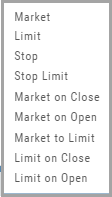
Note: Closing Order Types may also include Trailing $ and Trailing %.
If there is an existing position on a Symbol when a new order is created, the Smart Ticket system will identify if there is an existing Non-Stock/Multi-leg Position or an existing Stock position.
If Non-Stock/Multi-leg position, clicking “Close” will navigate the user to the Option Trade Ticket. Clicking “Ok” will lead the user to the Stock/ETF Ticket.
If there is an existing Stock position, a summary of the existing will display along with the ability to Close or Add to the existing position.
Reward/Risk on the Order Ticket
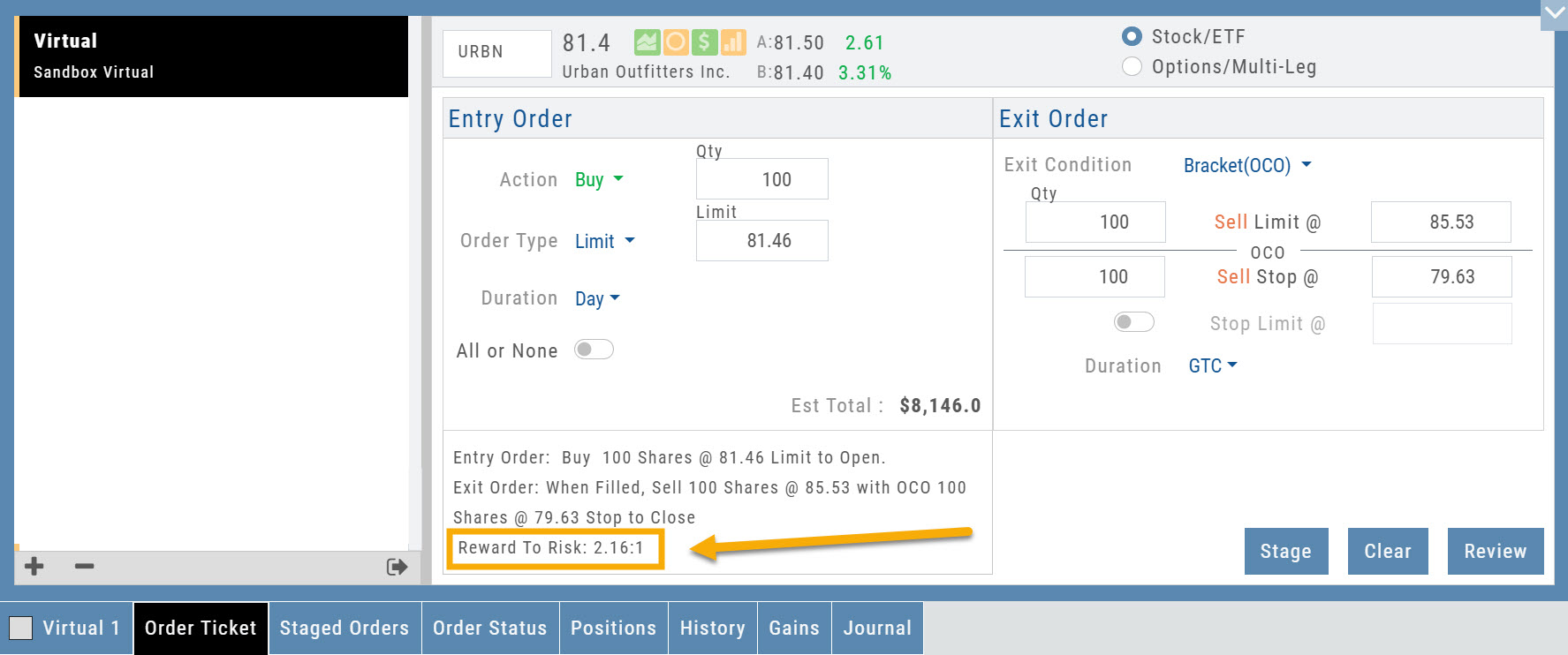
The Reward/Risk ratio you set from the chart now carries through to the Order Ticket, so it stays in view while you finalize the order.
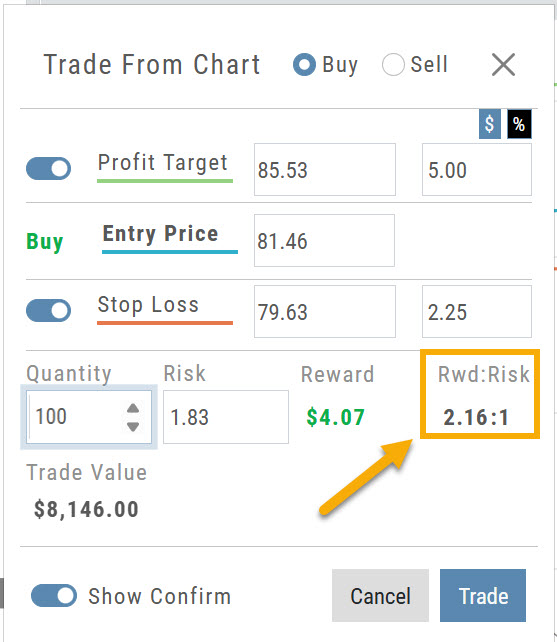
Set it from the chart
Click Trade from the chart to set up a Bracket Order. Set a Profit Target and Stop Loss around your entry price, and the dialog reports the resulting Risk, Reward and Rwd:Risk.
Then finalize on the ticket
The Order Ticket now carries that same figure as Reward To Risk, printed with the order summary — so it stays in front of you while you review, stage or submit, rather than being left behind on the chart.
Staging and status
New text — pending review
Stage a potential trade to decide on later, then follow it through the Order Status filters once it’s live.
Order Staging (Premium Desktop Feature)
This feature allows the user to save Potential Trades for further consideration to decide the best ones to submit.
Staging is also useful when the Market is closed – to be reviewed when the Market is open to determine if it’s still a high-probability trade.
With one click, you can send to the Research Tab, Move to an Order Ticket or Delete and move on to the next staged order.
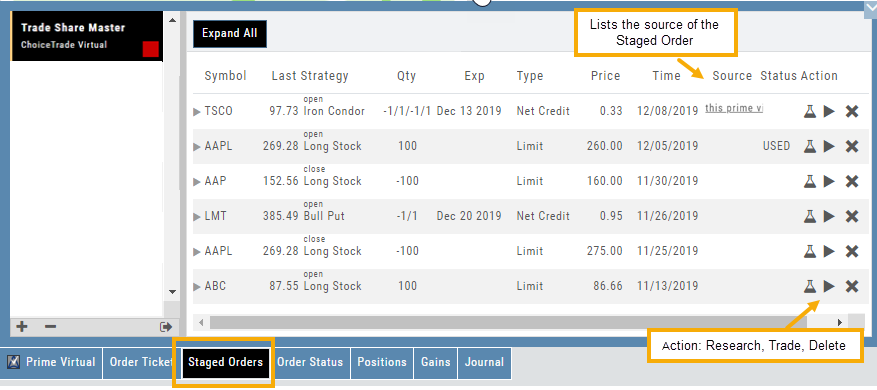
When Trade Sharing is enabled, Trades made in accounts you are following will be displayed in your Order Staging Tab. The Source will indicate the Account Name. Status of “Used” will display for those trades you submit on one of your accounts.
Expired Staged Orders will automatically be removed.
Order Status Filter Buttons
The Order Status Tab filter buttons make it easy to locate previous orders

- All – Everything in the time period is shown on the tab (Today, 1 Week, 1 Month, etc.).
- Open- Orders that have not yet executed as an active Trade/Position – includes Waiting Conditional orders.
- Working – Bracket orders where the underlying stock order is an active position (Stop/Limit orders). Excludes Waiting Conditional orders.
- Filled – Executed orders whether to open/modify/close
- Canceled – Includes both manually canceled as well as day orders that did not get filled prior to the end of the Market Day
Your account information
New text — pending review
Where to find your trading account details, and exactly how buying power is calculated in virtual accounts.
Access Trading Account Information
No need to login to Brokerage Account site for normal day-to-day activity.
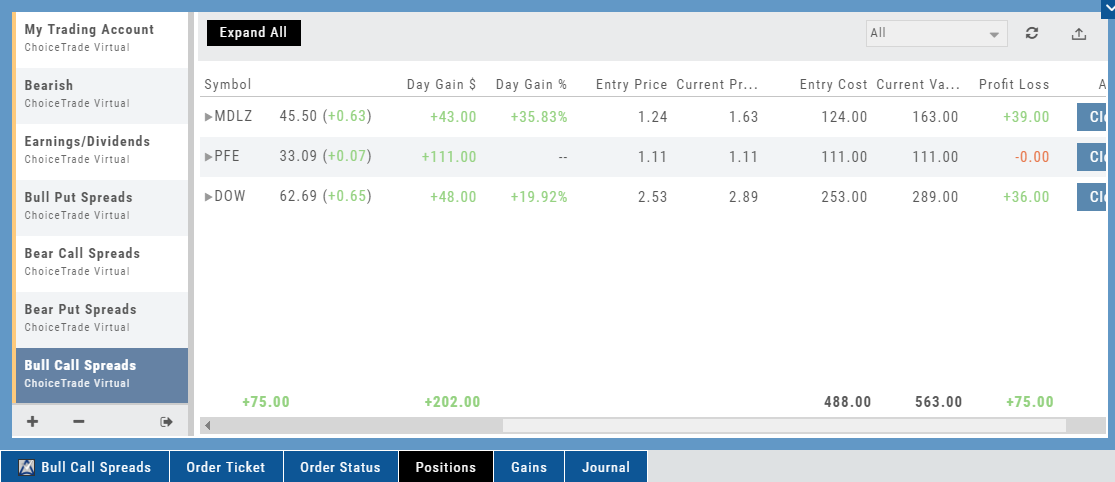
Each account includes a Summary page showing the Account Balance, Margin Balance, Stock, Option & Day Trading Buying Power and tracks the current trading day’s activity.
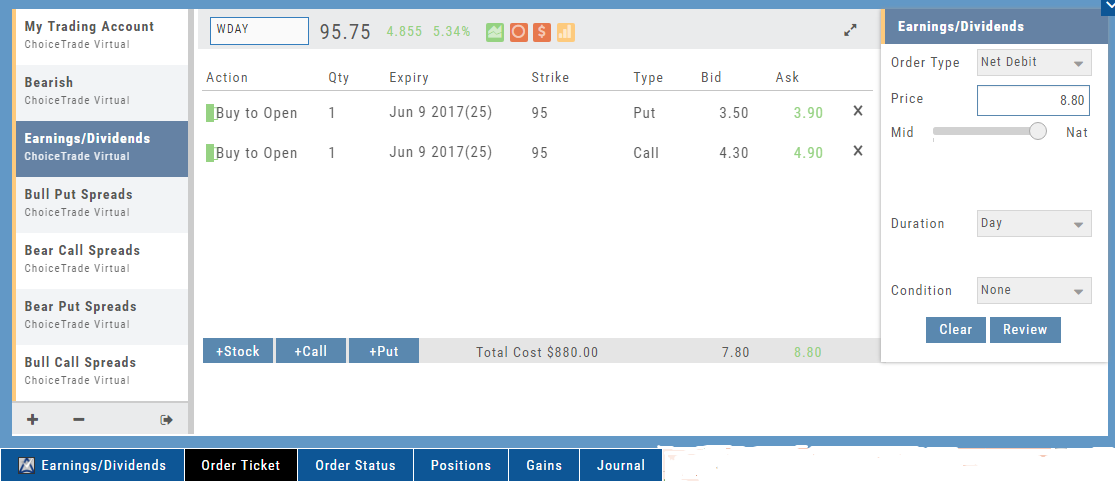
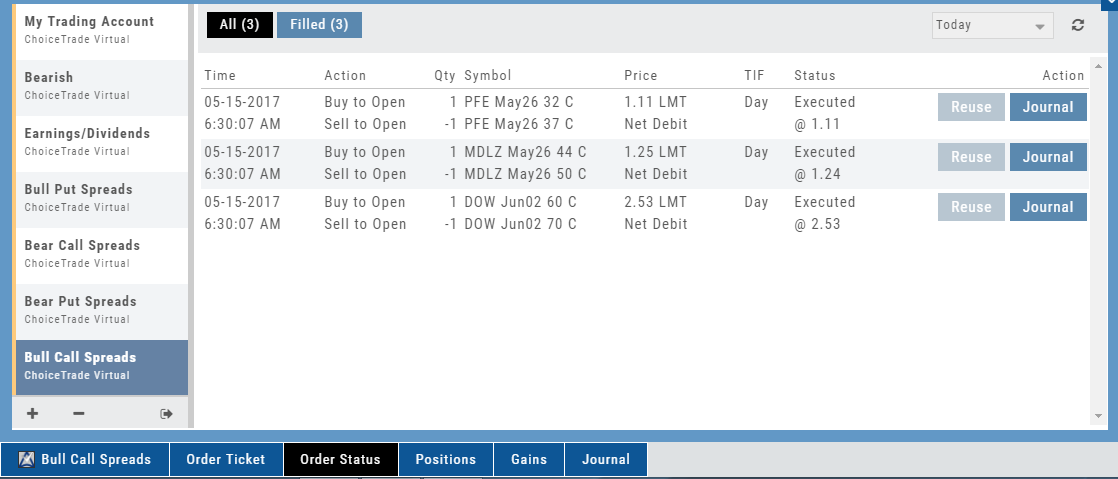
Besides the Order Ticket, the Order Status, Current Positions & Transaction History are all available. You can view previous order history in the Order Status tab by clicking on the drop-down menu on the upper-right corner of that screen.
You can access any account and switch accounts with a single click. You can even change the account from the order ticket.
The newest feature, Journal provides the means of organizing, noting, analyzing & reconciling trades.
Common questions
New text — pending review
Practical walkthroughs — starting with entering a covered call when you already own the stock.
I own the stock, how do I enter a Covered Call trade?
When you already own the stock, but want to enter a Covered Call position, follow the following steps:
1. From the Positions Tab, click “Close”
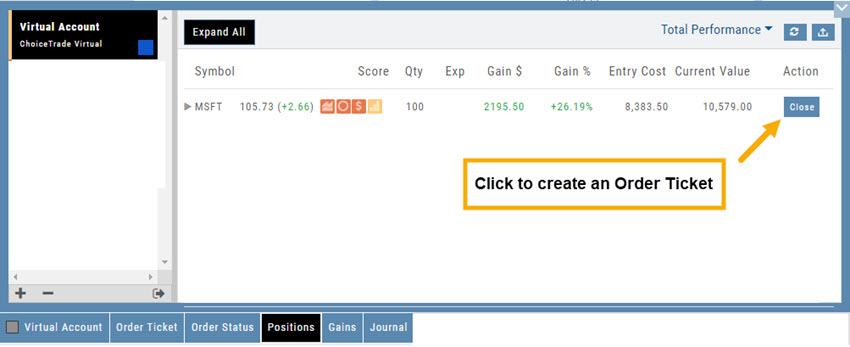
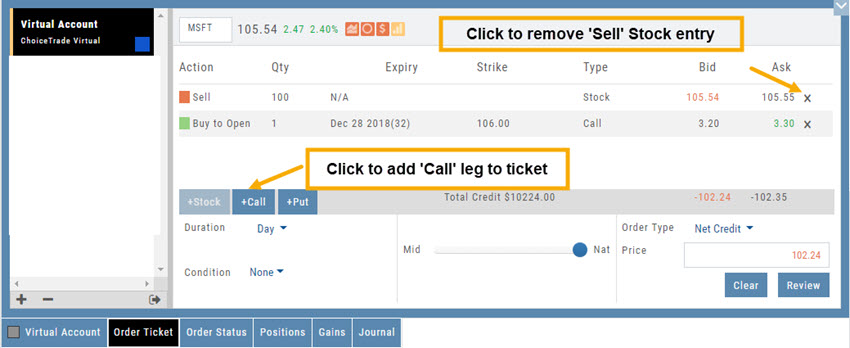
2. Add Call Leg (you’ll adjust this later) & Delete Sell Stock entry line:
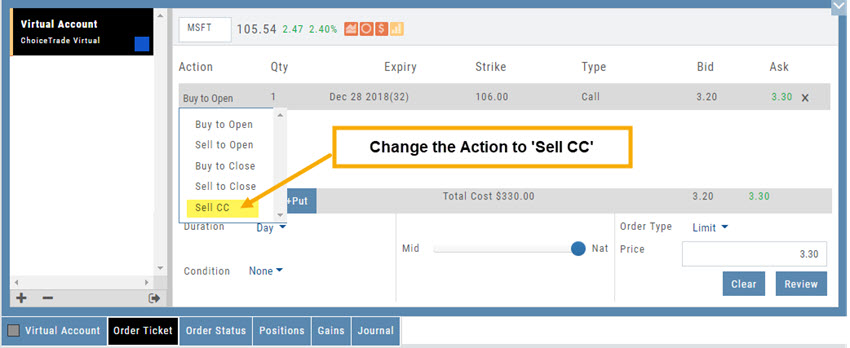
3. Change Action to Sell CC. Make any other adjustments to this Order Ticket, click “Review” to check for accuracy, then “Submit“.
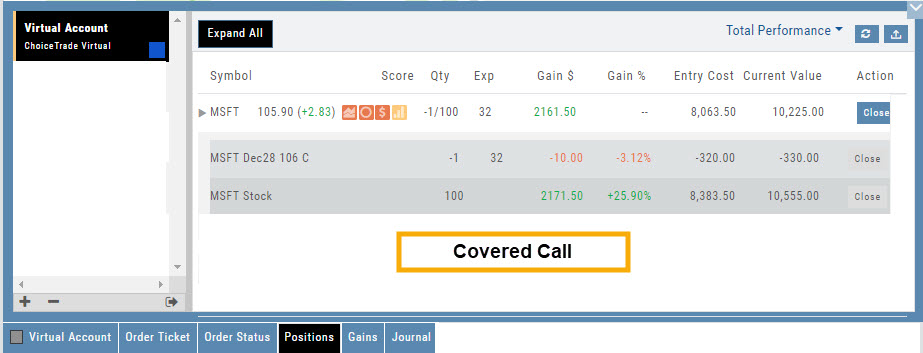
4. After the Order executes, it will show up in the Positions Tab as follows: