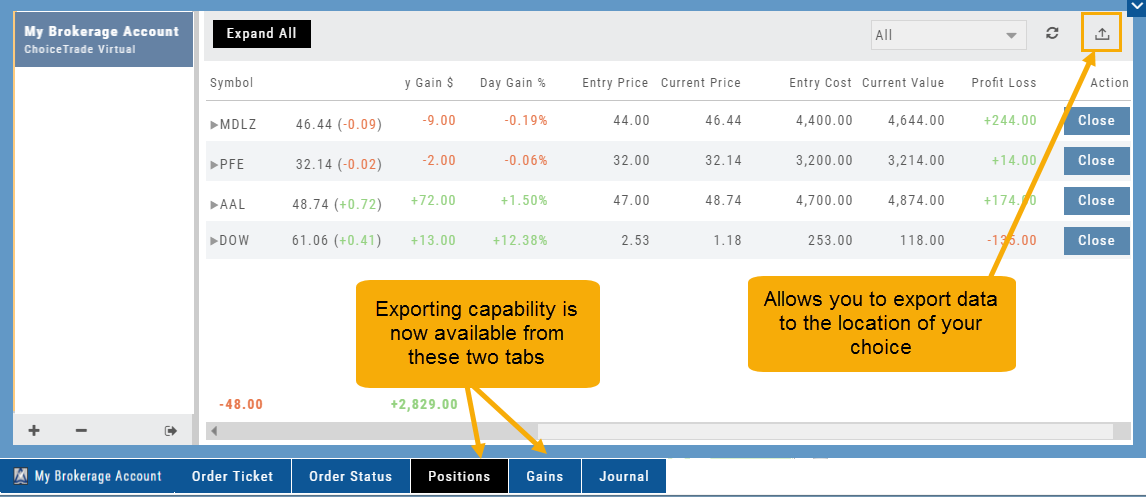
The Positions tab is where open trades live. This short guide covers reading the tab — including expanding multi-leg trades — and working with positions day to day.
You can read straight through, or use the contents list to jump to what you need. Every section below is also a standalone article — the “Open as article” link under each one takes you to it on its own page, if you want to bookmark or share just that piece.
Reading your positions
Positions Tab
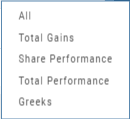
The Positions Tab offers 4 table views of your current trades. You can access these by clicking on the drop-down box in the upper right of the screen. “All” combines the 4 views.
Total gains
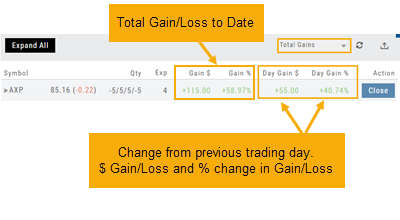
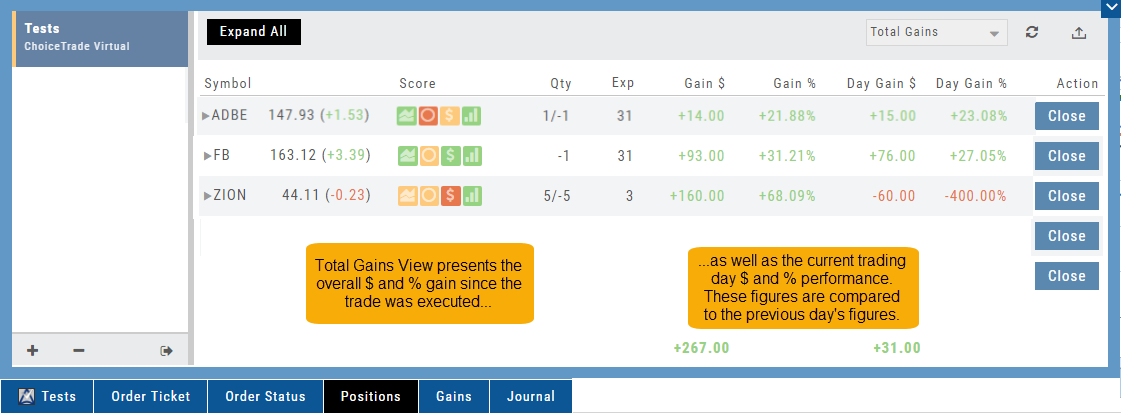
This table view displays the Overall $ and % Gain/Loss and the Daily $ and % Gain/Loss based on the previous trading day’s results.
Share performance
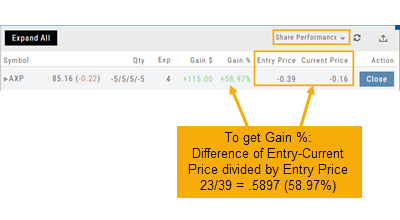
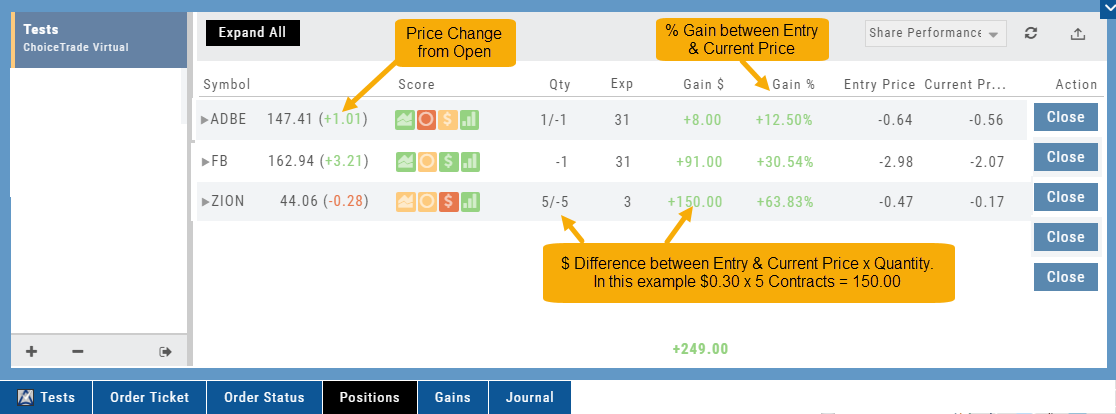
This table breaks down Total Gains by showing Entry Cost compared to Current Value per Share.
Total performance
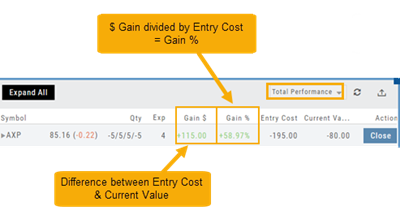
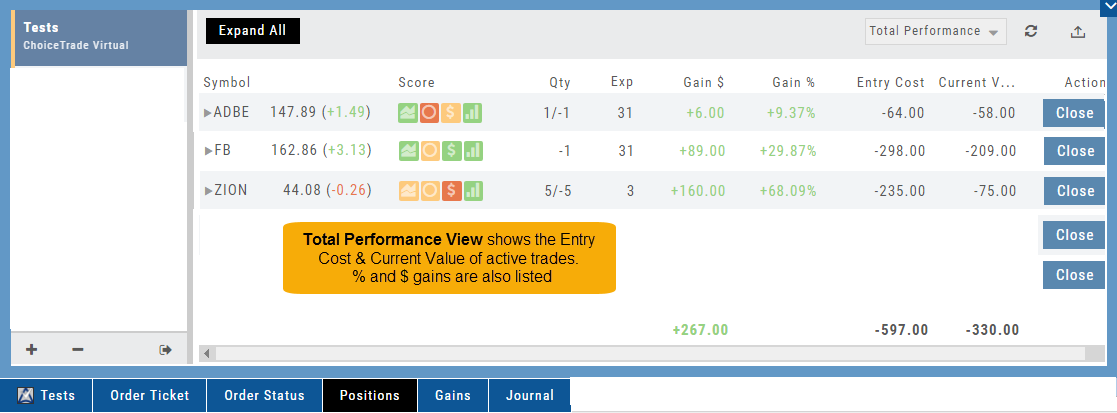
Similar to Share Performance, but shows Total Entry Cost and Total Current Value.
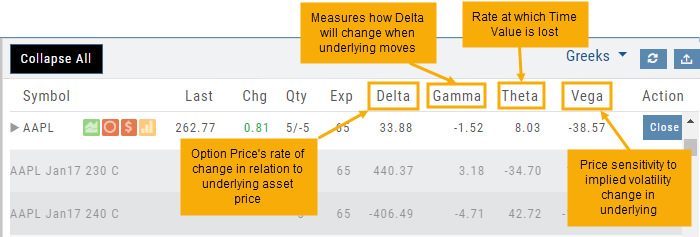
Greeks
Portfolio – Positions
Share performance view
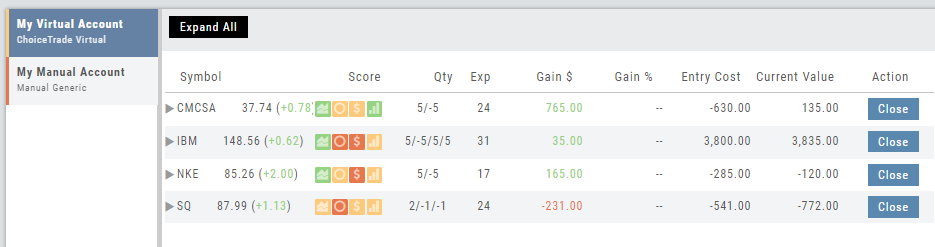
This view keeps information simple. Aside from the Stock symbol, latest stock price, (price change since open), The Score, Quantity (Lots/Contracts), it shows:
$ Gain (Entry Price – Current Price)
% Gain ($ Gain / Entry price)
Total performance view
Similar to Share Performance, this view shows the Entry Cost and Current Value of active trades.
$ Gain and % Gain values are calculated the same way as in the Share Performance view.
Total gains
In addition to Gains $ and Gain %, which are to-date values since the trade’s inception, this view displays Day Gain $ and %. The latter show performance on the current trading day in relation to the previous trading day.
In this example on ZION: The previous trading day the $ Gain = $220, and Current Value = $15.00.
The Current Value ‘today’ is $60.00 (a 400% change).
Expand Trade Detail – Positions Tab
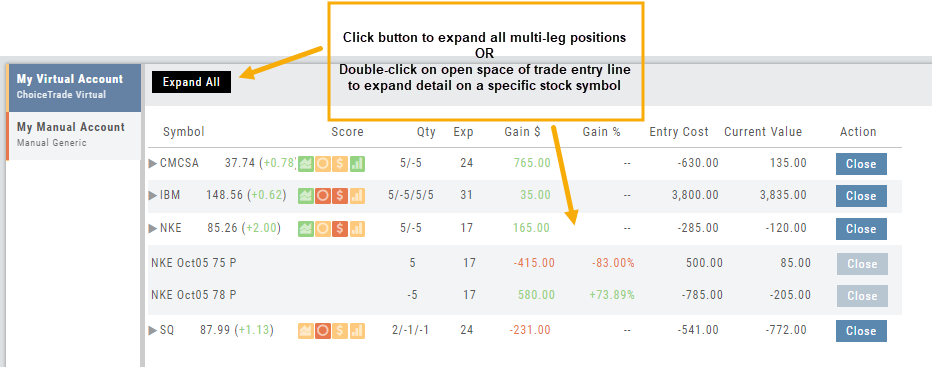
There are 3 ways to expand multi-leg trades in the Positions Tab.
Smart Icon – Click on the  icon to the left of the stock symbol, select ‘Expand/Collapse’. Repeat to close.
Expand All – Click the button above the trade entries if you wish to expand all multi-leg trades. Once clicked, the button will change to Collapse All.
Double-Click – if you want to expand one trade or specific trades, simply ‘double-click’ on an open space of the trade entry line. Repeat to close.
Working with positions
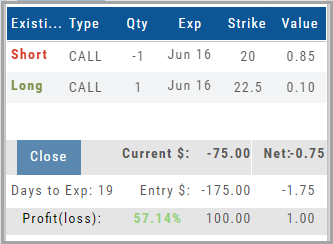
Evaluate Existing Positions
Positions will automatically show on the options chain for the active brokerage account.
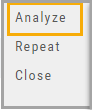
You can also access directly from Broker Positions. Select “Analyze” from the Action menu.
This will display the current values as well as entry cost and current P/L.
Here you can also close the position or evaluate adjustments on the trade.
Position Download Ability
Downloading/exporting capability added to the Positions tab.
This feature is also available in the “Gains” tab.
This allows even greater flexibility with record-keeping from the Journal/Brokerage Account.