
Order Ticket (options)
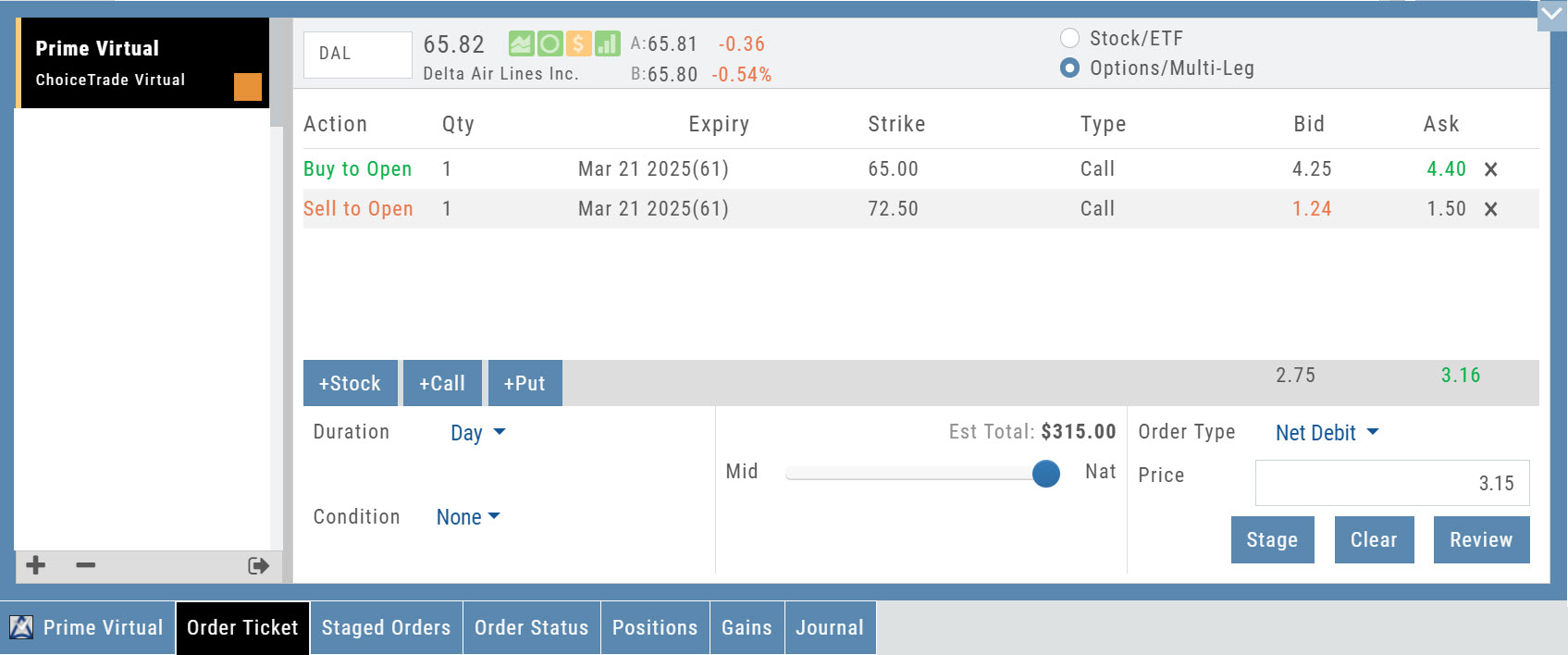
Also listed: Latest stock price, $ and % change, The Score icons
The activated account. If you wish to switch accounts, click on this tab to display all accounts. Then click on the account tab you want.
You can attempt to get a better entry/exit price on a trade by sliding the bar between the Natural ( Nat ) price and the Midpoint price between Bid and Ask ( Mid ).
You can adjust the trade by clicking on these tabs. Once added to the order screen, you can further adjust by changing Buy/Sell, Strike prices, Expiration dates, etc. Caution: Changing any portion of the trade can greatly affect the it\\\\\\\\\\\\\\\\\\\\\\\\\\\\\\\\\\\\\\\\\\\\\\\\\\\\\\\\\\\\\\\\\\\\\\\\\\\\\\\\\\\\\\\\\\\\\\\\\\\\\\\\\\\\\\\\\\\\\\\\\\\\\\\\\\\\\\\\\\\\\\\\\\\\\\\\\\\\\\\\\\\\\
Note: Changing the structure of the trade here may result in a completely different strategy. In some cases, you may not be able to submit it for execution. A better idea is to click \\\\\\\\\\\\\\\\\\\\\\\\\\\\\\\\\\\\\\\\\\\\\\\\\\\\\\\\\\\\\\\\\\\\\\\\\\\\\\\\\\\\\\\\\\\\\\\\\\\\\\\\\\\\\\\\\\\\\\\\\\\\\\\\\\\\\\\\\\\\\\\\\\\\\\\\\\\\\\\\\\\\\\\\\\\\\\\\\\\\\\\\\\\\\\\\\\\\\\\\\\\\\\\\\\\\\\\\\
How long the order is to be active Day - Current Market day GTC - Good \\\\\\\\\\\\\\\\\\\\\\\\\\\\\\\\\\\\\\\\\\\\\\\\\\\\\\\\\\\\\\\\\\\\\\\\\\\\\\\\\\\\\\\\\\\\\\\\\\\\\\\\\\\\\\\\\\\\\\\\\\\\\\\\\\\\\\\\\\\\\\\\\\\\\\\\\\\\\\\\\\\\\\\\\\\\\\\\\\\\\\\\\\\\\\\\\\\\\\\\\\\\\\\\\\\\\\\\\\\\\\\\\\\\\\\\\\\\\\\\\\\\\\\\\\\\\\\\\\\\\\\\\\\\\\\\\\\\\\\\\\\\\\\\\\\\\\\\\\\\\\\\\\\\\\\\\\\\\\\\\\\\\\\\\
What must be met for the order to fill None - No conditions made AON - All or None (the complete order must be filled or not at all)
allows you to check your trade a final time prior to submitting it to be executed.
Options lists the following fields: Action, Quantity, Expiry, Strike, Type, Bid, Ask Stock lists the following fields: Action, Quantity, Type, Bid, Ask
A Color Identifier is available when adding an account to the platform. Each trade within that account will have this Color Tag for easy identification in the Journal.
Will populate based on where on the platform, you clicked "Trade" or "Buy"
Order Staging (Premium Desktop Feature)
This feature allows the user to save Potential Trades for further consideration to decide the best ones to submit.
Staging is also useful when the Market is closed – to be reviewed when the Market is open to determine if it’s still a high-probability trade.
With one click, you can send to the Research Tab, Move to an Order Ticket or Delete and move on to the next staged order.
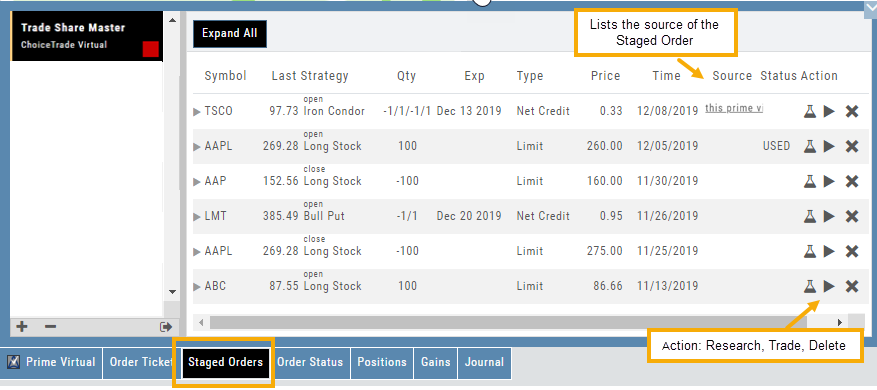
When Trade Sharing is enabled, Trades made in accounts you are following will be displayed in your Order Staging Tab. The Source will indicate the Account Name. Status of “Used” will display for those trades you submit on one of your accounts.
Expired Staged Orders will automatically be removed.
Smart Trade Ticket (stock)
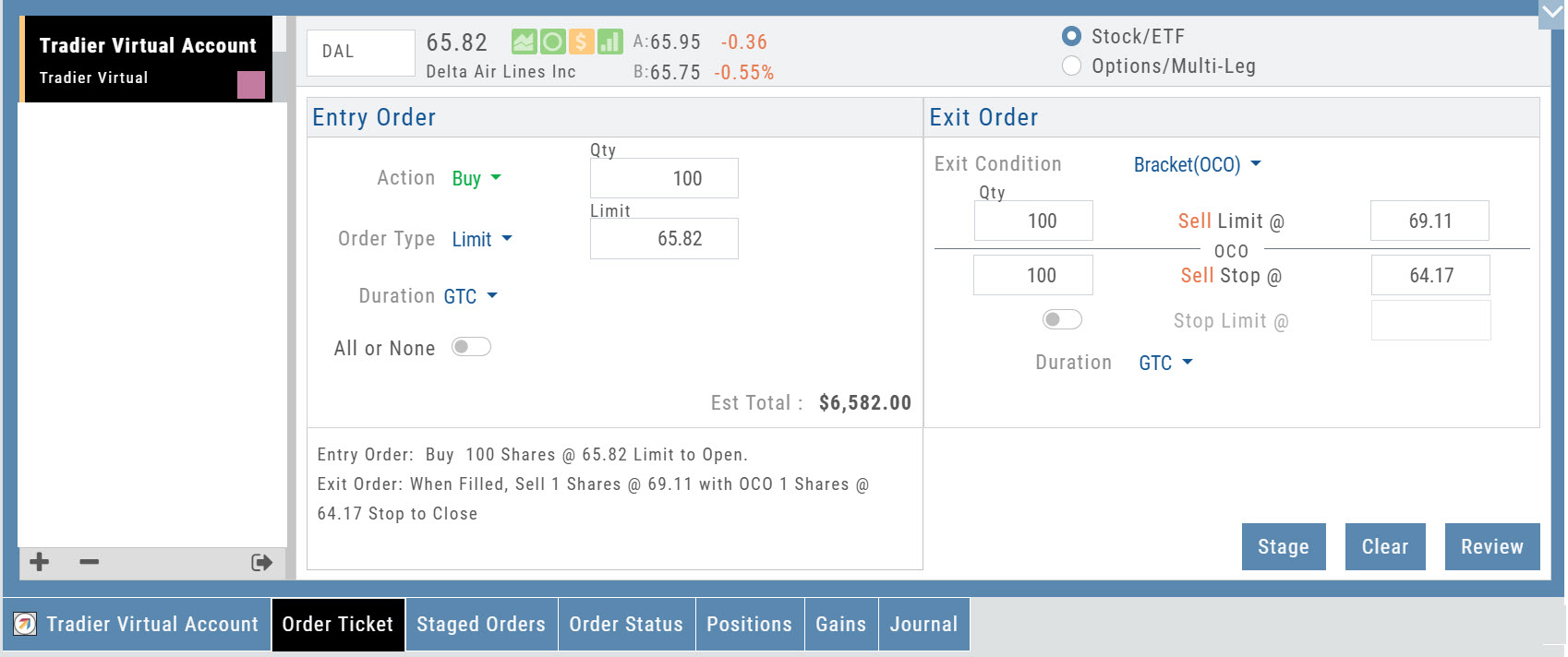
Auto-populates: Symbol, Current Price, Bid/Ask, % and $ change from prior day\\\\\\\\\\\\\\\\\\\\\\\\\\\\\\\\\\\\\\\\\\\\\\\\\\\\\\\\\\\\\\\\\\\\\\\\\\\\\\\\\\\\\\\\\\\\\\\\\\\\\\\\\\\\\\\\\\\\\\\\\\\\\\\'s close
The ticket automatically selects Stock/ETF or Options/Multi-Leg based on where you click "Trade" or "Buy/Sell" on the platform
Click drop-down to view Actions available: Buy, Sell, Sell Short
determined by brokerage Market, Limit, etc.
or G ood T il C anceled
Toggle On for a Stop Limit Order to close Toggle Off for a Stop Order to close Order Types- How to Enter
A Review window will display all Order Ticket details for you to ensure accuracy. Click "Submit" from the Review window to send to the brokerage.
GTC - active until executed or canceled Day - active for Market Day only
Conditional Orders (OCO)
Conditional orders available with Tradier Brokerage
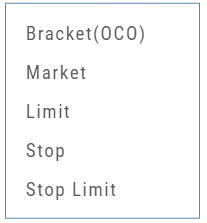
One-Cancels-the-Other (OCO) orders allow two orders to be placed at once, combining a Limit Order and a Stop or Stop/Limit Order. If/when one of the orders gets triggered and is executed, the other order is immediately canceled.
Such orders offer ways to take profits off the table while limiting exposure to losses.
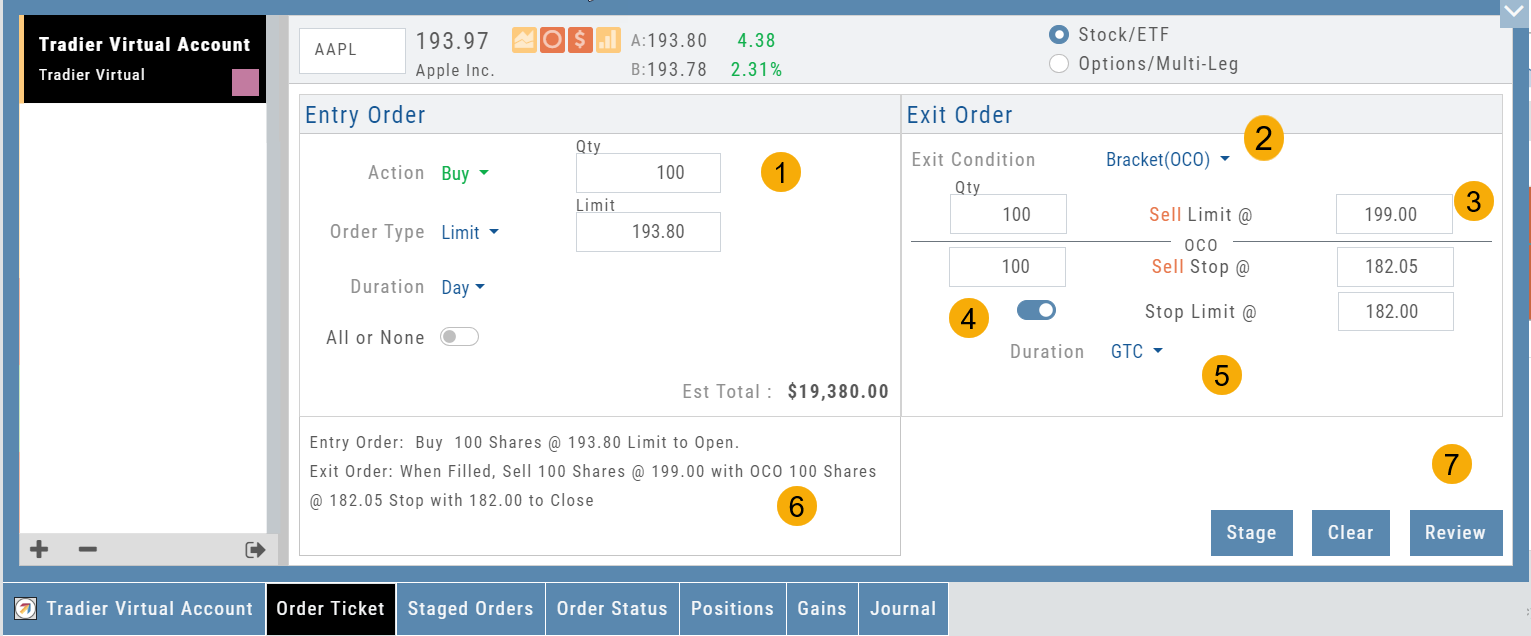
- Opening Order OR the existing Position to Close
- Select “Bracket (OCO)”
- If the trade is favorable, the Limit Price will trigger to close and secure profit.
- If the trade is unfavorable, this Stop (or Stop Limit) Order can limit your loss
- Duration: “Day” or “Good Til Canceled”
- Summary of the Bracket-OCO Order
- Review for accuracy, then Submit on the next screen
Order Staging (Premium Desktop Feature)
This feature allows the user to save Potential Trades for further consideration to decide the best ones to submit.
Staging is also useful when the Market is closed – to be reviewed when the Market is open to determine if it’s still a high-probability trade.
With one click, you can send to the Research Tab, Move to an Order Ticket or Delete and move on to the next staged order.
When Trade Sharing is enabled, Trades made in accounts you are following will be displayed in your Order Staging Tab. The Source will indicate the Account Name. Status of “Used” will display for those trades you submit on one of your accounts.
Expired Staged Orders will automatically be removed.
Balances
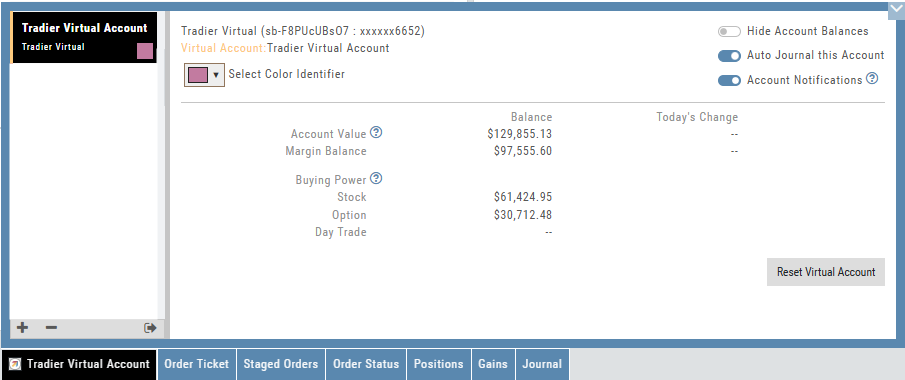
Check box to Auto-Journal each trade The Journal is an integral part of "Learning To Earning". It provides visual feedback of trading history - what is working, what needs additional practice, etc.
When you have multiple accounts, click on the account you wish to trade from. It will automatically highlight and the account tab will display on the bottom left part of the screen.
Remove an account Click on the account to remove. Click on the Minus sign Confirm the action.
Select from drop-down list. Follow steps.
Gives you a clean slate or added funds for your selected Virtual Account. You\\\\\\\\\\\\\\\'ll be prompted to confirm this action.
Add a Color Identifier when adding an account to the platform. All trades within that account will have that color tab, allowing for easy identification in the Journal Tab.
Clicking this box will Hide Account Balances for Live and Virtual accounts
Enable this account to have emails sent to you if you have any position with upcoming activity: Earnings & Dividends - emails are send on Monday Option Expiration - two days before expiration day. Click the ? for more information.
Order Status
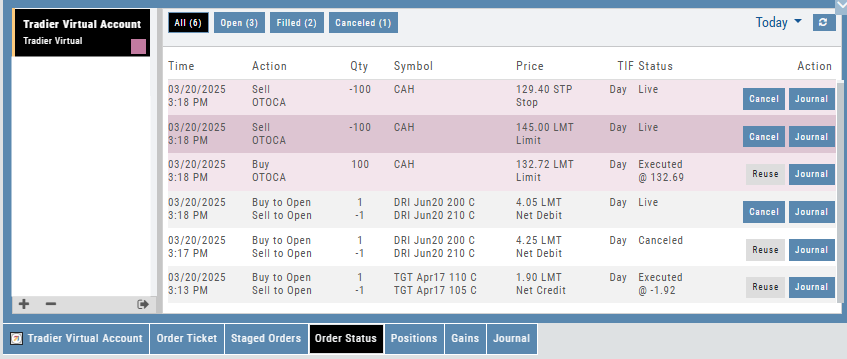
The default view is "Today". Select time frame to search past order status.
a prior trade Useful for prior trades that expired before they could be filled. Canceled Orders can be reused. Example shows one canceled and reused at a better price.
This button also sends information to Journal.
Buy/Sell to Open Buy/Sell to Close
and Price (if not Market)
Shows if order was Executed and at what price it was filled. Also shows trades that Expired or were Cancelled before they were executed.
ime I n F orce Day - only active for current day GTC - Active until Executed or Canceled
Executed Price This Limit Order was executed at a better price: $1.92 credit vs. $1.90 credit
Bracket Order Opening order as well as Target and Stop Orders are placed at same time
= Active Order (NOT trade) Executed = Active Trade Canceled = Can only be done prior to execution Expired = Order did not get executed
Positions
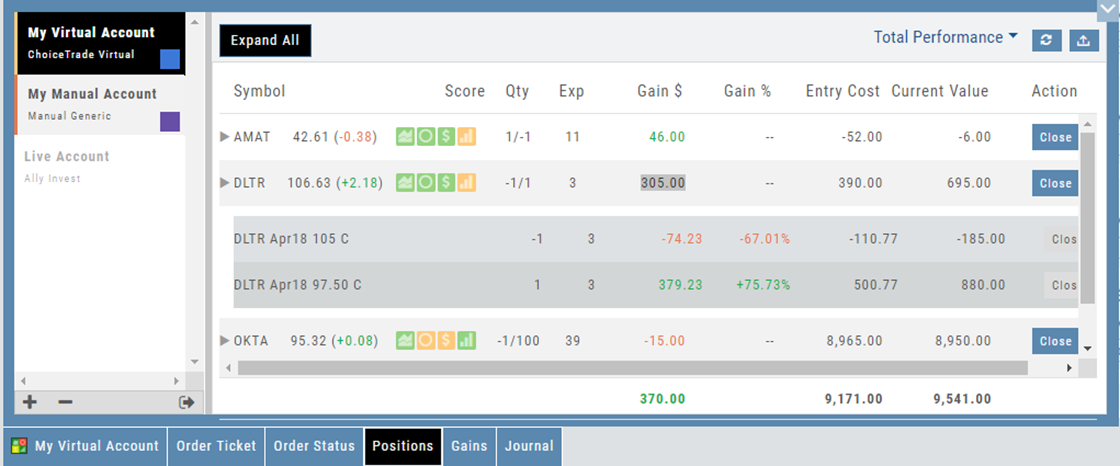
Click to show each leg of trades in current account. You can elect to use the Action Icon to expand specific trades. Click to restore
The Positions Tab offers 4 table views of your current trades. You can access these by clicking on the drop-down box in the upper right of the screen.
Read the full articleto location of your choosing
1 left click on this icon provides ability to navigate to other areas of the platform or perform certain functions:
Overall Gain (Loss) $, Entry Cost and Current Value display on 'parent' line of spread trade Click anywhere (other than symbol or Score Icons) to expand trade to display trade leg detail.
This tab offers 4 views of current trades. Use the drop-down box in the upper-right corner of screen to change from the default "All" view
Positions Tab
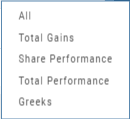
The Positions Tab offers 4 table views of your current trades. You can access these by clicking on the drop-down box in the upper right of the screen. “All” combines the 4 views.
Total gains
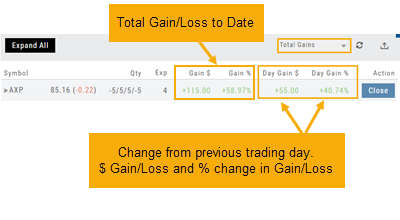
This table view displays the Overall $ and % Gain/Loss and the Daily $ and % Gain/Loss based on the previous trading day’s results.
Share performance
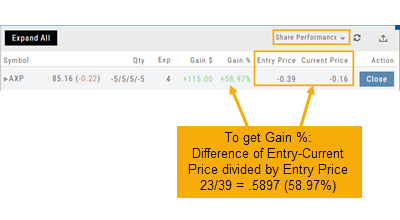
This table breaks down Total Gains by showing Entry Cost compared to Current Value per Share.
Total performance
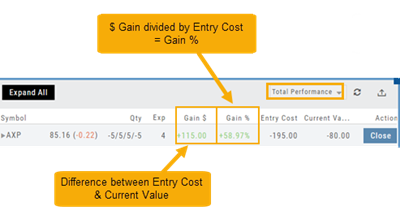
Similar to Share Performance, but shows Total Entry Cost and Total Current Value.
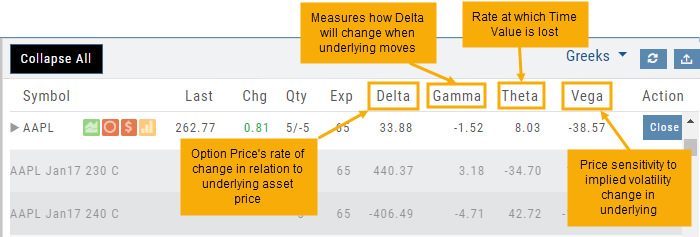
Greeks
Gains
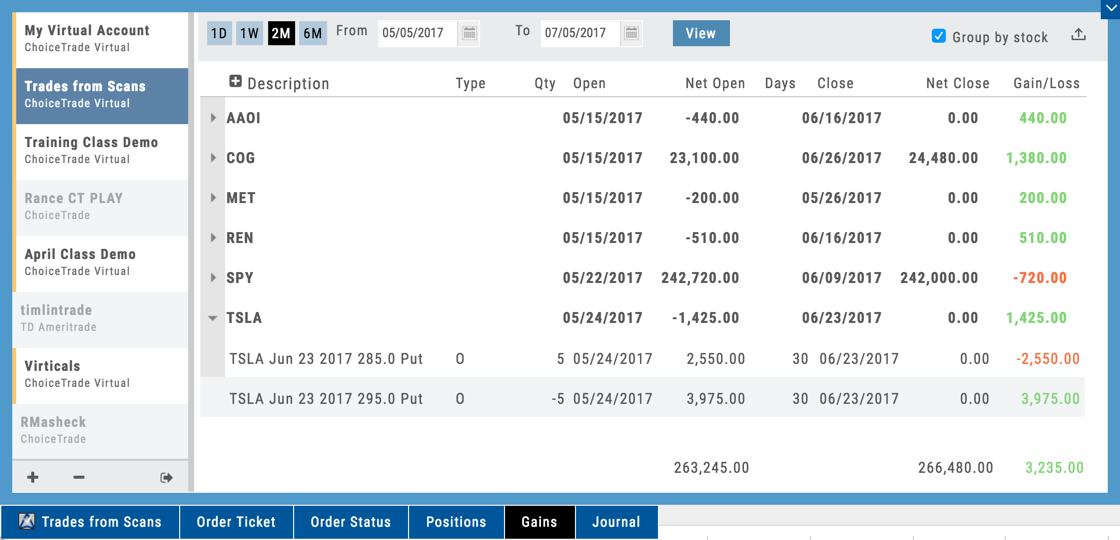
Search for past trades predetermined timeframe or use the calendars to the right for a customized date range.
Groups trades by symbol in alpha-order
Click to Expand Details of trades on an individual symbol. Click again to collapse.
Strike, expiration, date opened/closed, gain/loss, etc.
Mobile — Balances
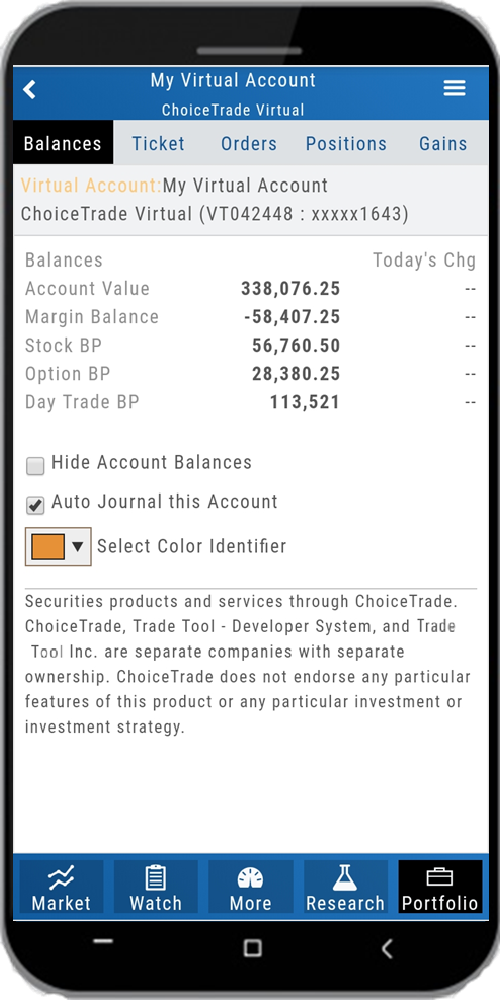
your Account from the Menu Or Add/Delete or Logout of an Account using the icons at the bottom of Account List:
Click on drop-down to Select Color for easier Account/Trade identification.
Make sure this box is checked to Journal all Order/Trade Entries in your account.
Mobile — Order Ticket
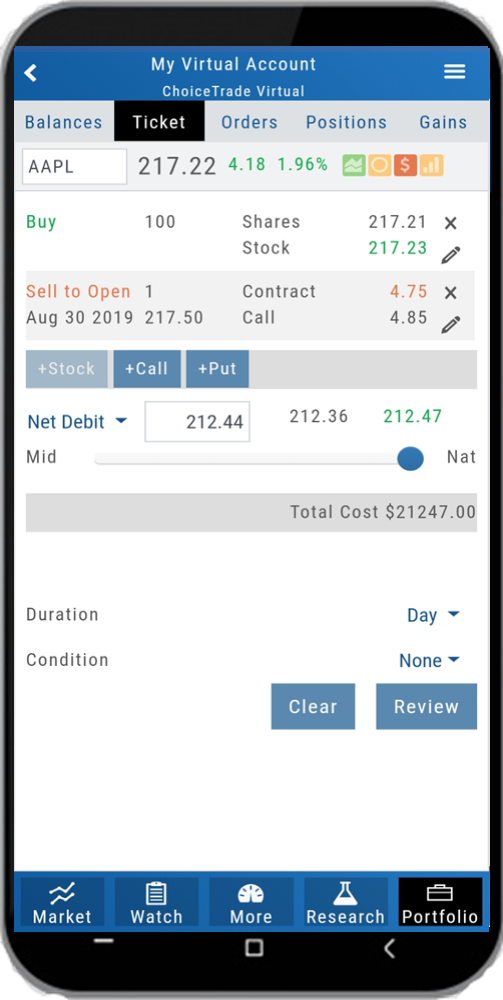
Use slider to adjust between Natural Price and "Mid" (halfway point of Bid/Ask)
Condition varies by brokerage "None" and "AON" (all or nothing) are common
Review trade to ensure accuracy and in correct account. Then 'Submit'.
Mobile — Orders
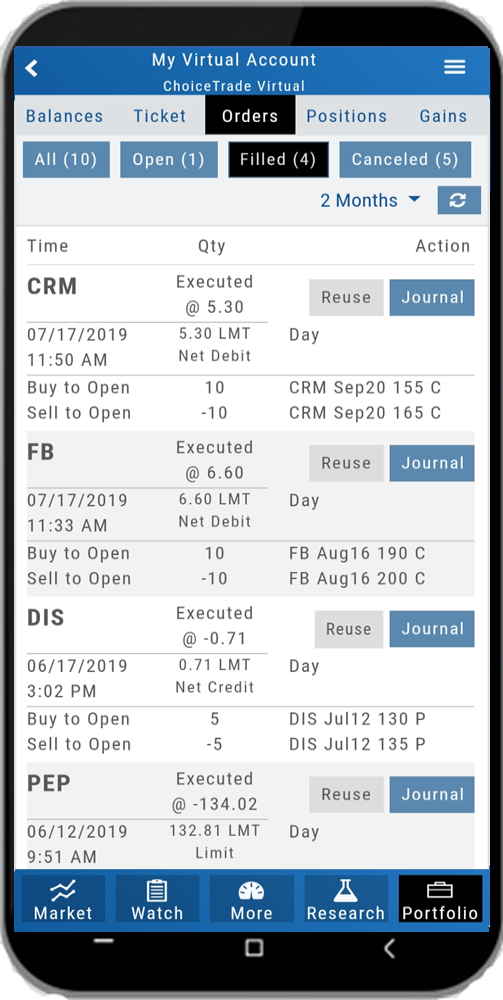
Change from "Today" to previous period to view past orders' status
Filters what type of Orders to view Open - Not yet Executed Filled - Executed Cancelled -Expired/Cancelled before they could execute.
Reuse Order Will be sent to Order Ticket with updated pricing
Send to Journal Note: Auto-Journal feature will automatically do this.
Mobile — Positions
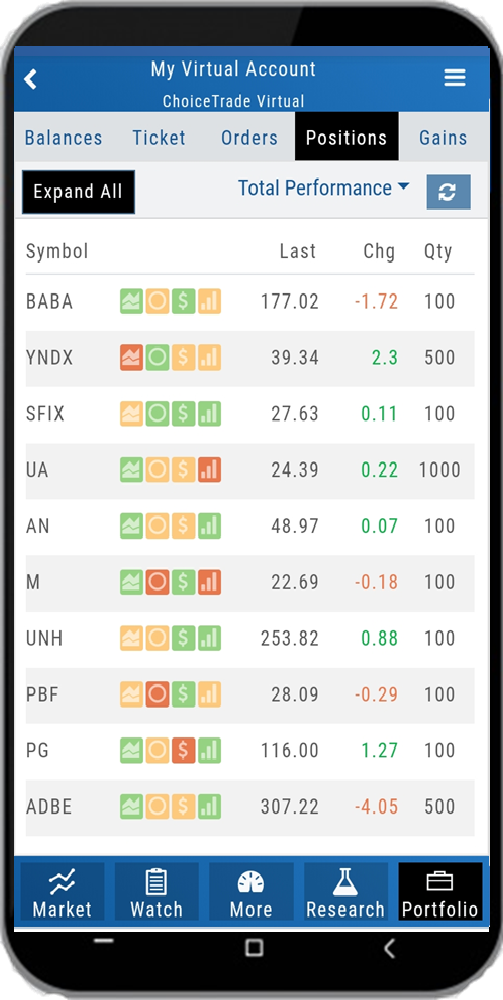
Expand to show option trade details. Helpful for multi-leg trades.
Mobile — Gains
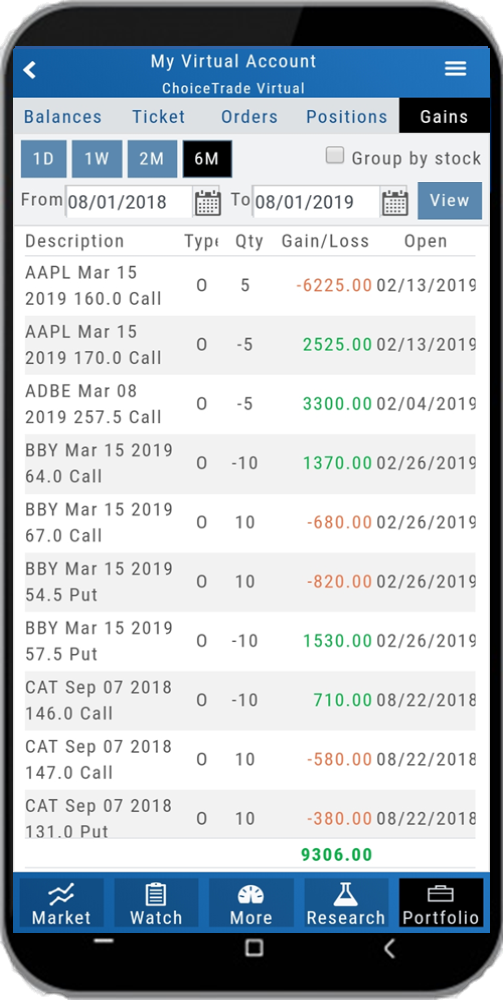
You can also filter by calendar dates Up to two years prior to current date
View Gains by set period of time to current date Ex: Past 6 months to current day Or you can use the Calendar to select specific dates.