Everything under your user menu lives here: themes and account options, turning on desktop and mobile notifications, streaming quotes, and the color coding that keeps multiple trading accounts easy to tell apart.
You can read straight through, or use the contents list to jump to what you need. Every section below is also a standalone article — the “Open as article” link under each one takes you to it on its own page, if you want to bookmark or share just that piece.
Your settings, one by one
User Menu
Take a tour, have a question, change the theme – all from one place.
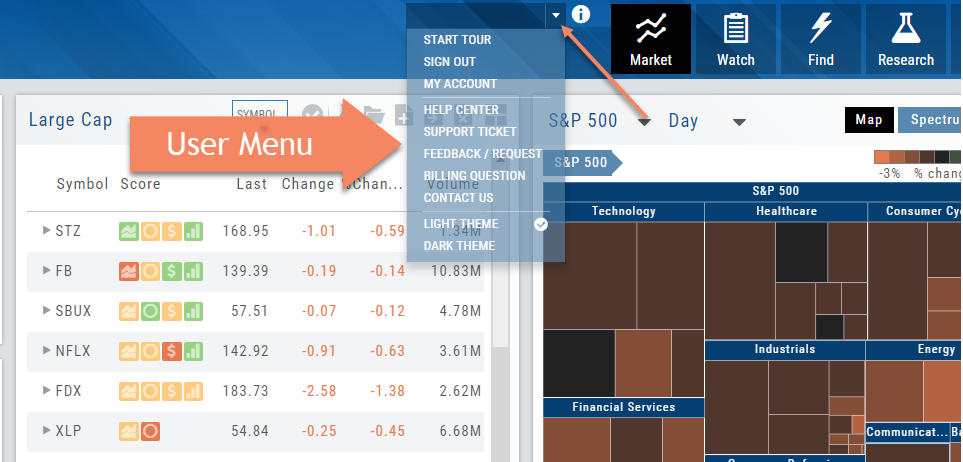
The User Menu is one of the 6-point Navigation system of this trading platform. You can access The Help Center from here, ask a support question, check your account, suggest a feature idea or provide feedback on the platform, even change the platform ‘theme’ (example “light” or “dark”) and more.
Enabling Notifications
Below is a general guide to enabling Notifications on your Desktop/Laptop and Mobile devices.
Please note: Settings/Configurations vary by device. It is important for you to be familiar with your system/device. When in doubt, refer to the Help function on your computer/phone. An internet search of ‘How do I…” for your device is also helpful.
Macs
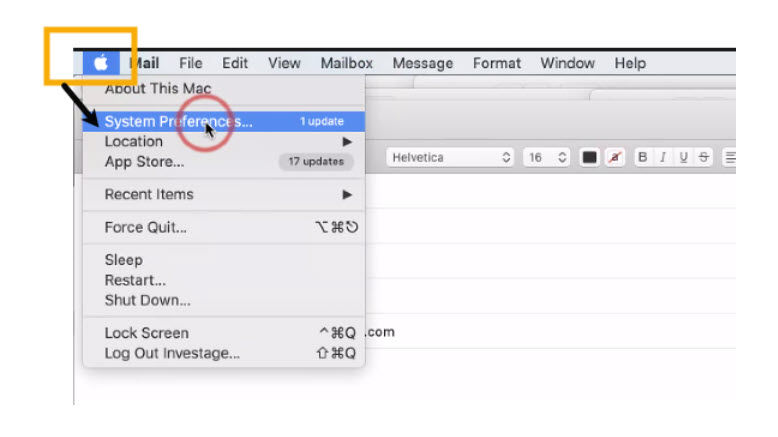
- Open the Apple Menu
- Select System Preferences
- Select Notifications
- Select Browser
Hint: While on the platform, click on the Lock Icon in the browser bar to check status of/enable notifications.

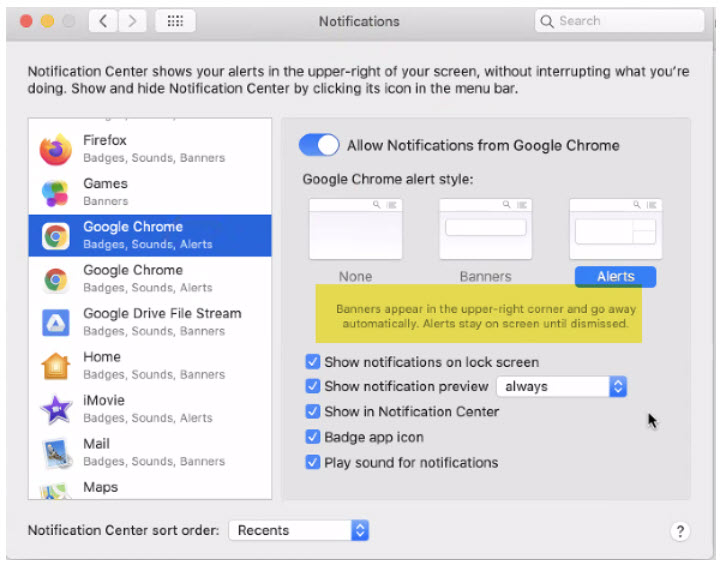
Customize how you want Notifications to display.
- Allow from Browser
- Banners or Alerts
- Allow Sound
- Sort functions – how often, when, what, etc.
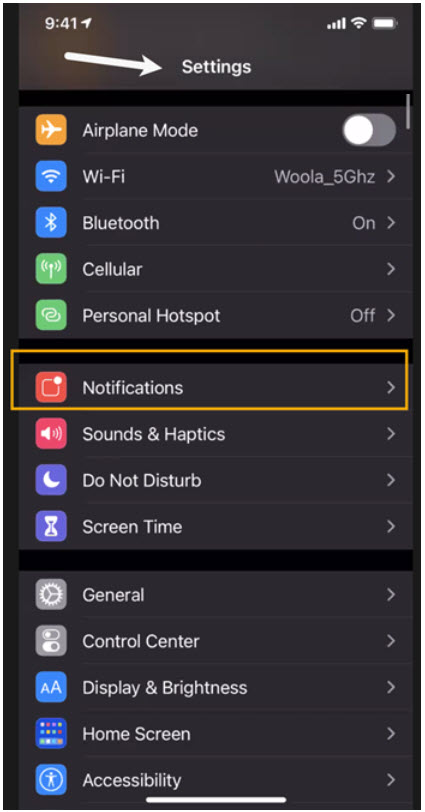
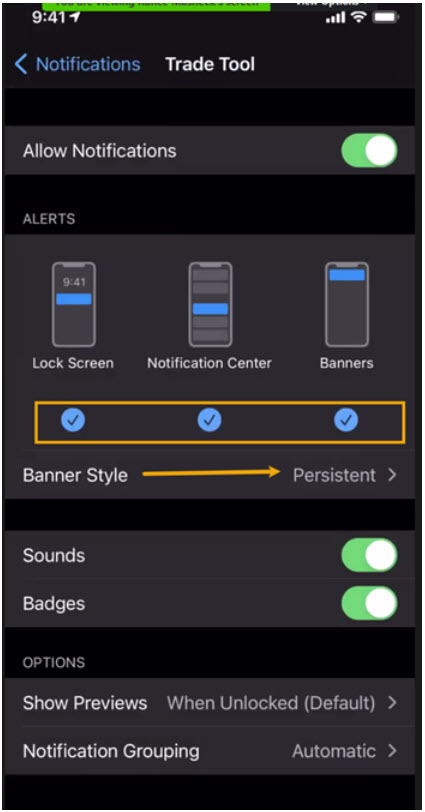
iPhone/iPad
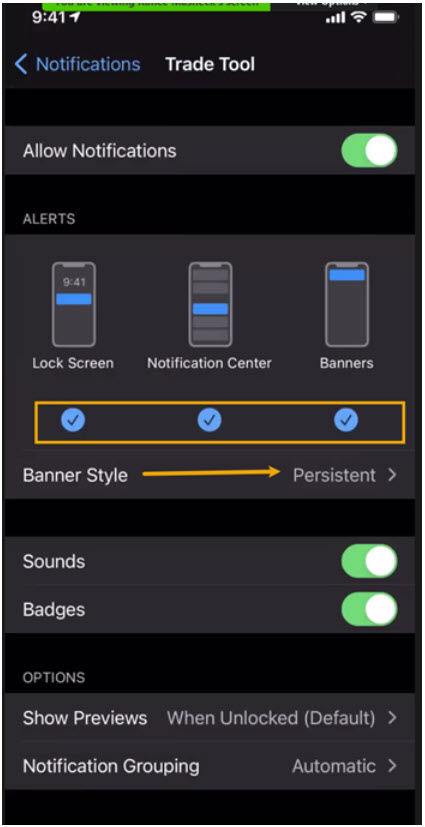
Follow illustrations: Settings>Notification>App>Customize
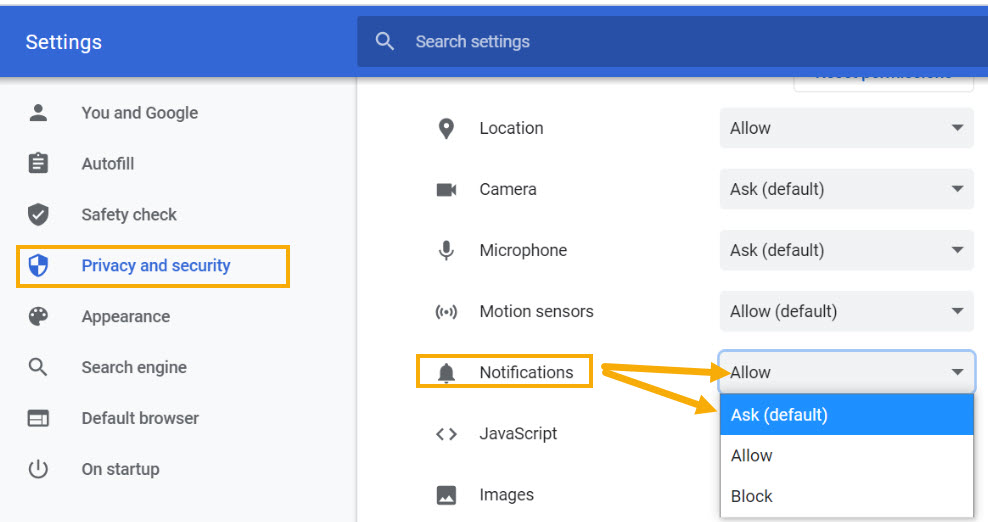
PCs
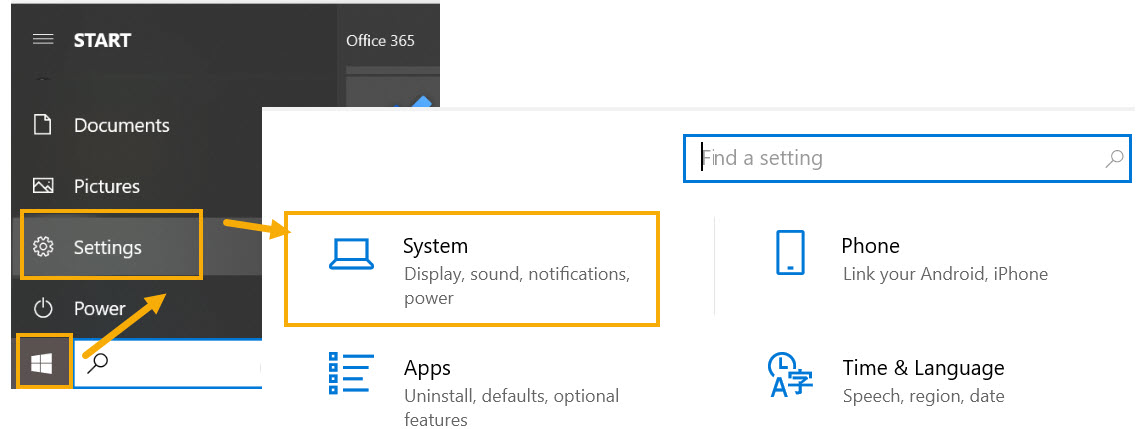
- Click the Windows Icon to access PC Menu
- Select Settings>System
- Select “Privacy & Security” on the next window
- Under “Notifications”, select either “Allow” or “Ask”
Hint: While on the platform, click on the Lock icon in the browser to check the Notification status
Android/Tablets
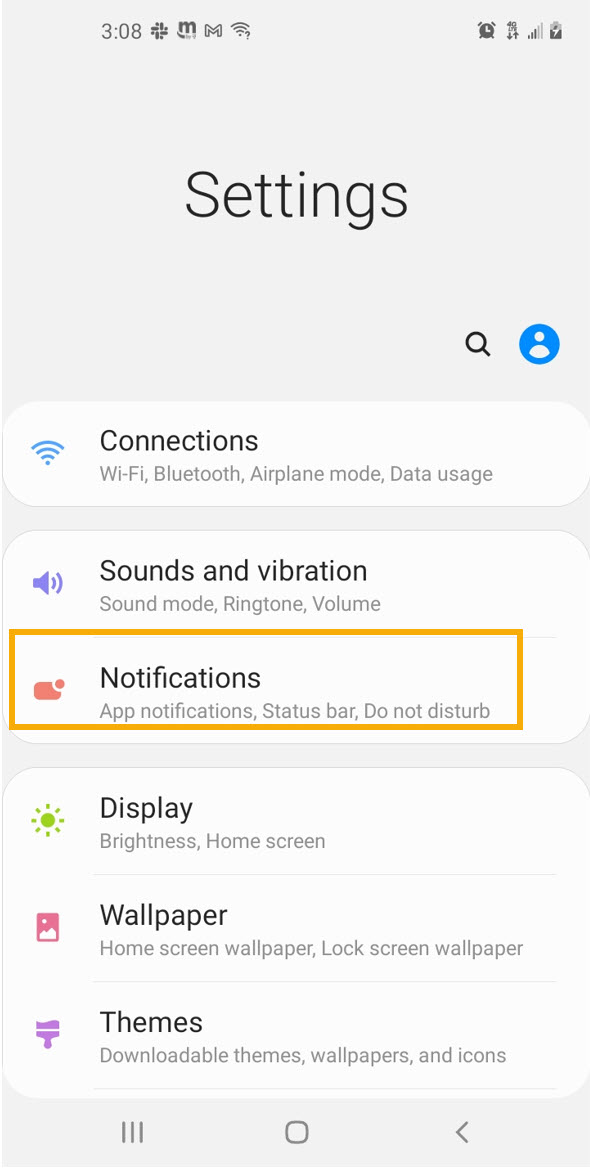
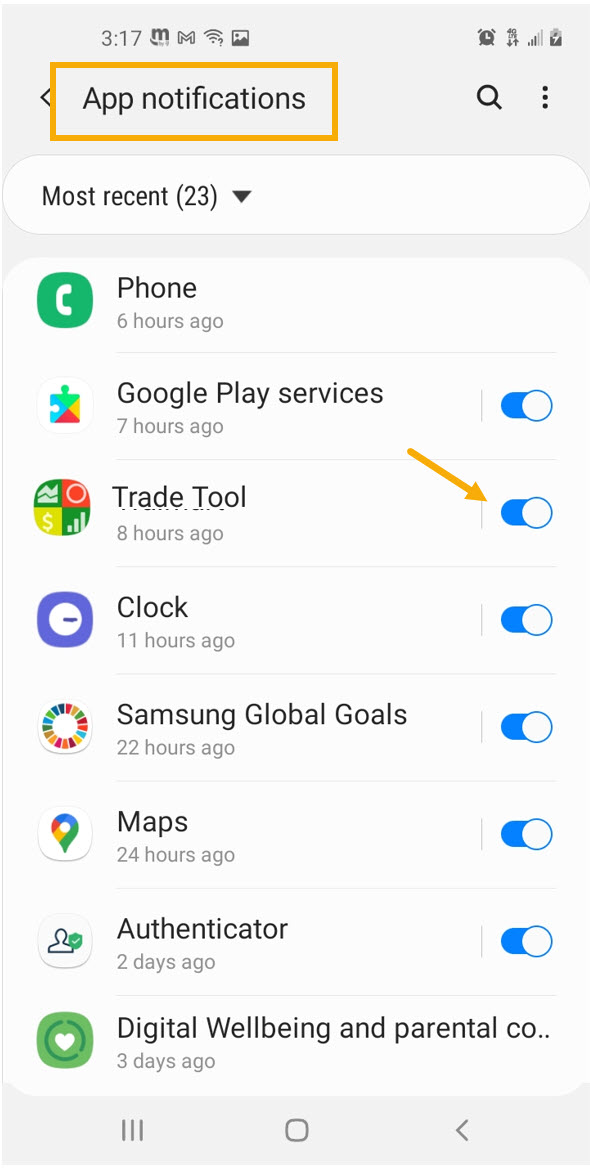
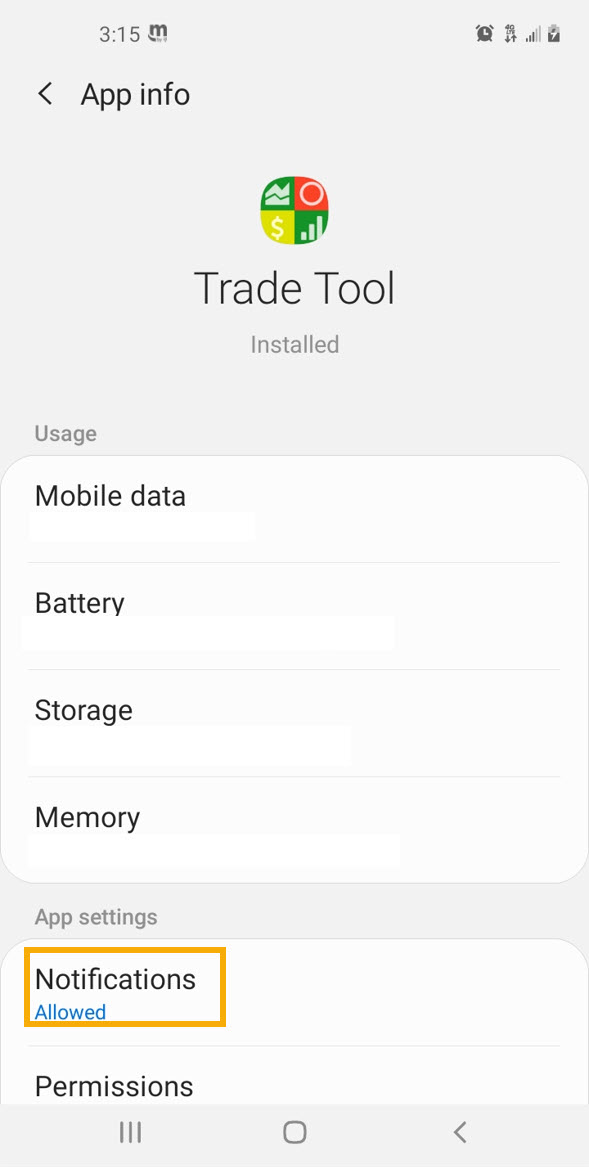
Follow illustrations: Settings>Notifications>Apps>Customize/Manage
Streaming Available in the Platform
Real Time Streaming Available
Real Time Streaming Data is available in the platform.
This will provide real time quotes with streaming updates.
Through our data partner, Quote Media, you can add real time streaming data.
The Non-Professional subscription is approximately $20-25/month which includes Exchange fees for NYSE, AMEX, NASDAQ, OPRA (options), and Dow Indices.
The streaming quote subscription renews automatically at the first of the month until canceled.
How to Activate Real Time Streaming Data
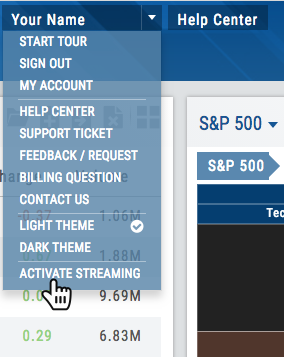
- Select Activate Streaming from your user menu in the header.
- Enroll in streaming on the following pages.
- Once enrolled, return to the platform and click Start Streaming.
Special Notice:
Streaming data provided by Quote Media and through your exchange agreements. Your agreement for streaming data is with Quote Media and you will be charged by Quote Media for this service.
Please note that streaming data is prepaid and is not refundable.
Exchange and Real Time Fees are subject to change. Rate changes will be posted 30 days prior to effective date. User agrees to these fees as indicated above.
You can cancel any time by selecting Cancel Streamer from the user menu.
Color Code Your Trading Accounts for Easy Identification
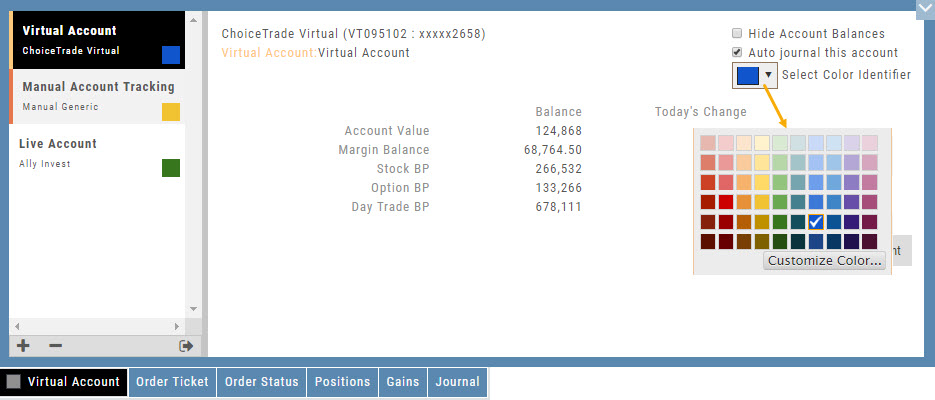
Select a unique color for each trading account on the Account Summary tab. Each trade in that account will display that color on the Journal trade tab entry.
Now it’s easier than ever to identify trades at a glance.