Search for answers or browse our knowledge base.
Alert Functionality (Premium Desktop Feature)
Alert Functionality
Alerts can greatly improve trading effectiveness by notifying you on a potential trade opportunity and help you decide when to manage, enter or exit a trade. Set up Alert notifications based on Last Price, Volume, $ Change, % Change, or % Offset.
If you’ve logged into the platform with either Streaming Quotes or RealTime Quotes through a linked brokerage account *within the last 30 days* – Alerts will be Real Time.
Receive alerts on your mobile device when you have the app loaded and notifications enabled. Due to space available on mobile devices, triggered alerts will be abbreviated but will notify you when your set criteria is reached.
Alert Icons

- Add (+) New Alert – This icon is located on the symbol Quote Box
- Hollow Bell – Active Alert, not triggered
- Shaking Bell – Triggered alert, not yet viewed
- Solid Bell – Alert triggered today, already viewed
- Paused (z) or Used Alert – located in Alert Management Page
Set Your Alert
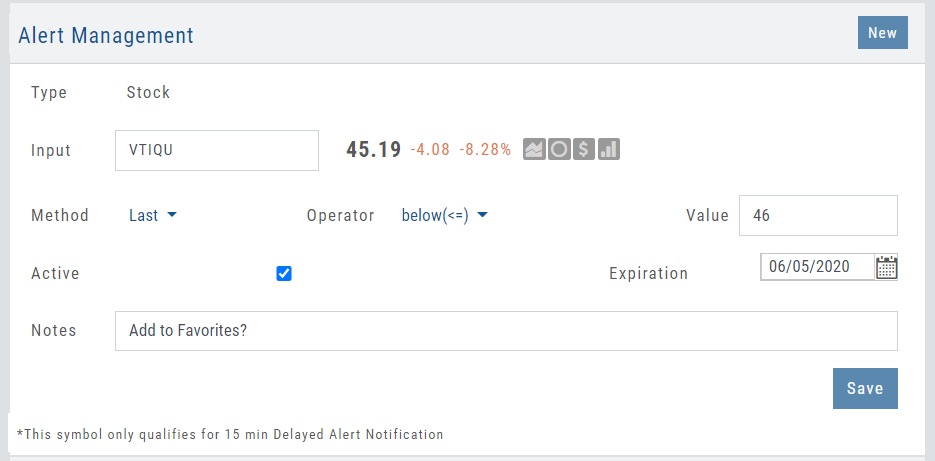
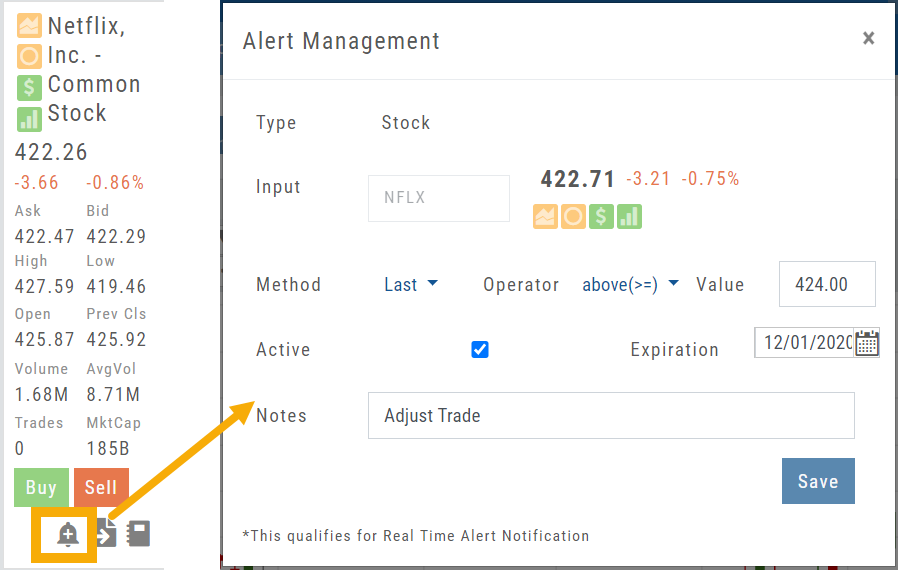
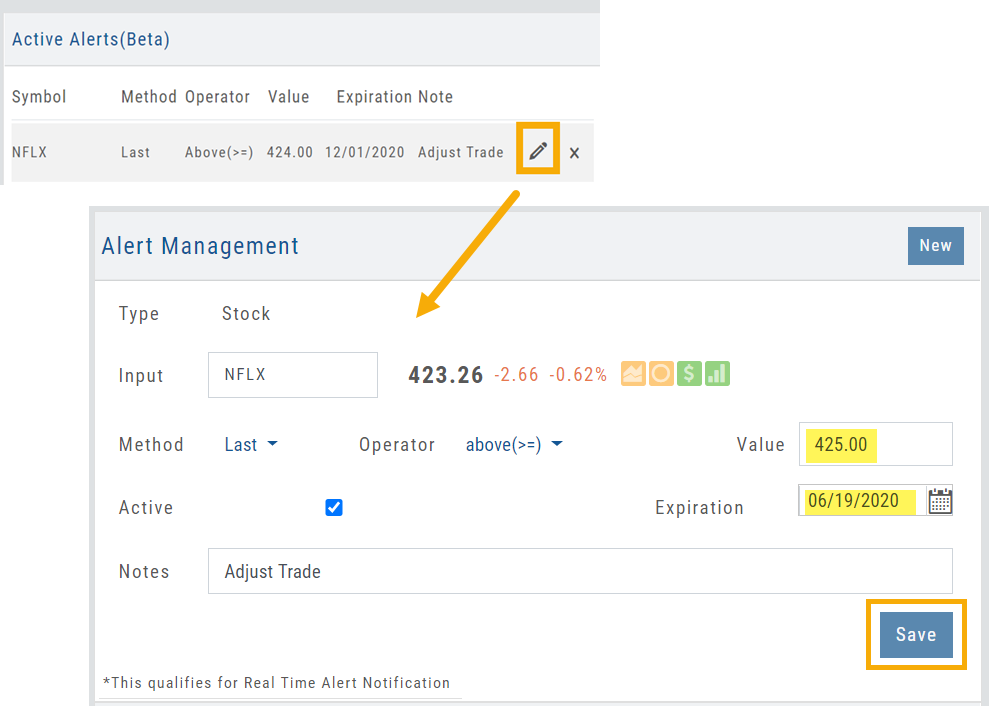
Click the Alert Icon, located on the symbol Quote Box and as shown on the Option Tab for the Chain or Strategy Template. The symbol, Score Icons, Last Price, $ and % Change automatically fill in. To complete the rest:
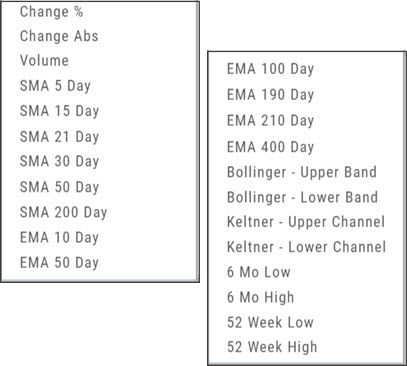
- Select Method: 23 to choose from! See list below
- Select Operator: Above/Equal To or Below/Equal To
- Enter Value: $, % or Quantity (Quantity example: 11,000,000 or 11M)
- Select Expiration: Valid up to 6 months. Click on Calendar Icon to navigate months
- Add Notes, if desired
- Click Save
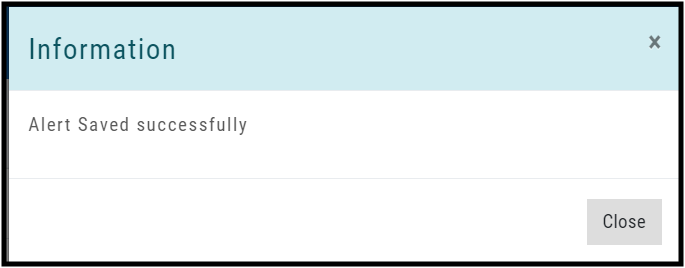
An Information notification appears: Alert Successfully Saved
 =), Value, Active checkbox, Expiration date, Notes field, and Save — with the footnote that the symbol qualifies for Real Time Alert Notification” class=”wp-image-755″/>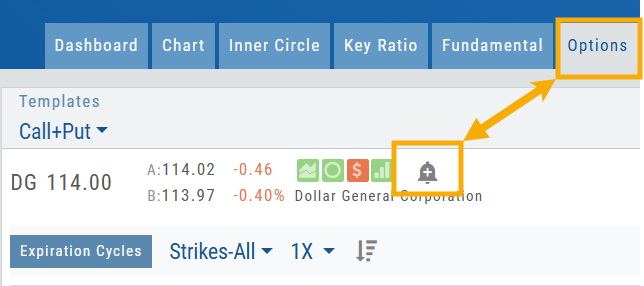
Alert Management
Manage your Alerts by going to: Research Tab>Alerts.
From this page, you can modify or remove alerts, view unread triggered alerts in one location and view prior alerts.
- Select Method: See List on right
- Select Operator: Above/Equal To or Below/Equal To
- Enter Value: $, % or Quantity (Quantity example: 11,000,000 or 11M)
- Select Expiration: Valid up to 6 months. Click on Calendar Icon to navigate months
- Add Notes, if desired
- Click Save
An Information notification appears: Alert Successfully Saved
Active Alerts
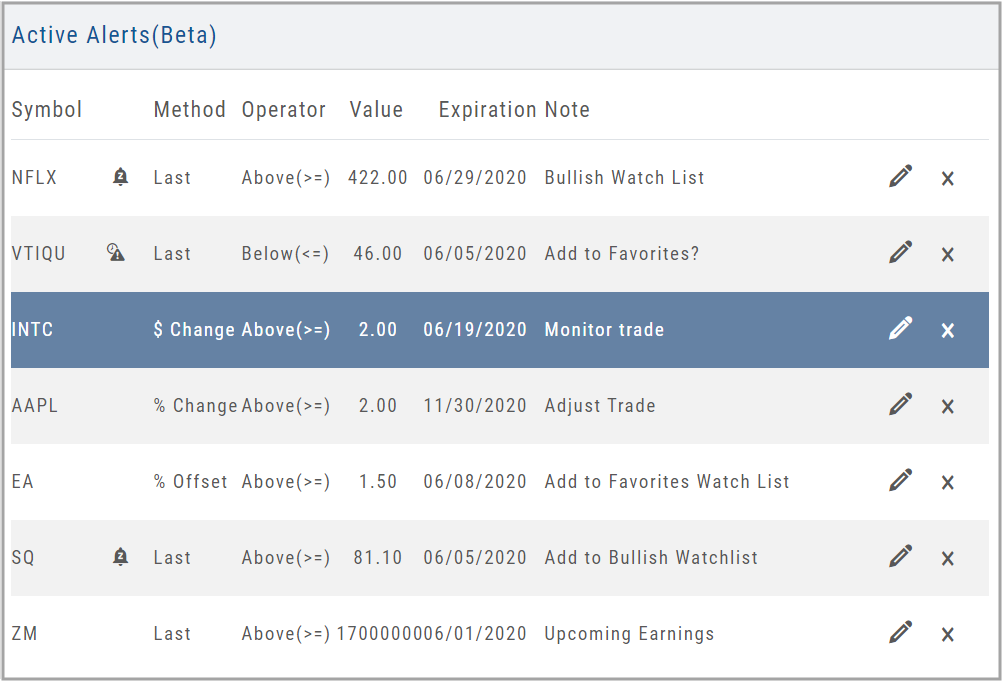
This table lists all active alerts including:
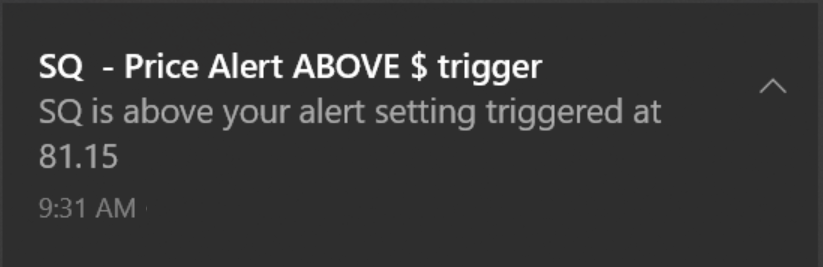
Trigger notification – A bell icon appears if alert was triggered
Delayed Alert icon, if applicable
Settings – Method, Operator, Value
Expiration Date – Alerts can be active for up to 6 months
Notes
Ability to modify or remove from list
Alert Notifications
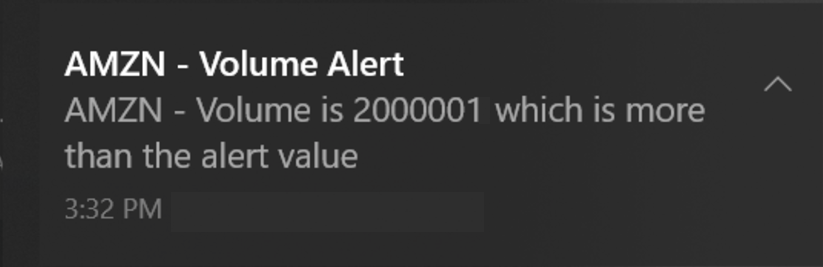
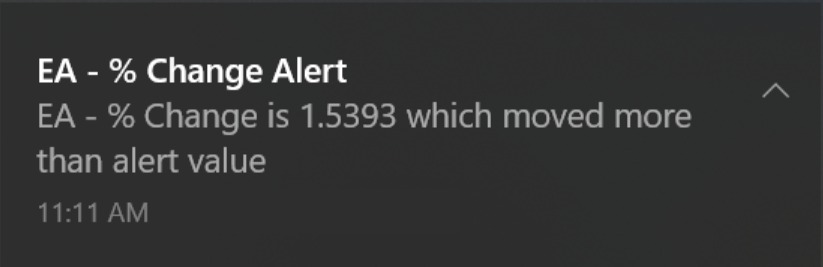
In addition to platform notifications, as long as you allow notifications, alerts can be sent to your computer or mobile device even if you are not logged into the platform.
Hollow Bell
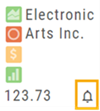
The Hollow Bell indicates this Alert is Active, but has not been Triggered will appear next to the symbol whether on the QuoteBox in Research or on a Watchlist .
Ringing Bell
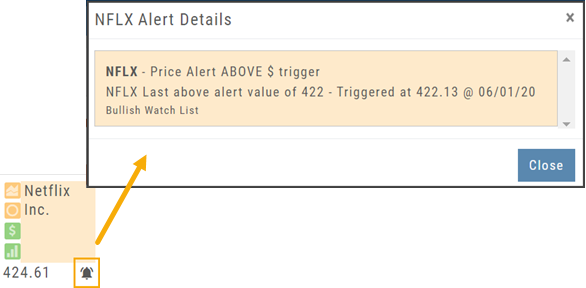
The Ringing Bell icon indicates the alert has been triggered and notification sent out. The highlighted area on the Quote Box or where it appears on a Watch List allows you to access the alert notification by clicking on the bell.
This display will show until the alert is read either from a Watch List, Quote Box or the Alert History section of the Alert Page.
Solid Bell
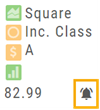
Once an Alert is read or “Marked As Read” on the Alert Notification page, the icon becomes a Solid Bell.
Clicking on the icon will still display the triggered alert until the next Market Day.
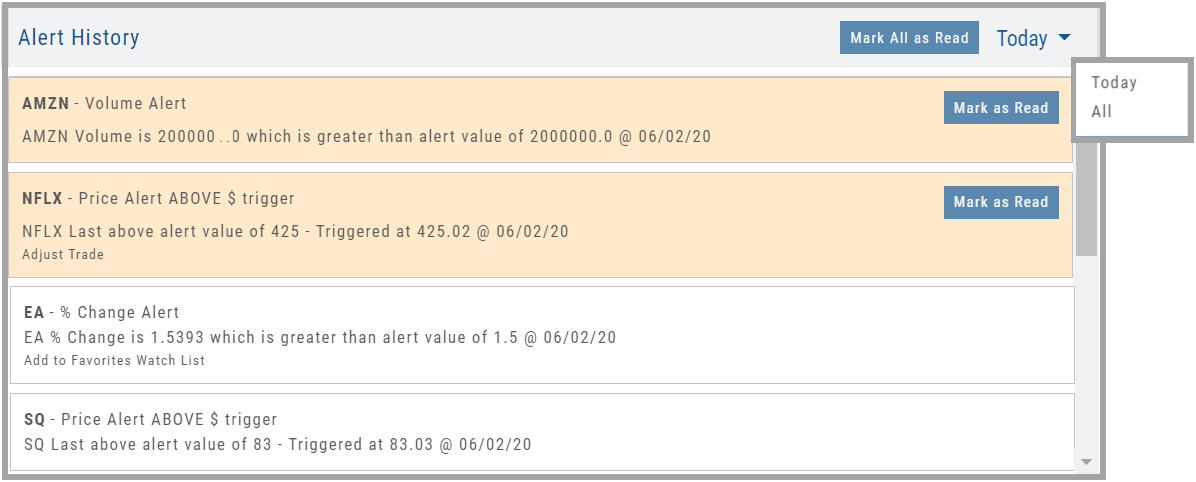
Alert History
This section displays triggered alerts for the time period selected: Today or All. The highlighted entries are Unread Notifications – the notices were not clicked on from the platform.
Click “Mark All as Read” to update entries.
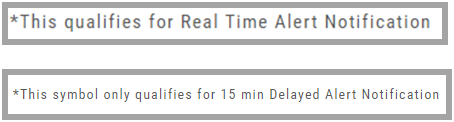
A note about Real-Time & Delayed Alerts
Note: There are two ways 15 minute Delayed Alert Notification applies with Alerts:
1. If it’s been more than 30 days since a linked brokerage account with RealTime Quotes has been logged into – OR – the platform does not have Streaming Quotes.
2. OTC stocks will show as delayed, regardless of RealTime or Streaming Quotes
One of two notices will appear for each Alert.